Time Restriction Policy
Sessions are warned and disconnected by the time defined in the time restriction policy.
To create a time Restriction for the RDP Profile:
- Navigate to Policy > Policy > Add.
- Select the Time Restriction from the drop-down menu and click Next.
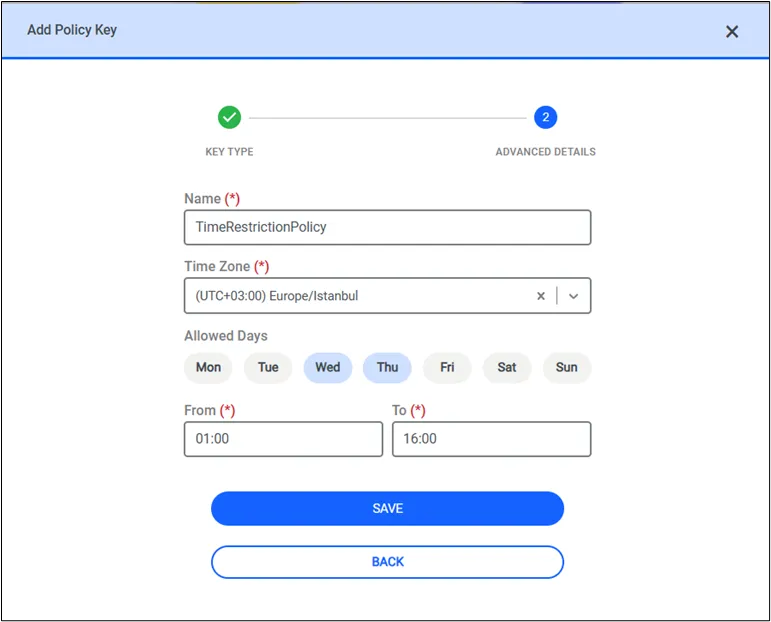
- Fill out the Name and Time Zone fields.
- Select the allowed days and define a time interval for the restriction, and click the Save button.
- The Time Restriction policy now appears in the All Policy Keys section of the policy screen.
To be able to use the Time Restriction Policy, there must be a policy group including rdp profile defined in the realm.
- The timezone list includes a Server Default option, which sets the timezone to the default time zone of the PAM server (e.g., Europe/Istanbul).
- The default value in the Timezone area of the Edit Policy Key shows the UTC timezone offset.
- The input area for hours in the Edit Policy Key is restricted to the HH: MM format (a warning appears if an incorrect format is entered).
Working principle of time restriction policy: When initiating a session, only time restrictions based on the end time are fetched, and the restriction with the closest upcoming end time is applied.
To add this RDP Profile to a Policy Group:
- Navigate to Policy > Policy.
- Click the Add tab.
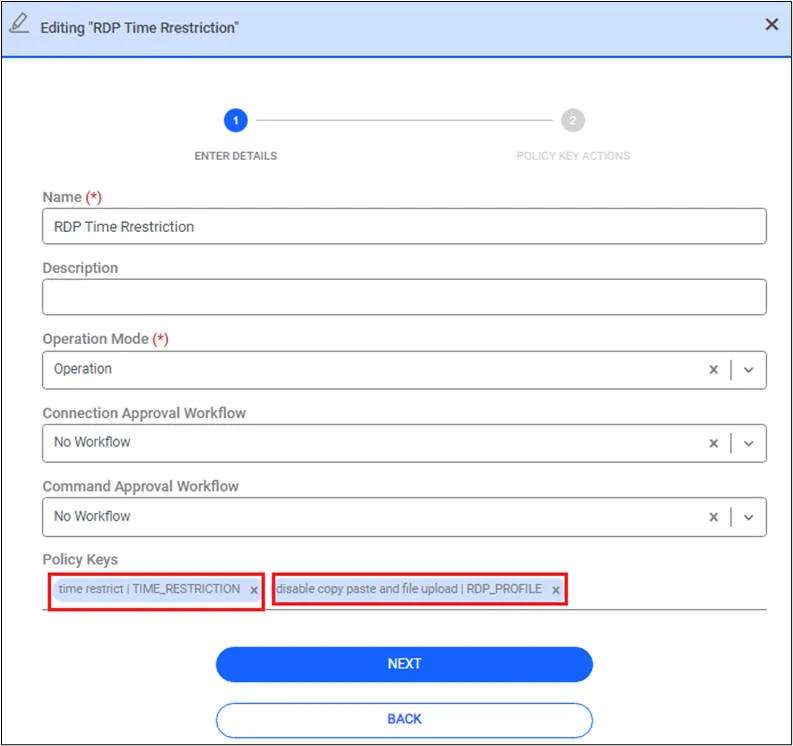
- Select the RDP Profile or Time Restriction and move it to the list box on the right.
- Fill out the required fields.
- Click the Save button.
- Create a group from the Policy Group on the left of the screen and add the RDP Profile.
To link this Policy Group with a Device Group Realm, please refer to section Policy Realm Definition
The profile rules apply whenever an RDP Profile is part of a Policy Group included in a Policy Group Realm for the connection. When it is not included, the Device Properties will apply, regardless of the users that are connecting.