RDP Profiles
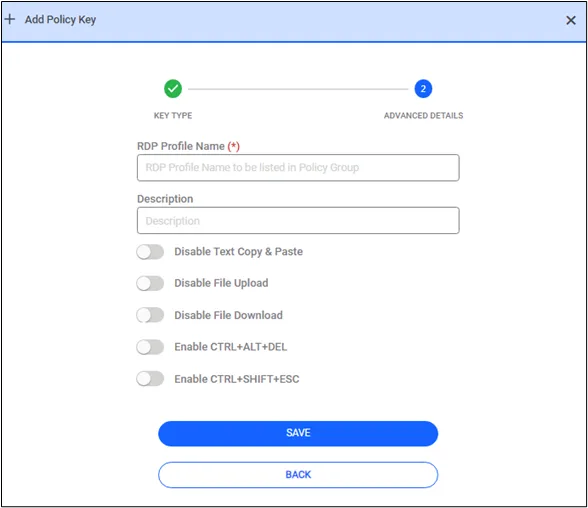
Some of the permissions for RDP sessions can be grouped in RDP profiles. These profiles appear in the Policy Keys list in the Policy Groups screen so that they can be assigned to different Policy Realms to allow or restrict user permissions. Currently, the following permissions can be set using RDP Profiles:
- Disable Text Copy & Paste Copy-paste operations from/to RDP servers are disallowed when chosen. When this option is enabled, the clipboard will be disallowed, but below two options below can be chosen. Copy and paste behavior may vary from browser to browser, as some web browsers, such as Firefox, do not allow applications to reach their clipboards. For our use of the clipboard so far, we refer to Chrome.
- Enable Clipboard from Endpoint to Local Upon disabling the clipboard user can choose to enable clipboard operations from the endpoint to local, this will allow users from extracting clipboard data from the RDP session.
- Enable Clipboard from Local to Endpoint Upon disabling the clipboard user can choose to enabled clipboard operations from the local machine to the endpoint, this will allow users from uploading local clipboard data to the RDP session.
- Disable File Download: File download operations to/from RDP servers are disallowed when selected, or allowed when unselected.
- Disable File Upload: File upload operations to/from RDP servers are disallowed when selected, or allowed when unselected.
- Enable CTRL+ALT+DEL When this option is enabled on the RDP Proxy session, there will be a clickable button
- Enable CTRL+SHIFT+ESC When this option is enabled on the RDP Proxy session, there will be a clickable button
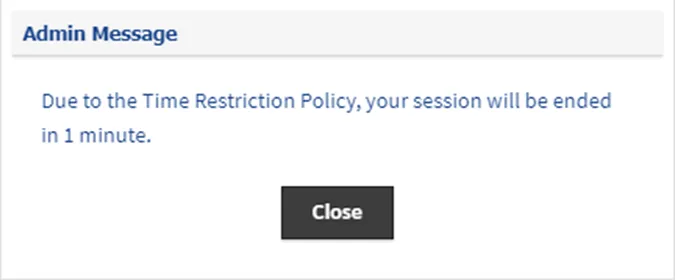
If you want an RDP profile to apply only during specific periods, you can add a time restriction to the policy group. This ensures that the RDP Profile is only active within the defined time frame and behaves as if it doesn't exist outside of these periods. If no Time Restriction is specified in the policy group, the RDP profile always remains active. Before the time expires (about 1 minute), we give a warning that the session will be terminated
To create a new RDP Profile:
- Navigate to Policy > Policy > Add.
- Select the RDP Profile tab.
- Fill out the Name and Description fields.
- Select the permissions to be given and click Save.
- The RDP Profile now appears in the All Policy Keys table.