Change Account Password Manually
Sometimes an account password can be changed manually by another person, or a superior user. In this case, the account password will be updated with the new password. To update the password, follow the steps below:
- Navigate to Secrets>Vault.
- Open the Vault tab.
- From the Options menu of the selected account, select Update Password.
- The Update Password window opens.
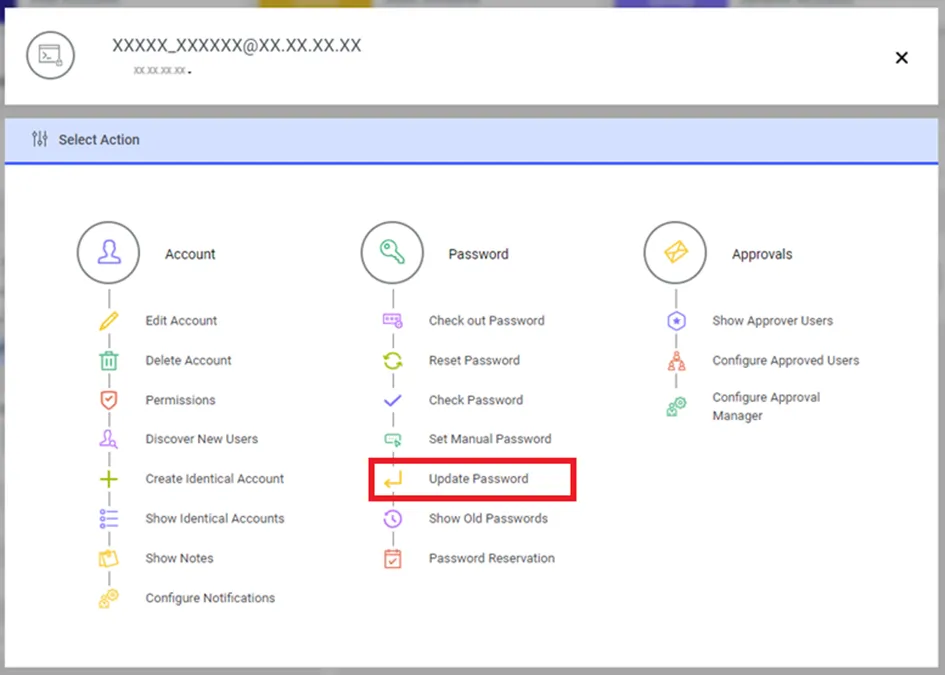
Changing Password Manually
- Update the password by entering the current and new passwords, then click Update.
- The new password value entered by the user on the screen will be masked with "*". If the user wants to see the password value clearly, they can click the ( eye ) button on the screen, and the password will be displayed without masking.
- Write a comment and click Save.
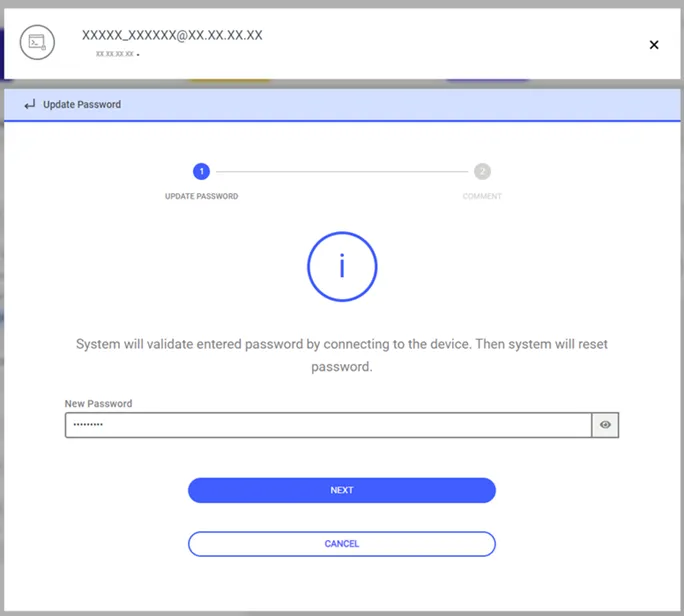
Update Password window
- The Kron PAM will connect to the target device using the new password and will reset the password again.
- If the dynamically configured static accounts’ password in the Password Vault is incorrect, it can be updated manually.
- Static-configured static calculations can be updated without any control.
- If the Vault account's configuration type contains the value SSH_KEY, the corresponding field has been expanded to display up to 65 characters to allow the full SSH_KEY value to be visible. Additionally, a button has been added to the screen to allow the SSH_KEY parameter to be copied. By pressing this button, the user can copy the SSH_KEY value to the clipboard and use it wherever needed.
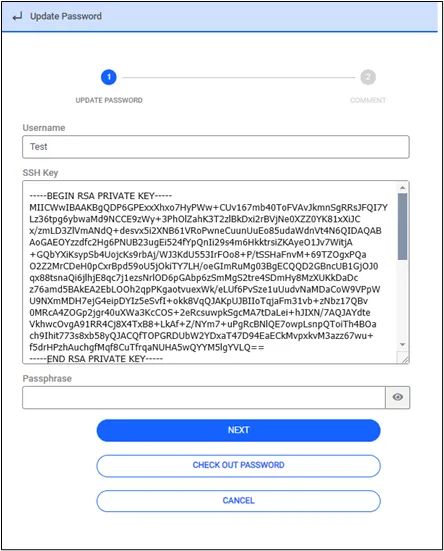
Update Vault with SSH_KEY configuration