Assigning Kron PAM Credentials to Target System Accounts
In some cases, Kron PAM users are connected to target devices with different credentials. In other situations, there are more than one privileged user account in the target system and different user groups use different privileged accounts to log in to them. The Assigned Credential feature matches the Kron PAM users with the target device users.
In the example below, User A wants to connect to the target system with Account X and User B wants to connect to the target device with Account Y. In this case, User A is assigned to Account X, and User B is assigned to Account Y.
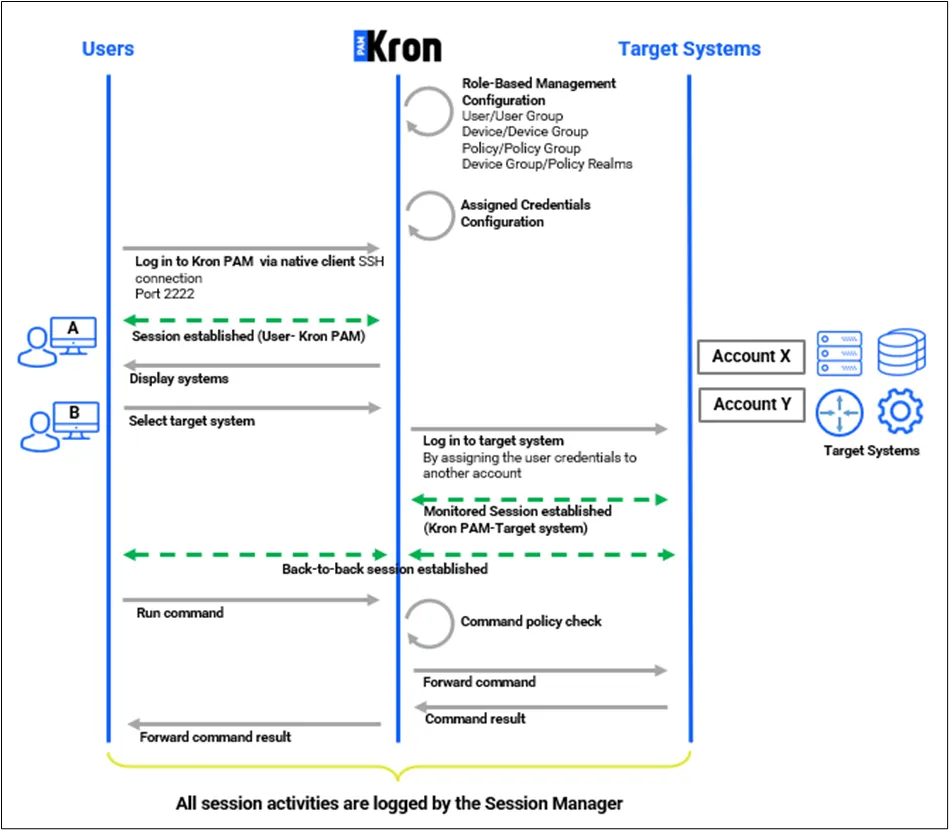
The following steps should be followed to configure the Assigned Credentials Feature and enable its use for a device group.
This device group should be added to a device group realm with the user group including the users, beforehand.
- Log in to the Kron PAM Web GUI as an admin user.
- Navigate to Devices> Device Groups.
- Click the desired Device Group and select Properties.
- Click the Edit and then Next buttons.
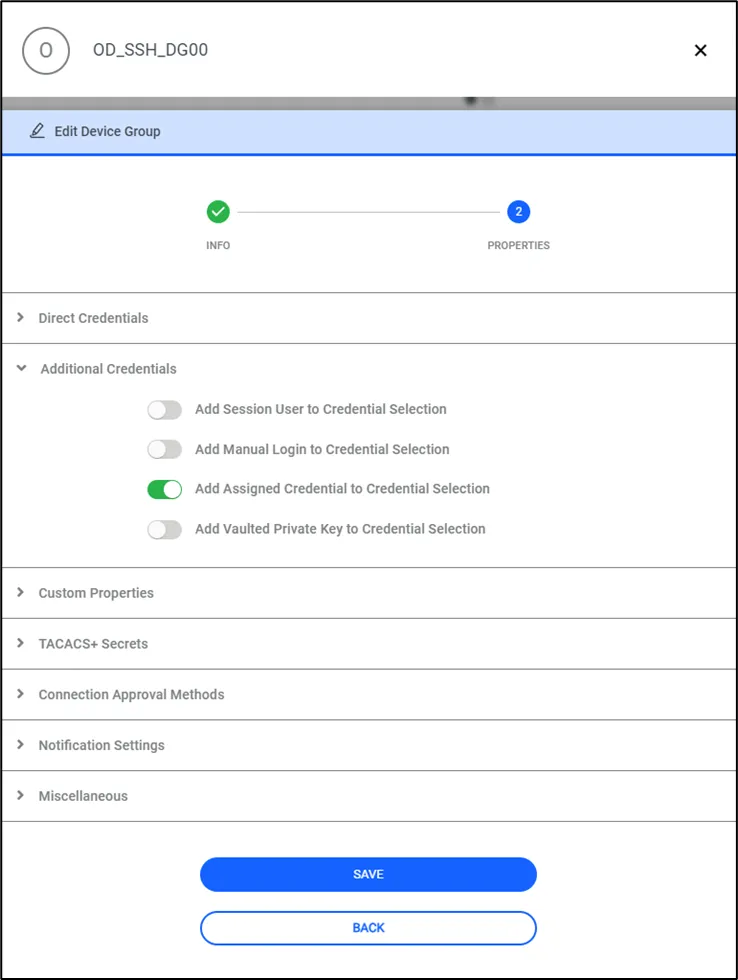
- Under the Additional Credentials toggle on the Add Assigned Credential to Credential Selection property.
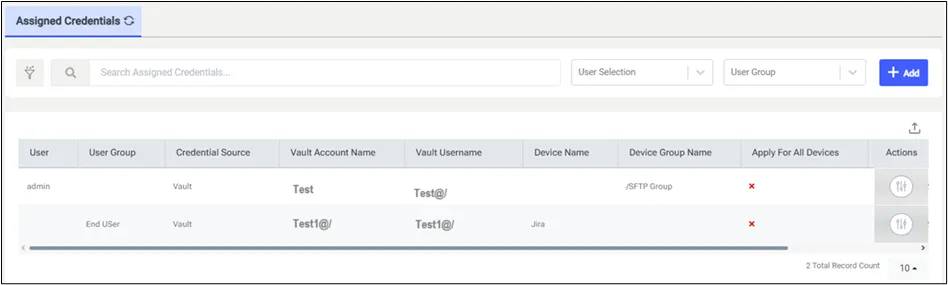
To set up the assigned credentials for different users, first save the accounts. After saving these accounts, follow these steps:
- Log in to the Kron PAM Web GUI as an admin user.
- Configure the Vault account for the target system.
- Navigate to User > Assigned Credential.
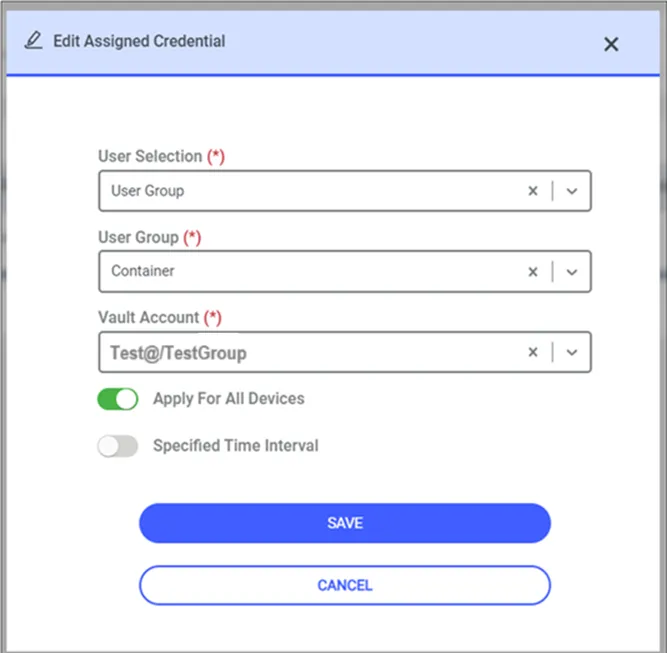
- Click the Add button and continue with User Selection and Vault Account Select the Kron PAM user as User and Vault account as Vault Account.
- Click the Save button.
Once these steps are completed, assigned credentials will be used for the connection whenever the defined users try to open an SSH session.
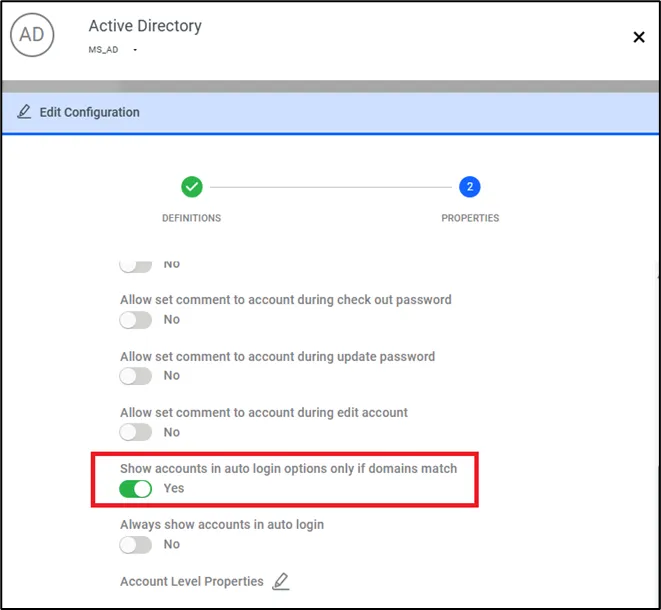
To list only the accounts matching the relevant domain when listing users from the Vault account before the SSH session, the following steps are followed:
- Navigate to Secrets > Configuration
- Choose Active Directory > Miscellaneous
- Set Show accounts in auto login options only if domains match
- Navigate to Connection and fill LDAP base DN according to the domain.
- Navigate to Devices > Inventory > Related Device > Custom Properties.
- Add auth.domain parameter key with LDAP domain name.
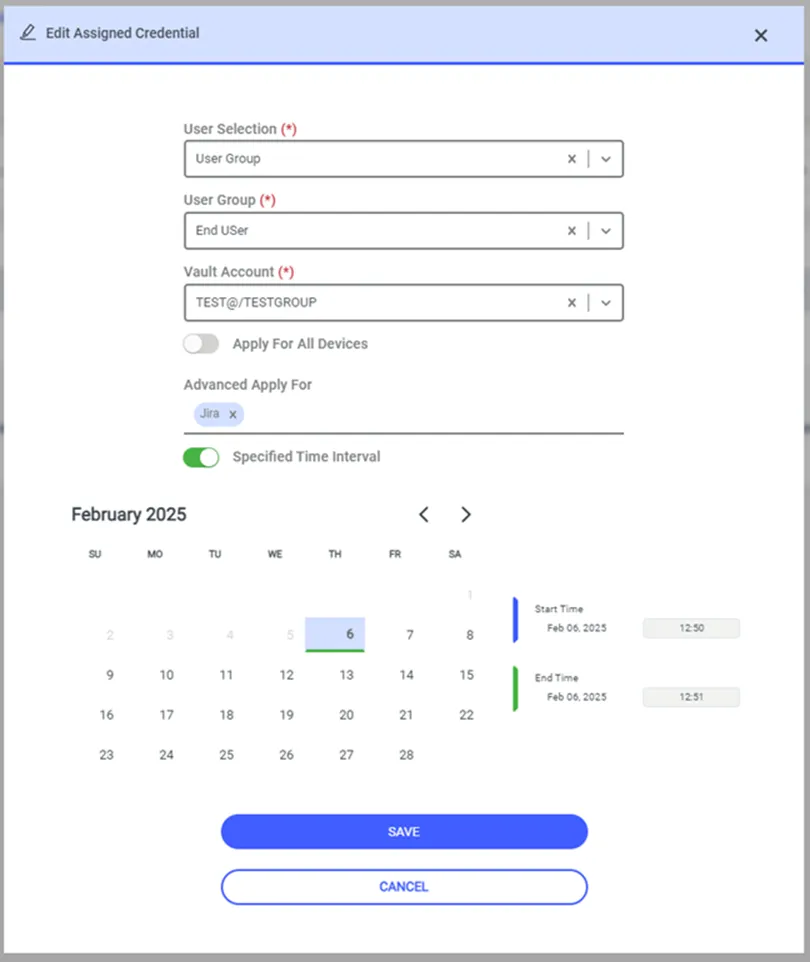
With the newly added Specific Time Interval switch box option in the Assigned Credential screen, it is now possible to connect and perform actions for Vault Accounts defined under Remote Application, SSH Proxy, and HTTP Proxy services within a specific time interval. Once the time has expired, further login attempts to the respective services will not be allowed. Accounts are not going to be listed when tried.
In Assigned Credentials anymore, will be shown start date -time and finish date -time fields when the user switches on the Specific Time Interval button. When the Specific Time Interval switch box is turned on, the start date-time and end date-time values on the screen will not be null. The system will not allow defining more than one record for the same user Vault Account and same date interval value. The system will be listed on the screen if there is an Assigned Credential defined on the date and time when the user connects to Remote Applications, SSH Proxy, SFTP proxy, and HTTP proxy.