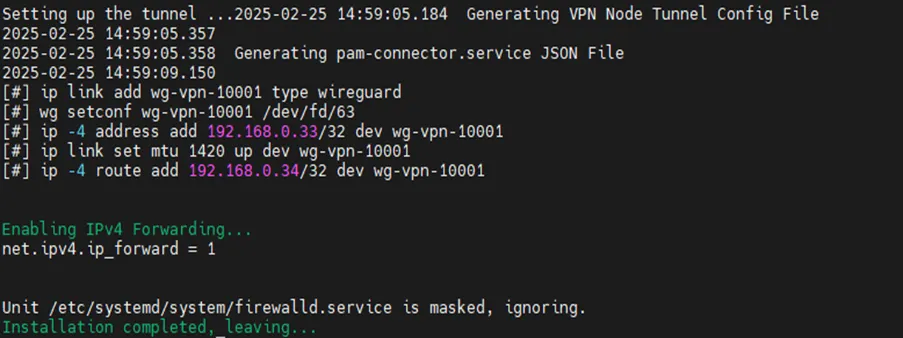
Tenant Connector Inbound Installation
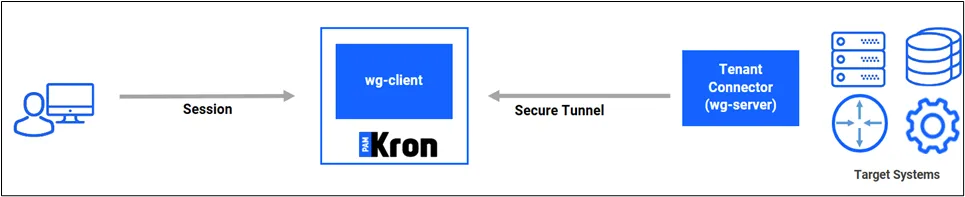
Check the Secure Boot Enabled before the installation by running mokutil --sb-state command. In case the secure boot is enabled, it might cause an error during the WireGuard installation. Please disable it to continue the installation!
The following steps should be read carefully to successfully install Tenant Connector Inbound on the machine:
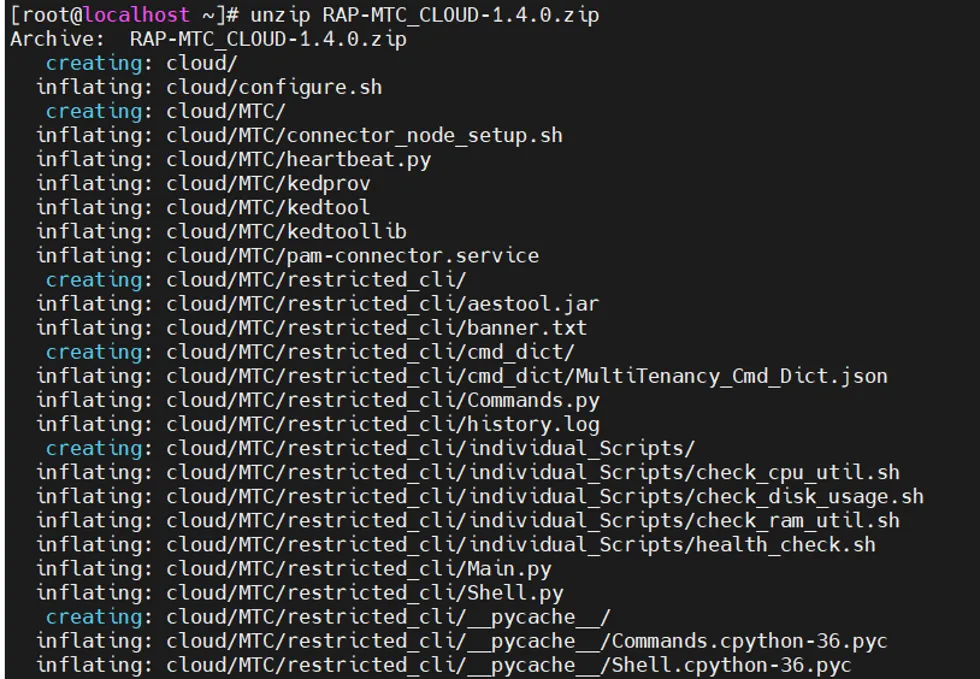
- Download the installation script on the machine that is used for Tenant Connector Inbound. The support team can provide the installation script. After downloading the script, unzip the installation script on the machine. The user can use the unzip command to extract the files from the installation script file.
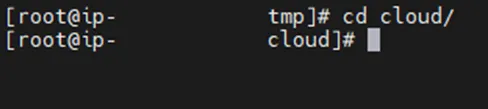
- Navigate to the cloud directory:
- Run the configuration script:
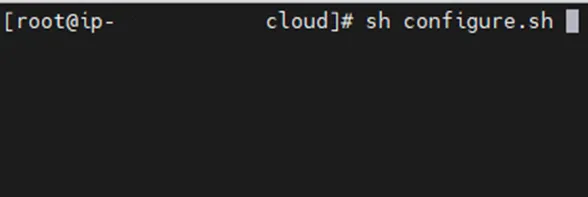
If the script fails due to insufficient file permissions, run the chmod +x configure.sh command.
You need root privileges to run this script.
- The installation script should be restarted after the forced reboot. The installation script asks to either: a) install MT Outbound Connector on the cloud, or b) install MT Inbound Connector, or c) install the Secure Remote Access Portal (RAP) module on the cloud. (The last option is not related to MT Connector)
If you have see this problem during the installation:
Errors during downloading metadata for repository 'appstream':
- Curl error (60): Peer certificate cannot be authenticated with given CA certificates for https://mirrors.rockylinux.org/mirrorlist?arch=x86_64&repo=AppStream-8 [SSL certificate problem: certificate is not yet valid]
Please check the system clock and sync the clock time:
systemctl enable chronyd --now
chronyc -a makestep
- To continue with the Tenant Connector Inbound installation, the user should select the second option by entering 2 and pressing the Enter key.

- The installation script asks the user to upload the tunnel setup config file (tunnel_setup.txt), which can be obtained in the process of adding an inbound connector node on the Web GUI, to the /opt/pam/connector directory on the connector machine. So, without closing the current installation, the user should open a new SSH session and upload the tunnel setup config to /opt/pam/connector directory, return to the first session, and press the Enter key.
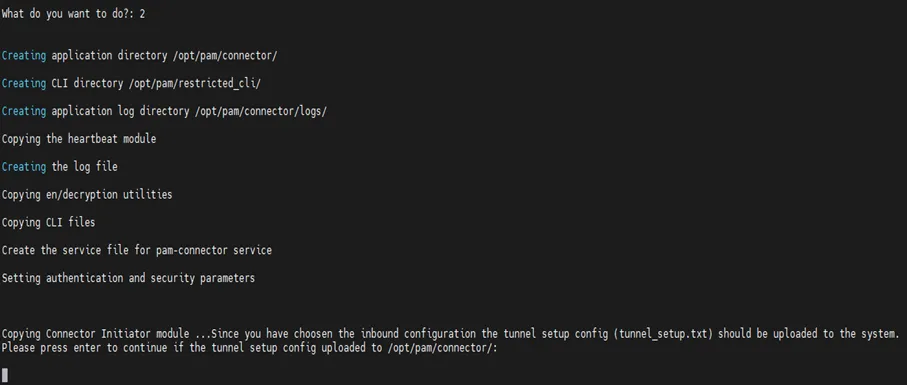
- Once the Installation is completed, leaving … message is seen on the screen, the installation is finalized.