Configuring a Server
1 min
Follow the steps below to configure a server to connect to:
- Open the Kron PAM Desktop Client, and click Connections on the Login Screen.
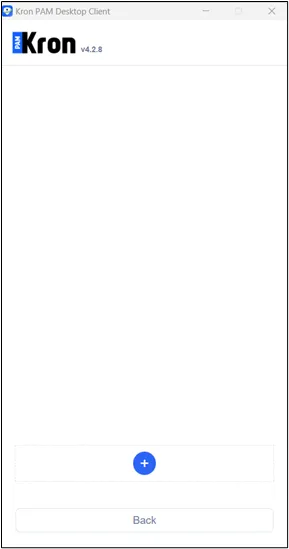
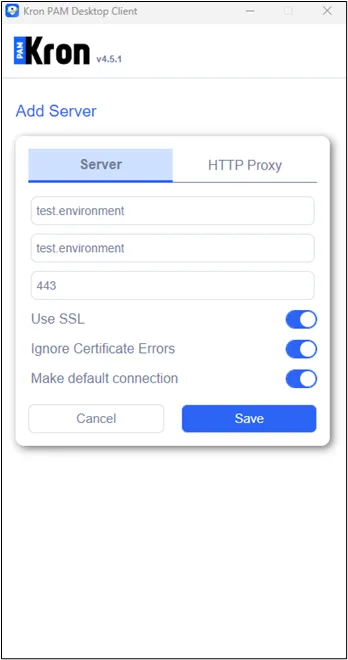
- Click Add (+). The Add Server window opens. Configure Kron PAM server settings:
- Enter Kron PAM’s server IP address or hostname into the Address field.
- Change the Port value according to the server type. For Kron PAM servers using HTTP, the port should be 80, whereas for Kron PAM servers using HTTPS, the port should be 443, and in the HTTPS case, make sure to set the Use SSL option to On. (80 and 443 are the default ports for Kron PAM servers. However, if another port will be used for this purpose, redirectPort and Connector port values in the /pam/gui/conf/server.xml and netright.baseurl value in /pam/gui/netright/netright.properties should be configured with the new port.)
- (Optional) If you want the server to be selected by default on the Login screen, set the Make Default Connection option to On.
Configure the Kron PAM server settings
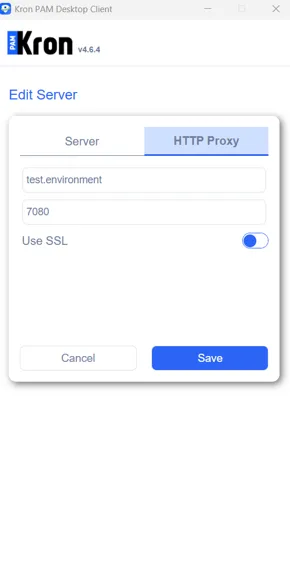
Save
- Click the Save button. After the server is added successfully, Kron PAM Desktop Client will show the list of defined servers.
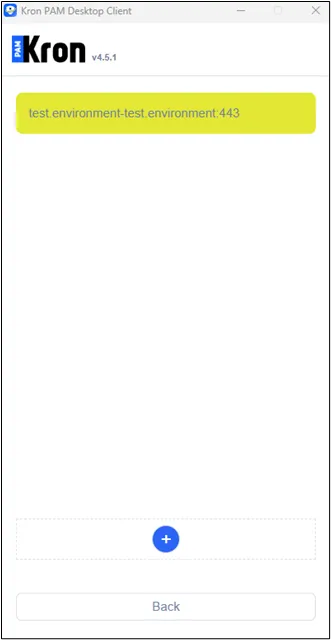
Server is added successfully
- Click Back to go back to the Login screen.