Setting the Peer Public Key After Installation
If the public key of the peer was not entered during the installation (or the automatic fetch failed), the installed module can be seen on the main page of the wizard when the page is refreshed or when you return to the main page while the wizard is running. The main page also shows the WireGuard public key of this host.
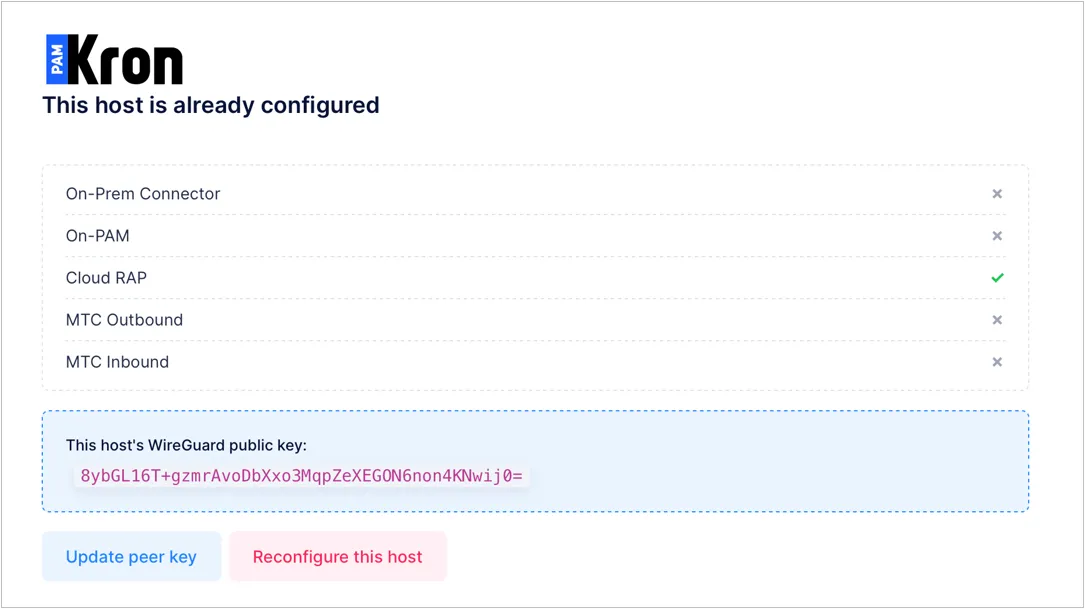
Press the Update peer key button on the main page to open the Update Peer Public Key (/peer-key) page.
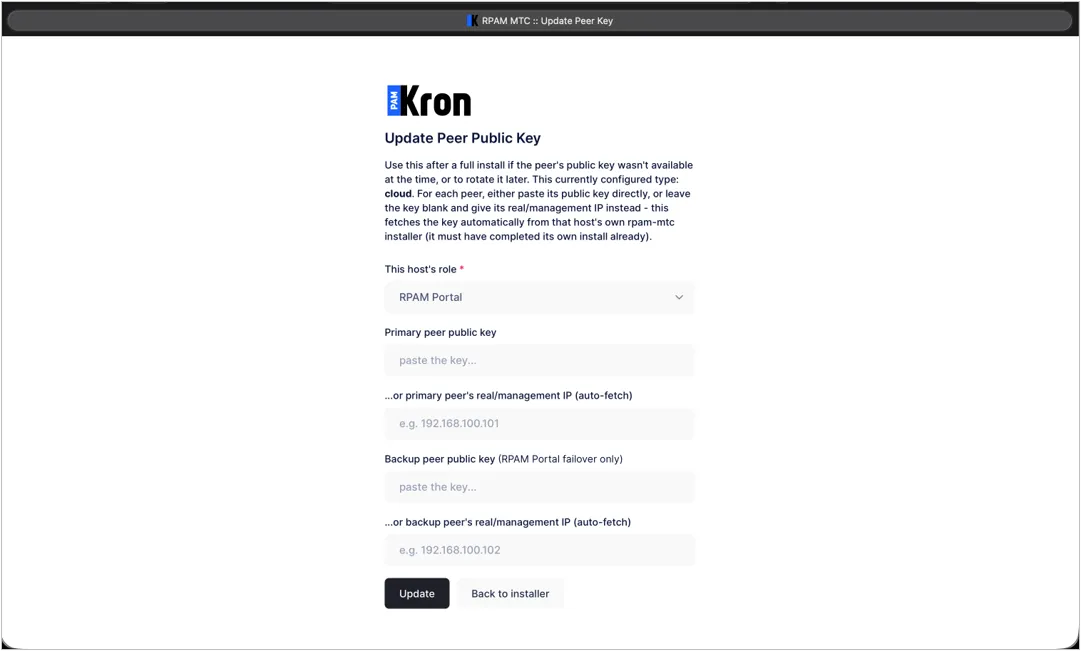
The This host's role field is selected automatically according to the actual role of this server. Then:
· You can take the public key of the peer from the main page of the peer's installer and paste it directly into the Primary peer public key field (and, for the RPAM Portal in the failover scenario, the Backup peer public key field), or
· If the installer of the peer is running, leave the key blank, enter the real/management IP address of the peer, and press Update. The key is fetched automatically and the WireGuard service is restarted automatically (no additional manual operation is needed). The peer must have completed its own installation already.
Check: After the operation, the "Done." message should be shown on the screen. After that, verify with the following command that the related service ([email protected] or [email protected]) has been restarted with the correct key:
Linux CLI | [root@server~]# wg show |
|---|
Alternatively, the peer public key can be set from the command line with the set-peer-key helper (/pam/scripts/set-peer-key.sh), which is installed on the RPAM Connector, On-PAM, and RPAM Portal hosts. On the RPAM Portal in the failover scenario, the second argument is the public key of the backup RPAM Connector.
Linux CLI | [root@server~]# set-peer-key {peer public key} [root@portal~]# set-peer-key {primary peer public key} {backup peer public key} |
|---|
Reconfiguring a host: The Reconfigure this host button on the "This host is already configured" page only resets the state of the installer so that the wizard starts from the first step again; it does not remove the services, WireGuard interfaces, or other settings of the previous role (see Troubleshooting).
The RPAM MTC Installer does not require authentication, and its web interface (TCP 8443) keeps running after the installation so that the peer key can be updated later. Allow access to TCP 8443 only from the administrators' workstations and the WireGuard peers, and stop the installer when it is not needed (./run.sh stop, or systemctl disable --now rpam-installer for Method B). It can be started again at any time to update the peer key.