MTC Inbound
The replicated Kron PAM procedure in MTC Outbound For Replicated Kron PAM Environments (TunnelSetupJob) applies only to the Outbound option; no such step is needed for the Inbound option.
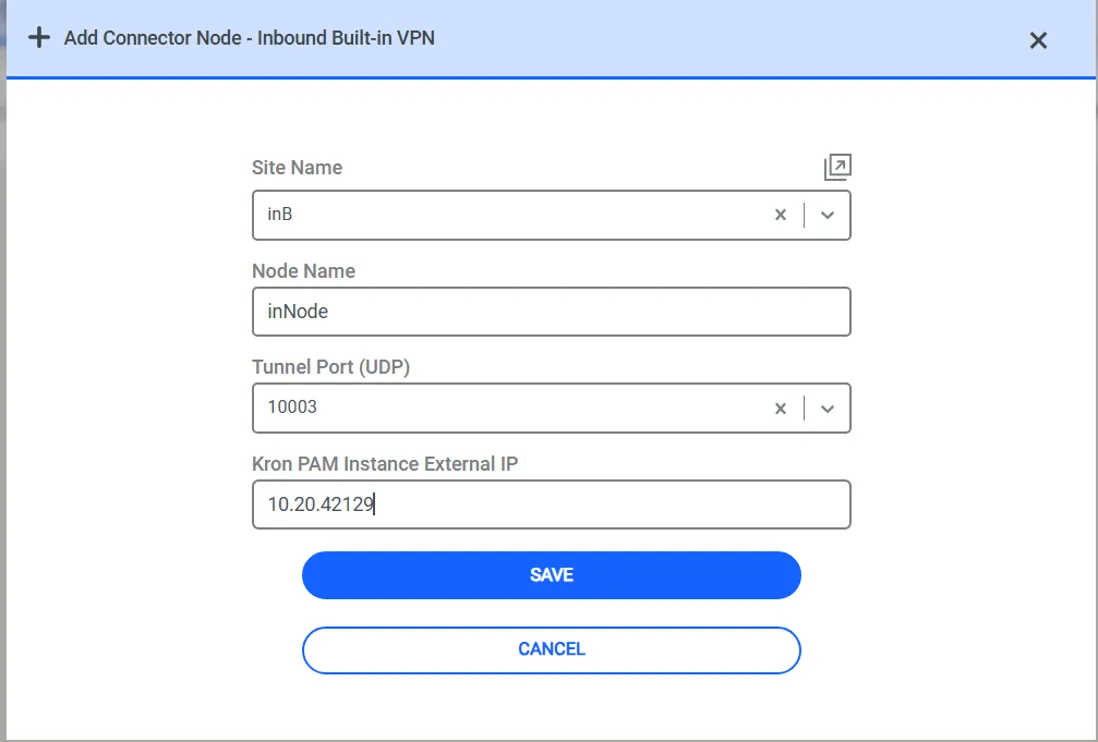
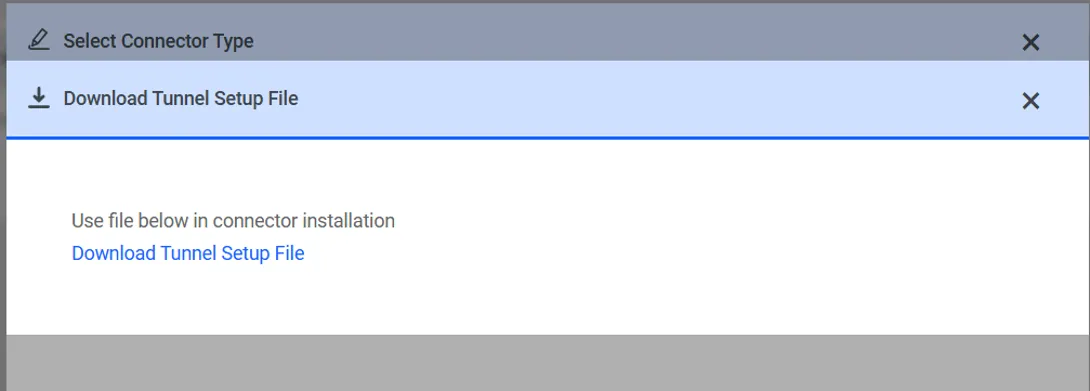
1. On the Tenant Connector page of the Kron PAM Web GUI, add an inbound connector node and download the tunnel setup config file (tunnel_setup.txt) generated for this connector node.
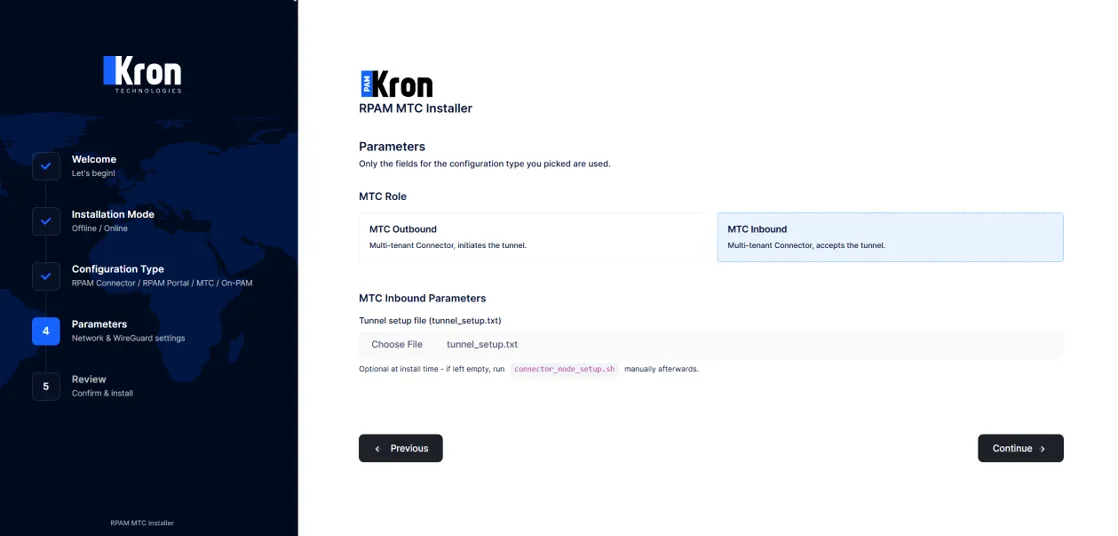
2. In the RPAM MTC Installer, select MTC Inbound as the MTC Role and upload the tunnel_setup.txt file to the Tunnel setup file field. If the file is not available during the installation, the field can be left empty. In that case, the "This host is already configured" page of the installer shows the "Tunnel not set up yet? Upload tunnel_setup.txt" box; select the file there and press Set up tunnel. No manual operation on the command line is required.
tunnel_setup.txt contains confidential information (the client secret and the WireGuard private key of the node). Transfer it securely. The installer keeps copies of the file under /opt/pam/connector/ and in the uploads/ directory of the installer.
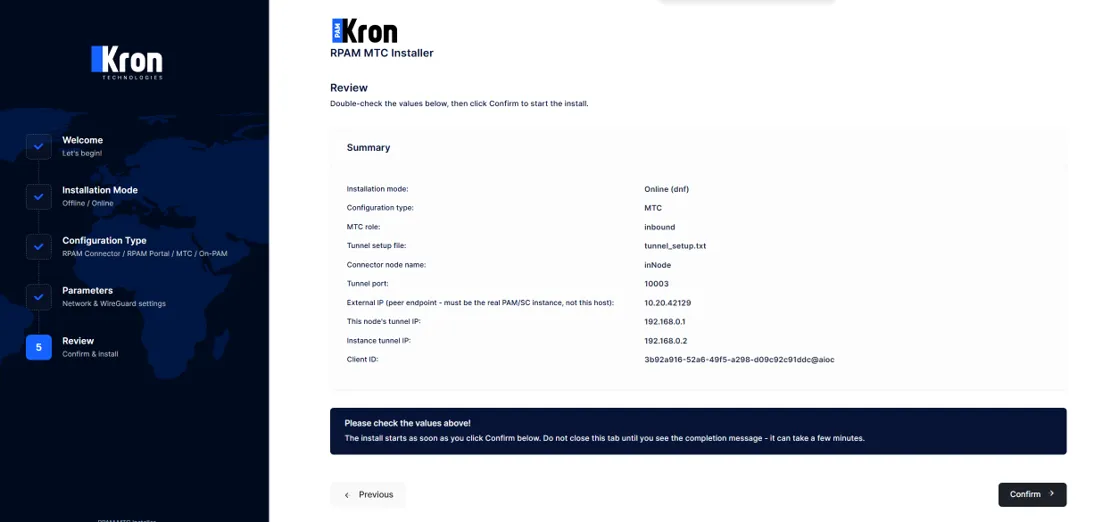
3. On the Review screen, the content of the uploaded file (node name, tunnel port, External IP, tunnel IPs, Client ID) is previewed, except for the encryption information. Check here that the External IP really belongs to the Kron PAM Server, and that it is not accidentally the IP address of this connector server. Then press Confirm.
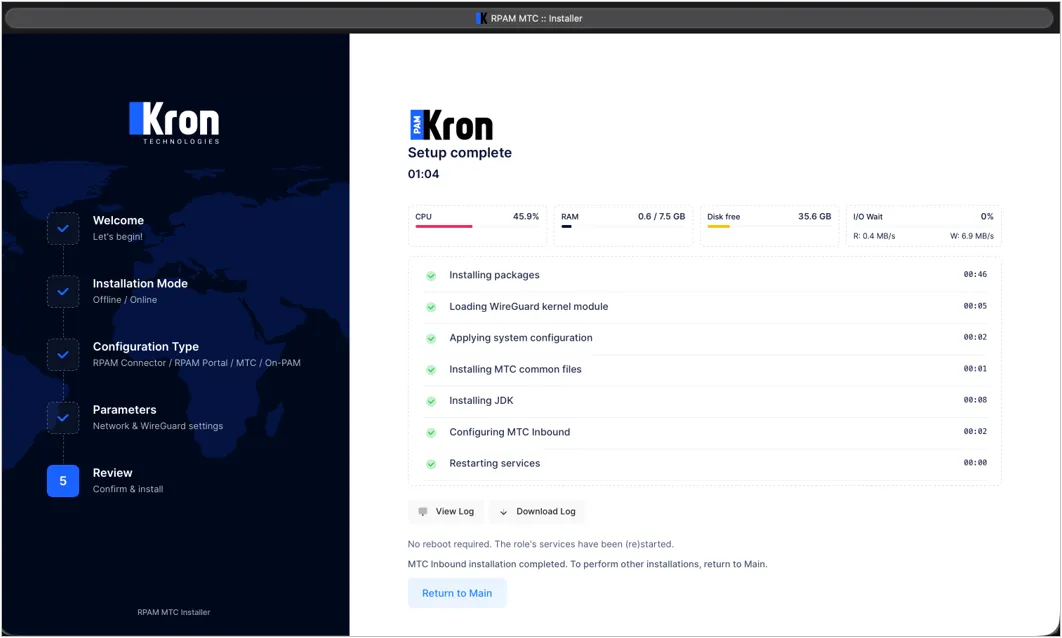
4. Wait until the Setup complete screen is shown.
5. On the Kron PAM Server, restart the WireGuard interface of this connector node. The interface name is wg-vpn-{Tunnel Port} (e.g., wg-vpn-10127 for the tunnel port 10127).
Linux CLI | [root@pam~]# wg-quick down wg-vpn-{Tunnel Port} [root@pam~]# wg-quick up wg-vpn-{Tunnel Port} |
|---|---|
Example | [root@pam~]# wg-quick down wg-vpn-10127 [root@pam~]# wg-quick up wg-vpn-10127 |
In the Inbound option, the WireGuard interface on the Kron PAM Server is created and brought up (wg-quick up) by Kron PAM at the moment the inbound node is added on the Tenant Connector page, i.e., long before the Multi Tenant Connector is installed. The Kron PAM side has no Endpoint and waits for the connector to initiate the tunnel. If the node is added again or tunnel_setup.txt is generated again for the same tunnel port, Kron PAM writes a new configuration with new keys, but wg-quick up cannot reload an interface that is already up, so the old keys stay active. Restarting the interface on the Kron PAM Server after the connector side is set up makes sure that both sides use the keys of the same tunnel_setup.txt.
In the Outbound option, this step is not needed: Kron PAM first brings up the tunnel on the Multi Tenant Connector over SSH and only then brings up its own interface (with the Endpoint of the connector).
You can find the logs related to the installation steps handled by the Kron PAM Server in the connector.log file under /pam/gui/logs.
Check: Run the following commands on the Multi Tenant Connector:
Linux CLI | [root@connector~]# systemctl status pam-connector.service [root@connector~]# wg show [root@connector~]# tail -f /opt/pam/connector/logs/log.txt [root@connector~]# cat /opt/pam/connector/logs/connector.log |
|---|
log.txt is the log of the connector service (pam-connector.service / heartbeat). connector.log under /opt/pam/connector/logs on the Multi Tenant Connector is written by the tunnel setup step (connector_node_setup.sh) of the MTC Inbound installation; do not confuse it with /pam/gui/logs/connector.log on the Kron PAM Server.
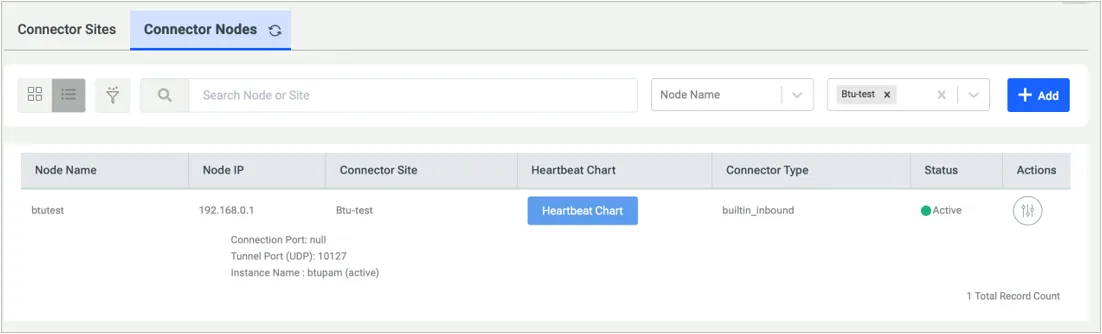
On the Tenant Connector page of the Kron PAM Web GUI, check that the node of the type builtin_inbound is listed with the status Active.