RPAM Installation – Scenario Without RPAM Connector (On-PAM)
In case the RPAM Connector will not be used, the RPAM MTC Installer is executed on the Kron PAM Server with the On-PAM role in order to establish the WireGuard-based secure tunnel directly towards the RPAM Portal machine.
By following the steps introduced in this section, Kron PAM Remote Privileged Access Management is deployed with a secure WireGuard VPN tunnel between the RPAM Portal and the Kron PAM Server.
- Kron PAM Server Configuration
Apply the same Kron PAM Server configuration (CORS, System Config parameters, and portal functions) explained in Kron PAM Server Configuration.
- RPAM Portal Installation
Install the RPAM Portal as explained in Section 6.3, selecting No failover. In this scenario, the RPAM Connector fields of the RPAM Portal parameters refer to the Kron PAM Server:
· RPAM Connector's WireGuard IP: the WireGuard tunnel address of the Kron PAM Server (e.g., 10.0.0.2).
· RPAM Connector's real/management IP (optional): the real IP address of the Kron PAM Server.
- On-PAM Installation
Start the RPAM MTC Installer on the Kron PAM Server (Section 4.2), complete the common steps (Section 5), and select On-PAM as the configuration type.
Parameters
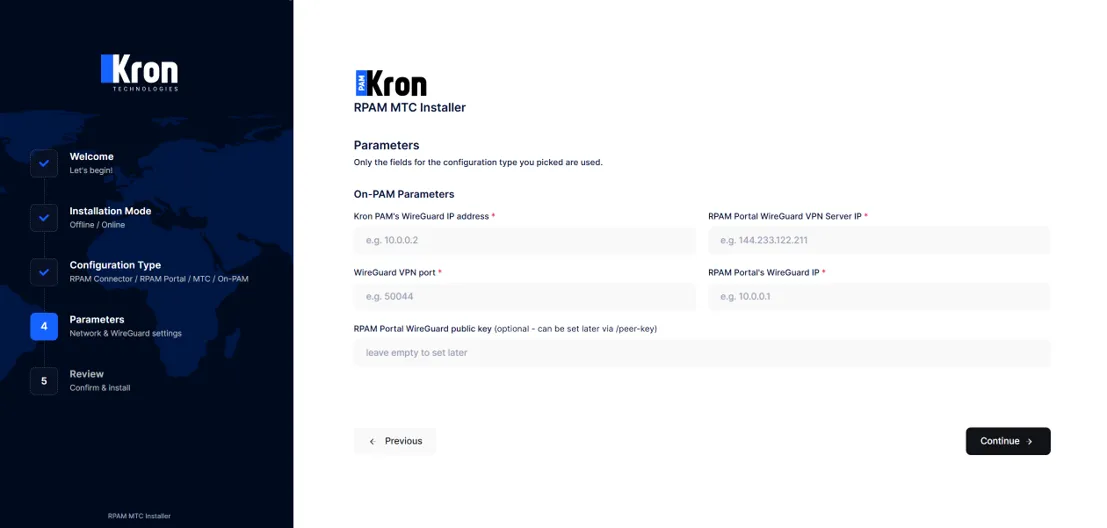
Field | Description |
|---|---|
Kron PAM's WireGuard IP address | The WireGuard tunnel address of this Kron PAM Server (e.g., 10.0.0.2). |
RPAM Portal WireGuard VPN Server IP | The real/reachable IP address of the RPAM Portal. |
WireGuard VPN port | The common UDP port. |
RPAM Portal's WireGuard IP | The WireGuard tunnel address of the RPAM Portal (e.g., 10.0.0.1). |
RPAM Portal WireGuard public key (optional) | If left empty, it is fetched automatically. |
No package installation is performed for the On-PAM role; wireguard-tools is assumed to be already installed on the Kron PAM Server.
The On-PAM installation changes the system settings of the Kron PAM Server: SELinux is set to permissive, IP forwarding is enabled, and the firewalld service is stopped and masked. Make sure this is acceptable for the Kron PAM Server before starting the On-PAM installation.
The Review, Confirm, progress, and result screens are the same as in RPAM Connector Installation . Enter the public key shown on the result screen on the RPAM Portal side (or on the /peer-key page of the RPAM Portal, see below).
Verification
Linux CLI |
|---|
- Completing the Peer Key Exchange on the Kron PAM Server
If the On-PAM installation was done before the RPAM Portal installation, the WireGuard configuration of the Kron PAM Server still contains a placeholder instead of the public key of the RPAM Portal. After the RPAM Portal installation is completed, open the RPAM MTC Installer on the Kron PAM Server (http://{Kron PAM Server IP}:8443), press Update peer key, enter the real/management IP address of the RPAM Portal (or paste its public key), and press Update, as explained in Completing the Peer Key Exchange on the RPAM Connector.
Check: The latest handshake field in the wg show output should be filled in on both the Kron PAM Server and the RPAM Portal.
Linux CLI | [root@pam~]# wg show [root@pam~]# ping {RPAM Portal's WireGuard IP} [root@portal~]# wg show |
|---|