Logging in with Password Vault
When Password Vault is configured on a device, the system changes the password of the related user directly. The system also changes the password periodically provided a time frame is defined, and it changes the password automatically when the time expires for a user requesting to Show Password for a specific time.
If the Password Vault is configured on a device, the password of the related user is only given by Password Vault. Password Vault coordinates with the Session Manager to log in to a device. So, the same connection methods explained in SSH Connection to a Linux Server and RDP Connection to a Windows Server apply here. Since the Password Vault provides the password, there is no need to enter Global Password, as shown inDefining Global Username and Global Password to Authenticate to the Linux ServerWhen users want to connect to the system directly, they go to the Password Vault and check out the password automatically so that the password is never known by users and is changed automatically.
It is also possible to check out the password and use it for direct connections with native clients. Only privileged users can check out the password.
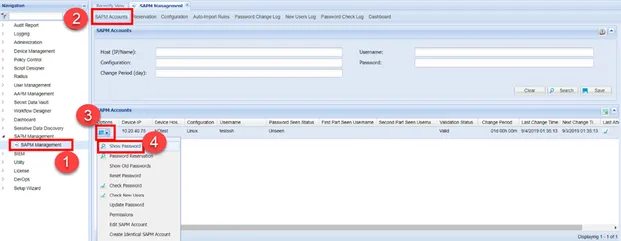
To check out the password, follow the steps below:
- Navigate to SAPM Management > SAPM Management.
- Open the SAPM Accounts tab.
- Click search and choose the device to connect.
- From the Options menu, click Show Password.
- A pop-up window opens. Enter the time for expiration and comment for checkout reason.
- Password is shown hidden as asterisks. Click the password to copy it or press the eye button to see the password.