Using MFA to Log in to the Single Connect Web GUI
2 min
MFA can be used to add another security level to the Single Connect log in. After users enter their Single Connect log in credentials, the system will ask for a One-Time Password (OTP)that will be generated by the mobile app or SMS.
Prerequisites:
All users and the admin user must do the following:
- Generate a QR code.
- Install the Single Connect mobile app.
- Scan the QR code with the mobile app. MFA must be enabled for a user group. If there is no user group enabled for MFA will not work. If MFA is enabled for one or more user groups, MFA will be enabled only for these users for Single Connect logins. See Sending MFA QR Code to Users, Creating a Connection Between Single Connect and the Single Connect Mobile Application . MFA also must be configured for the Admin, by creating and sending a QR Code so that the Admin can sync their Single Connect and their Single Connect Mobile App.
If MFA has not been configured for the Admin, the Admin will not be able to log in. If the Admin gets locked out, please contact the Single Connect Support Team.
To activate Multi Factor Authentication (MFA) for the Single Connect GUI log in:
- Navigate to Administration > System Config Man.
- Set the required parameters: sc.portal.otp.enabled=true (one time password enabled for GUI Login) otp.rest.url=http://127.0.0.1 (If SSL is enabled in network, the URL should be https://127.0.0.1)
- Log out and log in again. After logging in, Single Connect asks for an offline token.
- Open the Single Connect mobile app, select Offline Token and enter the token value to log in.
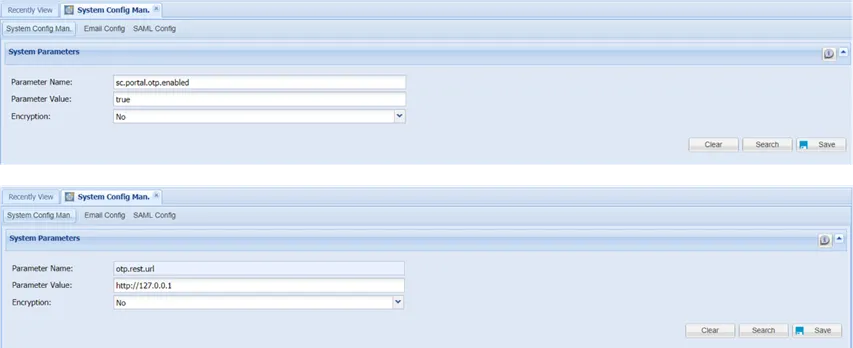
Enabling MFA for Single Connect Log In