RDP Connection Interfaces
The Single Connect RDP Proxy can be used in the Web GUI, Single Connect Desktop Client, and Windows Remote Desktop Connection Native Client.
Single Connect Web GUI
Privileged users can use the Single Connect Web GUI to connect to devices they have access to from their portal functions (i.e. Device Management).
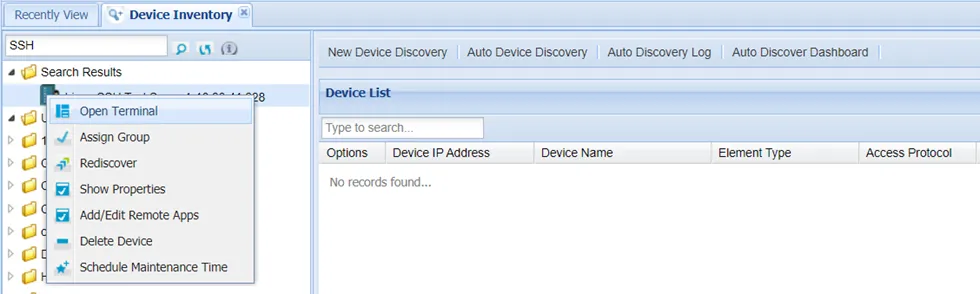
To establish an RDP connection from the Single Connect Web GUI:
- Navigate to Device Inventory on the Single Connect Web GUI.
- Using the left panel, search for the device to connect to.
- Right-click the desired device and select Open Terminal to establish an RDP session.
Single Connect Desktop Client
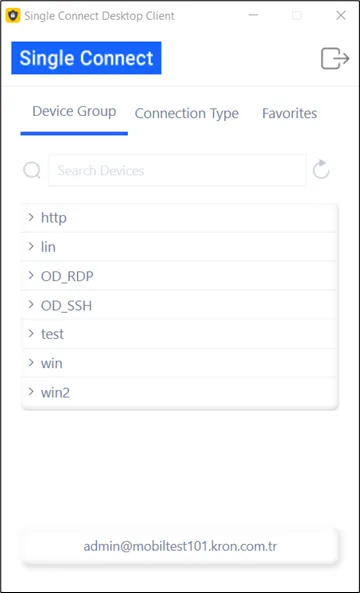
Other than the Web GUI, the Single Connect Desktop Client can be used for RDP connections:
- Open the Single Connect Desktop Client and complete/configure the connection settings.
- Log in to the desktop client using the configured settings and search for the device to connect to.
- Double-click the device to initiate the RDP session.
Windows Native RDP Client
Access using the Windows native RDP client is also supported. For this purpose, follow these steps:
- Install the Single Connect Desktop Client on a Windows Server.
- Add your Single Connect server as the server on Single Connect’s Desktop Client.
- Navigate to Administrator > System Config. Man. and configure the parameters below. sc.rdp.download.shortcut.enabled = true remote.desktop.environment = X.X.X.X (X.X.X.X is the IP address of the Windows Server you used on the first step) rdp.desktop.environment.client.path = (full path of your Windows Client installation on your Windows Server. like “C:......\krtsc.exe”)
- Navigate to Device Management > Device Inventory.
- Right-click the RDP device you want to connect to and select Download RDP Shortcut.
- Double-click the RDP Shortcut file to establish the RDP connection.
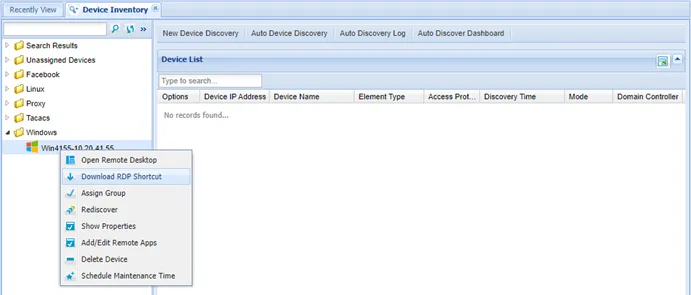
The RDP connection towards the target server will be opened in a native RDP client.
To enable this feature, both Single Connect and the Windows Server you installed the Windows Client on should be integrated with Active Directory.