8.1 Session Logs and Active Sessions
Replaying SSH/Telnet Proxy Session Records
Authorized users can replay video recordings of sessions with Single Connect RDP / VNC Proxy.
- Log in to the Single Connect Web GUI
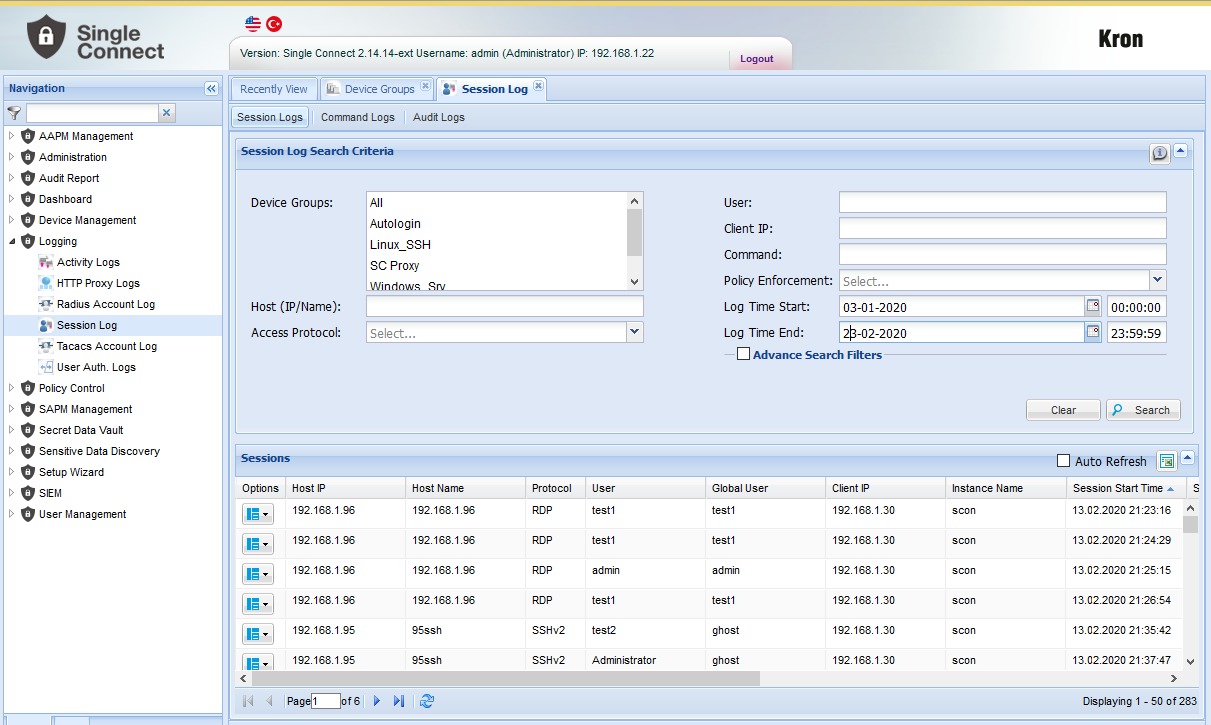
- Navigate to Logging > Session Logs
- Fill in the fields to filter and click the Search button
- Choose SSH/Telnet session to replay, click the "Option" button.
Replaying RDP/VNC Proxy Session Records
- Log in to the Single Connect Web GUI
- Navigate to Logging > Session Logs
- Enter search filters
- Click the Search button
- Click the "Option" button for the RDP/VNC session to replay.
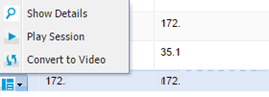
- To see the texts captured by the OCR during the session, select "Show Details"
- To replay session, select "PlaySession"
- To convert session record to a video format, select "Convert to Video" When the session video converting process finishes, Video Availability status changes to "Available"
When the video is available, the "Play Video Record" option appears in the Option menu.
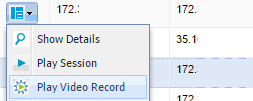
The session’s video record can be downloaded.
Note |
|---|
The file size of a 1-hour session video record is approximately 38 MB. |
Viewing Command Logs
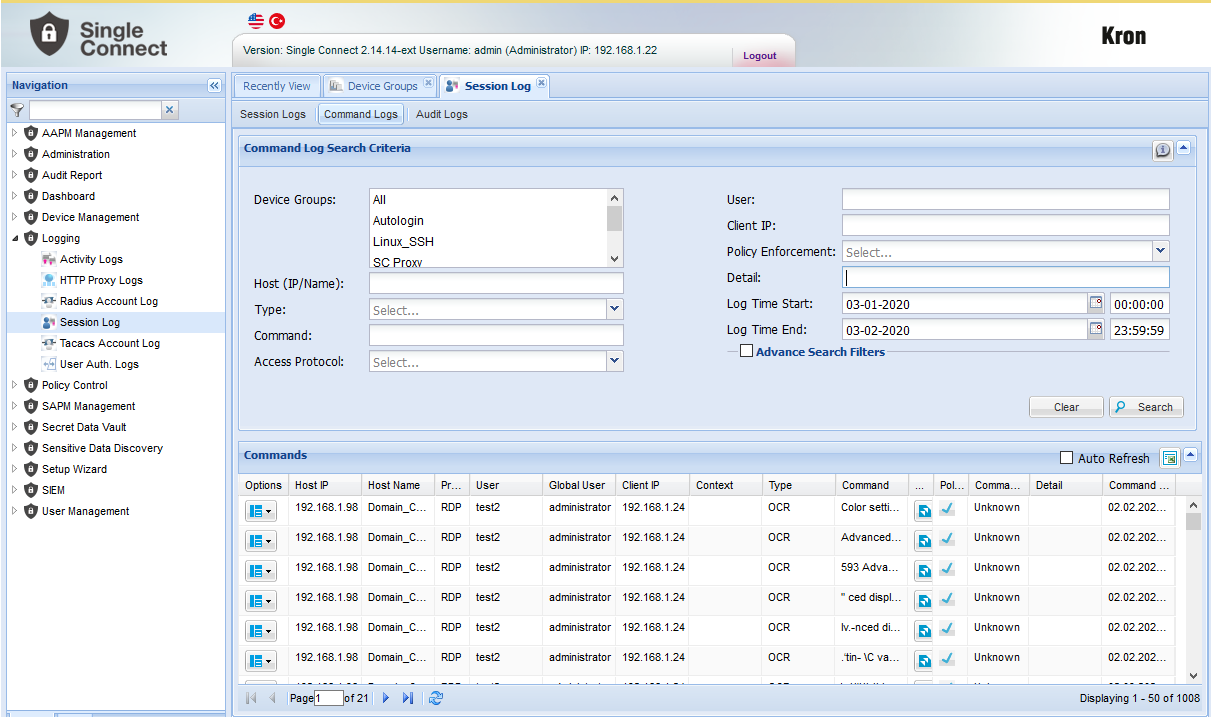
Commands executed in SSH/Telnet Proxy, SFTP Proxy and SQL Proxy sessions and texts that are captured by the OCR algorithm in RDP/VNC Proxy sessions are listed in the Command Logs tab.
- Log in to the Single Connect Web GUI
- Navigate to Logging > Session Logs
- Open the Command Logs tab.
- Enter search filter and click the Search button
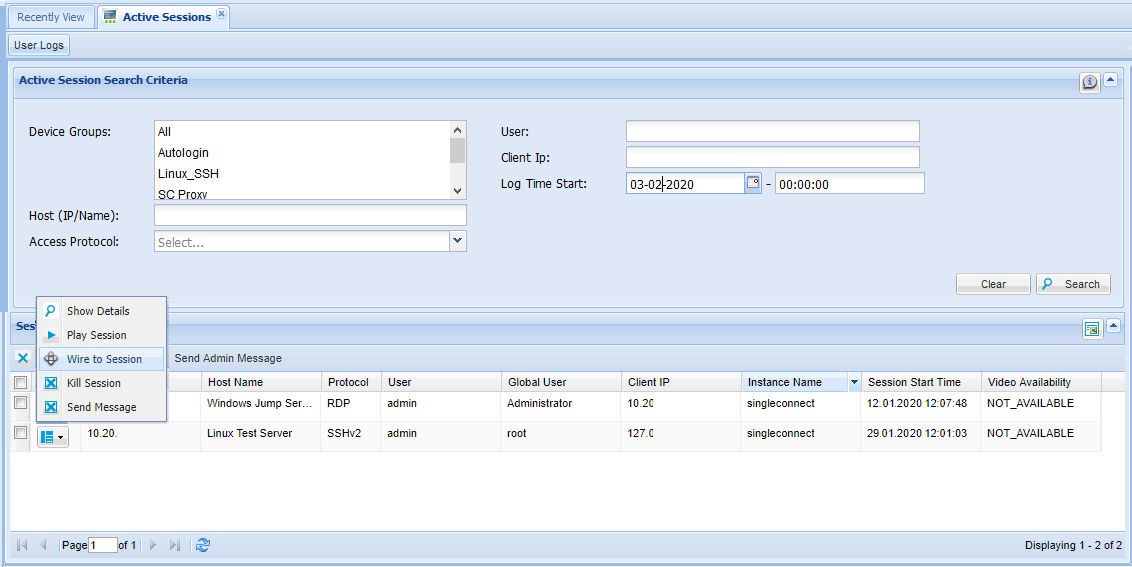
Viewing Active Sessions
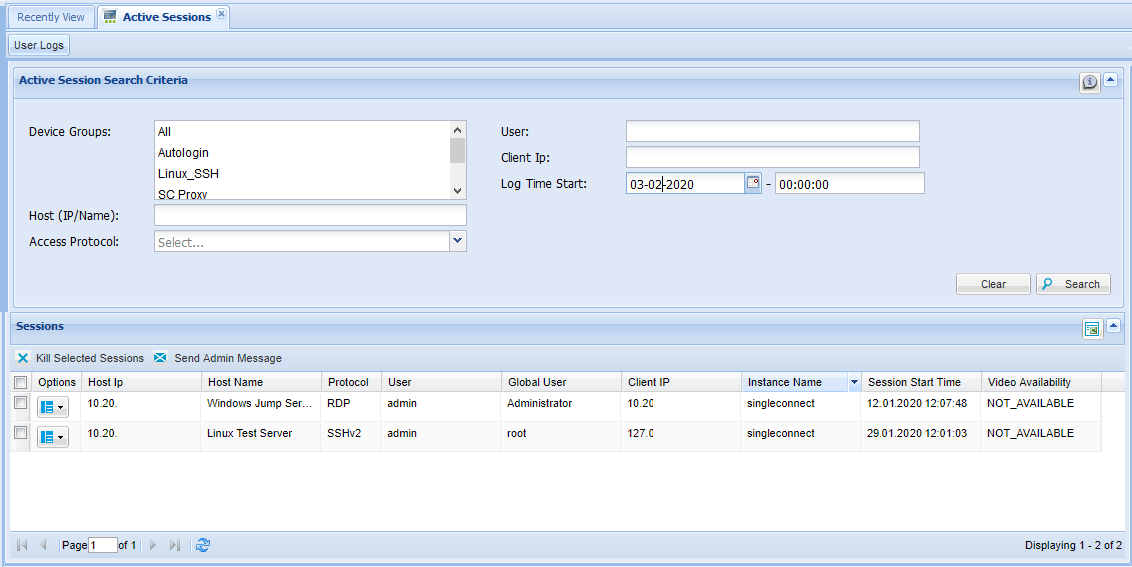
From the Active Sessions page, all active Single Connect proxy sessions can be viewed. System administrators can send messages to active SSH/Telnet and RDP/VNC sessions, kill active SSH/Telnet and RDP/VNC sessions and wire to active SSH/Telnet and RDP Proxy sessions for viewing real-time session and have dual control.
- Log in to the Single Connect Web GUI
- Navigate to Policy Control > Active Sessions
- Enter in the fields to filter and click Search button
- Click options button to send message or kill session.
Wiring to Sessions (Dual Control)
- Log in to the Single Connect Web GUI
- Navigate to Policy Control > Active Sessions
- Enter in the fields to filter and click the Search button
- Click the “Options” button and to wire session select "Wire to Session"