3.6 Multi Factor Authorization
The Single Connect platform provides second level authorization for specified policies. Second level authorization can be provided via the following ways:
• Group manager authorization via e-mail • Geolocation authorization • IP authorization • Double Confirmation
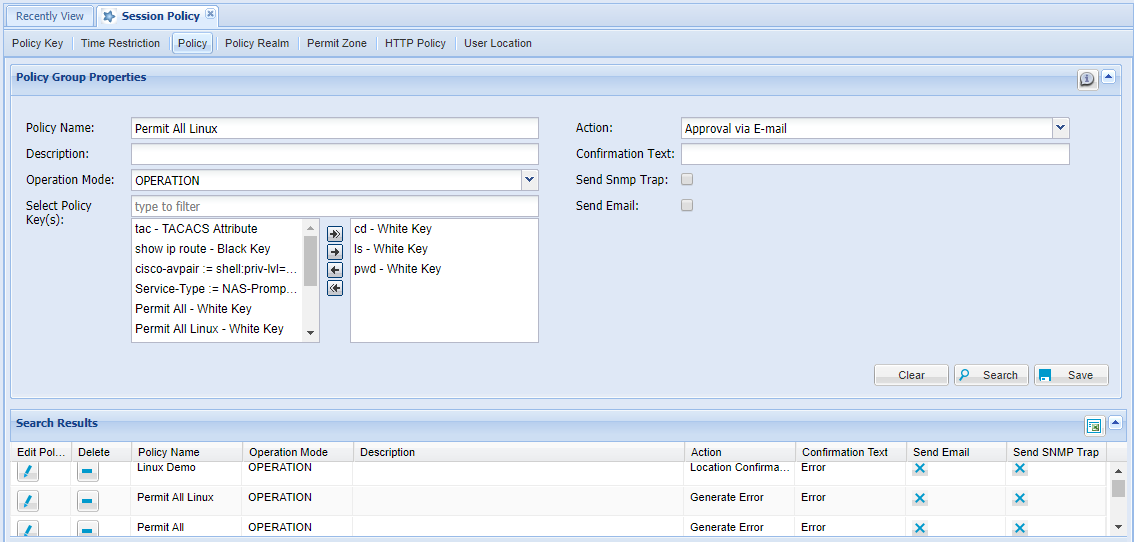
Group Manager Authorization via E-mail
1. Log in to the Single Connect Web GUI 2. Navigate to Policy Control > Session Policy 3. Open the Policy tab 4. Select the specified policy 5. From the action drop down menu select Approval via e-mail 6. Save
This policy is used for getting authorization from the group manager by sending them an e-mail. The group manager approves the request by clicking the link received via e-mail.
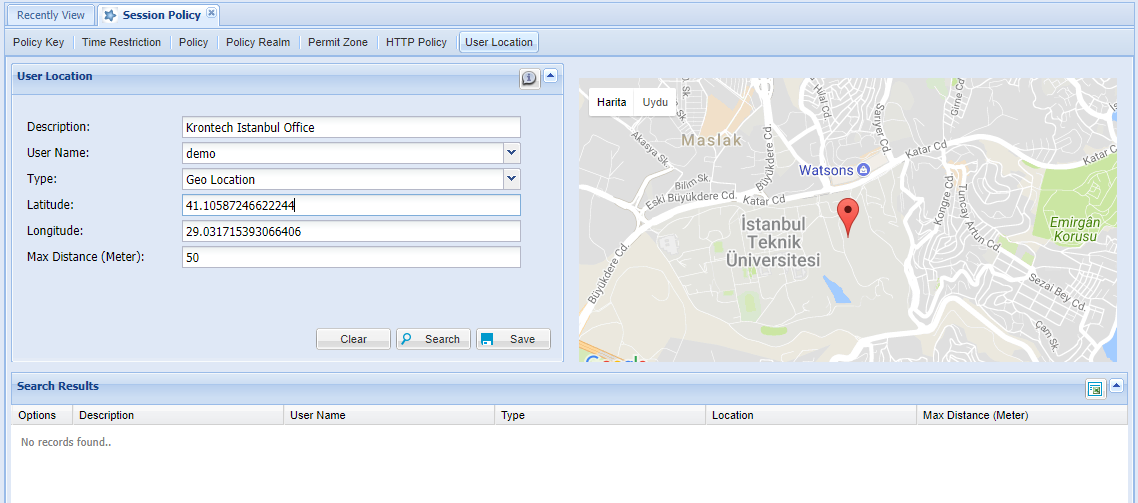
Authorization via Geolocation
1. Log in to the Single Connect Web GUI 2. Navigate to Policy Control > Session Policy section 3. Open the User Location tab 4. From the User Name drop-down menu select username 5. From the Type drop-down menu select Geolocation 6. The Map appears on the right. Select location pinpoint 7. Enter latitude, longitude, and max distance 8. Save 9. Open the Policy Tab 10. Select the specified policy
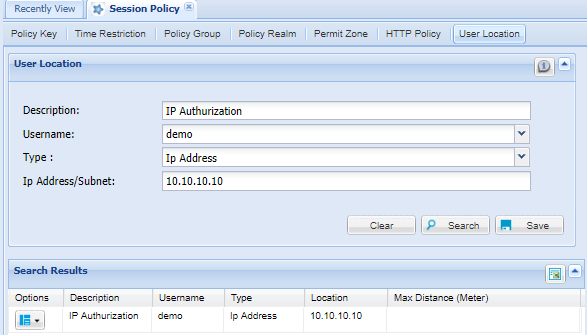
IP Authorization
1. Log in to the Single Connect Web GUI 2. Navigate to Policy Control > Session Policy section 3. Open the User Location tab 4. From the User Name drop-down menu select username 5. From the Type drop-down menu select IP Address 6. Enter the IP address 7. Save 8. Open the Policy Tab 9. Select the specified policy 10. From the Action drop-down menu select Location Confirmation 11. Save
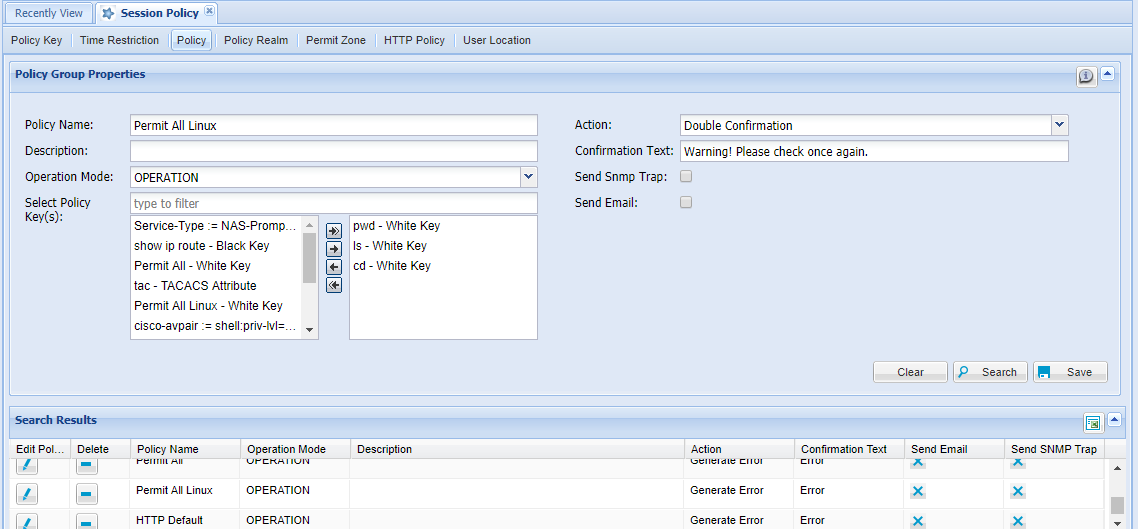
Double Confirmation
1. Log in to the Single Connect Web GUI 2. Type your username and password provided into the appropriate fields, then click Login. Single Connect will control the password vault, authenticate and grant access. 3. Navigate to Policy Control > Session Policy 4. Open the Policy tab 5. Select the specified policy 6. From the Action drop-down menu select Double Confirmation 7. Enter the Confirmation Text 8. Save