3.2 RDP/VNC Proxy
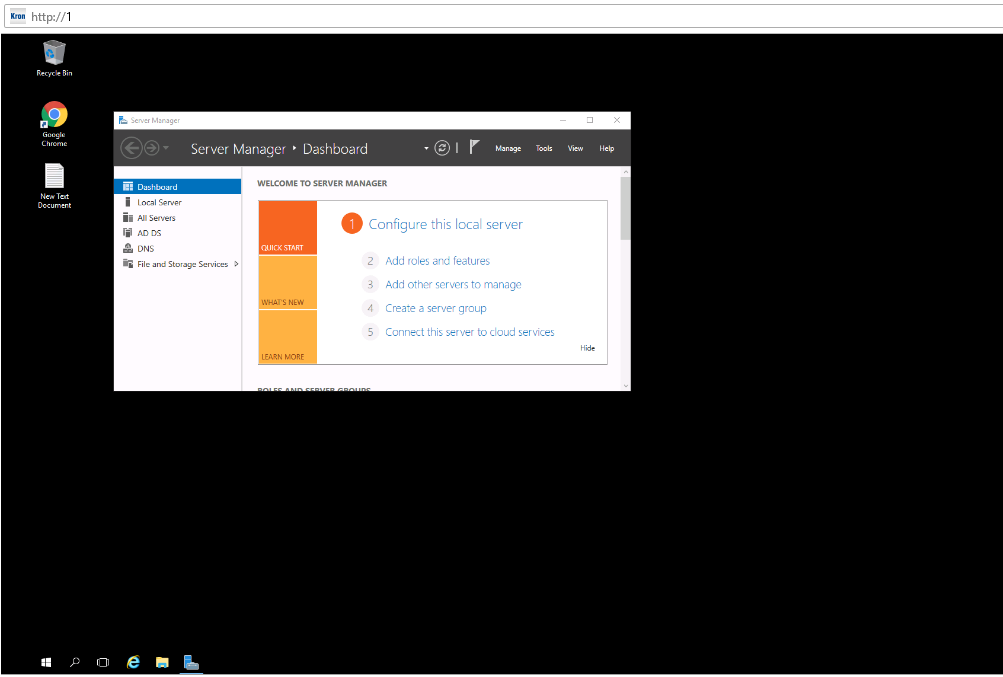
You can use Single Connect RDP and VNC Proxy feature via logging into the Single Connect Portal via your browser.
1. Login to Single Connect Web GUI. 2. Navigate to Device Management - Device Inventory. 3. Choose device to connect and right click. Then click "Open Remote Desktop"
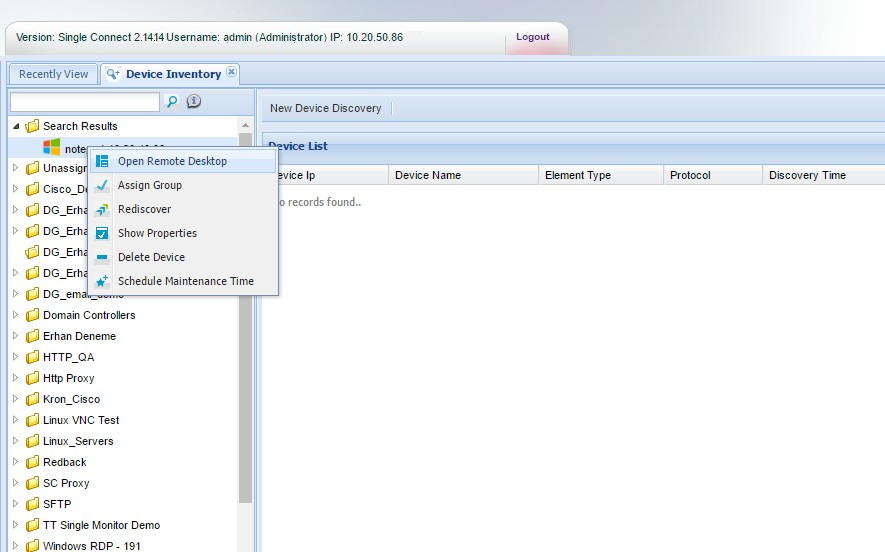
4. A pop-up window opens and a session to remote machine via RDP for Windows or VNC for Linux/Unix servers is established.
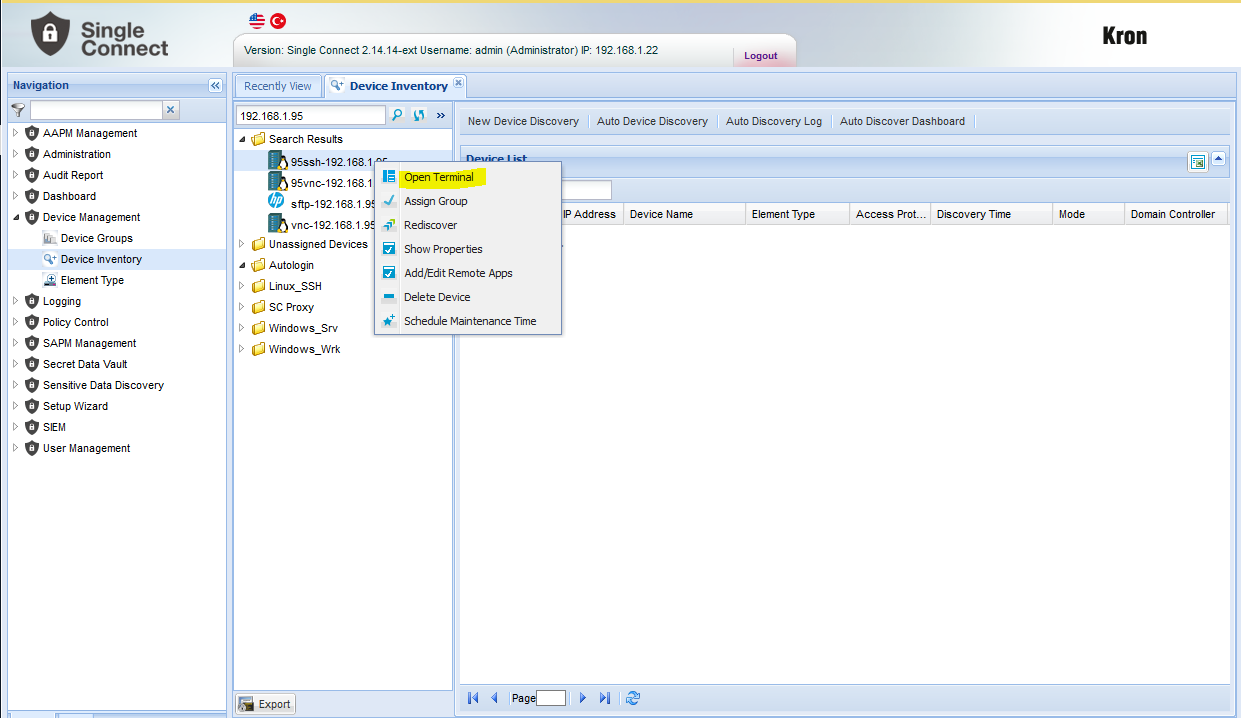
Single Connect RDP/VNC Proxy via Windows Client of Single Connect
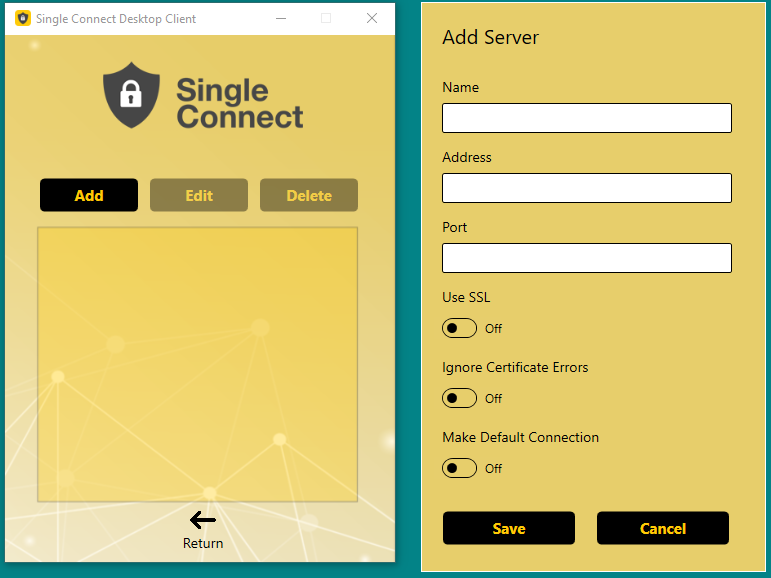
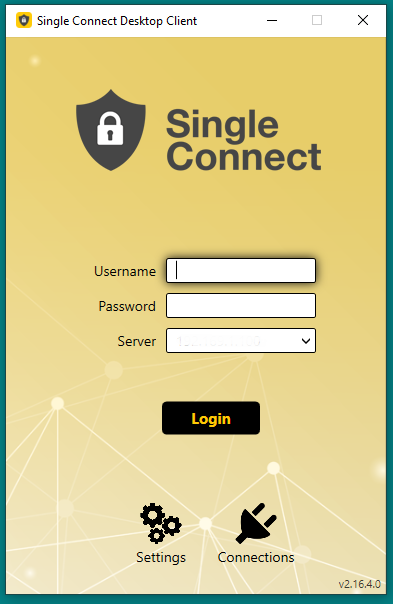
1. Open Single Connect Windows Client. 2. Click Configuration tab 3. Configure settings of Single Connect, then click Save button 4. Enter Username and Password, then Login Single Connect 5. Choose device and Click connect button 6. A pop-up window opens and a session to remote machine via RDP for Windows or VNC for Linux/Unix servers is established.
Clipboard Copy/Paste from Remote Desktop to Local PC
Single Connect users can copy texts from remote desktop to local PC.
1. Select text to copy 2. Click right and copy or press CTRL+C 3. Click your local PC and select area to paste the text. Click right and paste or CTRL+V
Clipboard Copy/Paste to Remote Desktop from Local PC
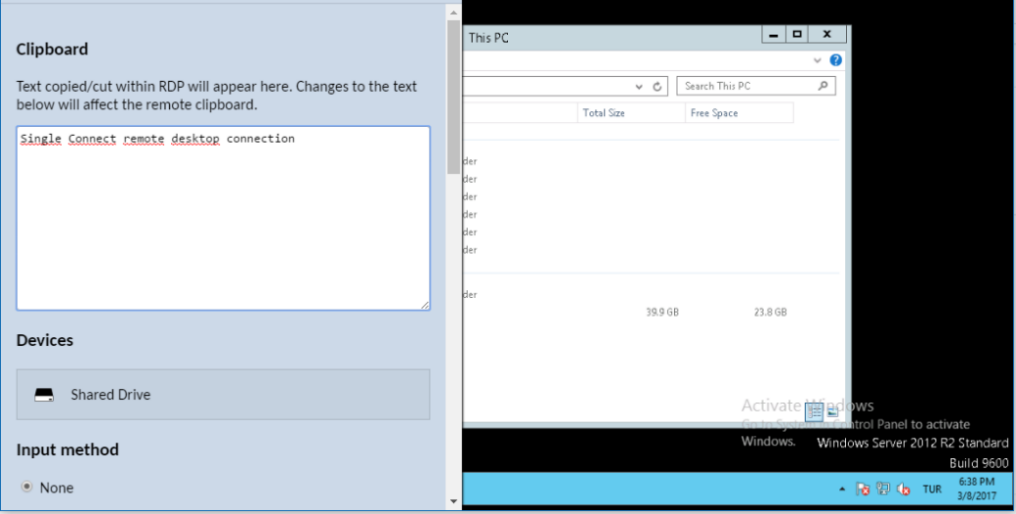
Single Connect users can copy texts to remote desktop from local PC.
1. Select text to copy 2. Click remote desktop window 3. Press CTRL + ALT + SHIFT buttons to open Remote Desktop Menu 4. Paste the text to clipboard area. 5. Select area to paste on remote desktop. Click right and paste or CTRL+V
File Transfer between Remote Desktop and Local PC
Single Connect users transfer files between Remote Desktop and Local PC
Method 1
1. Press CTRL + ALT + SHIFT buttons to open Remote Desktop Menu 2. Select "Shared Device"(Select allowed directory under Devices at VNC Connections) 3. Click upload files button and select files to upload to remote desktop. 4. Paste the text to clipboard area. 5. On remote desktop, navigate to \G Drive on SC RDP folder to find uploaded files. (Navigate to allowed directory for file transfer at VNC connections) 6. For transferring files from remote desktop to local PC, copy files to \G Drive RDP\Download folder
Method 2
1. Drag&Drop files from local PC to remote desktop window. 2. On remote desktop, navigate to G Drive on RDP folder to find uploaded files.
Admin Message and Killed Session
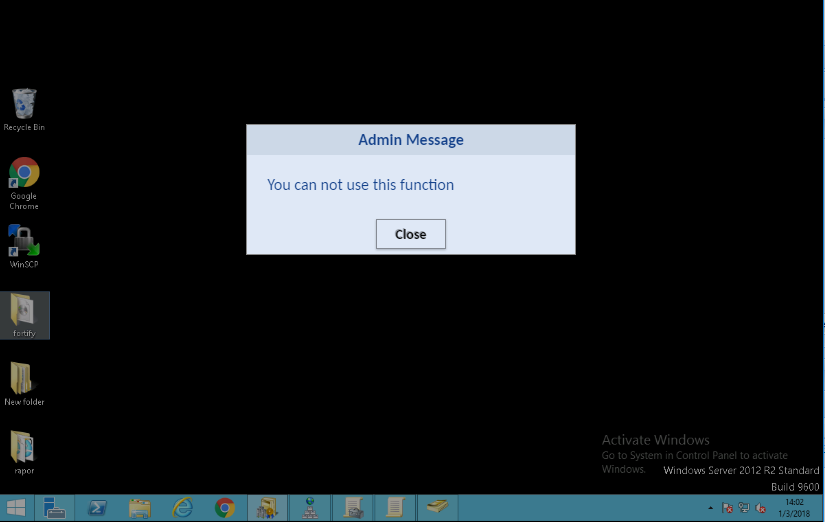
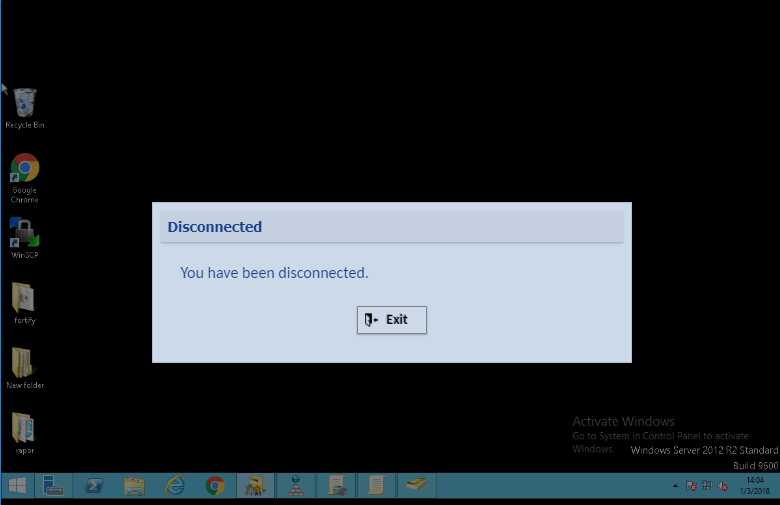
Admin can send message to user and User session can be killed from admin
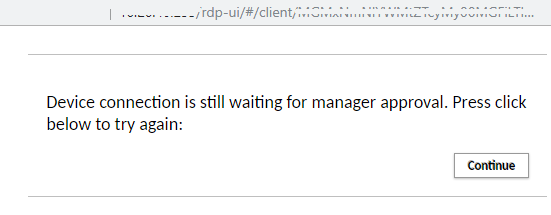
Managerial Approval for Connecting Devices
When devices are set with managerial approval to connection, user encounters with some alert at session window.
Disabling RDP Key Loging for a while
To disable key logging when entering critical information at RDP session, Press “ESC” key two times in 500 milliseconds.
Note |
|---|
If the “disabling key log” property is disabled on a user group, this disabling feature by pressing “escape” key doesn’t apply to the user group. |