3.1 RDP/VNC Proxy
RDP/VNC Proxy
The Single Connect RDP/VNC Proxy feature can be used to log and monitor remote sessions.
RDP Device Properties
For RDP Proxies, after adding a Windows device (see also: Managing device), some properties are set on the device.
- Log in to the Single Connect Web GUI
- Navigate to Device Management > Device Inventory
- Right-click on the device and select the “Show properties” option
- Set the related properties

Property | Definition |
|---|---|
remoteDesktop.domain | The domain to use when attempting authentication, if any. This parameter is optional. |
remoteDesktop.security | The security mode to use for the RDP connection. This mode dictates how data will be encrypted and what type of authentication will be performed, if any. By default, standard RDP encryption is requested, as it is the most widely supported. Possible values are: rdp Standard RDP encryption. This is the default and should be supported by all RDP servers. nla Network Level Authentication. This mode requires login information, and performs an authentication step before the remote desktop session actually starts. If the username and password are not given, the connection cannot be made. tls TLS encryption. TLS (Transport Layer Security) is the successor to SSL. any Allow the server to choose the type of security. |
remoteDesktop.ignore-cert | If set to "true", the certificate returned by the server will be ignored, even if that certificate cannot be validated. This is useful if you universally trust the server and your connection to the server, and you know that the server's certificate cannot be validated (for example, if it is self-signed). |
remoteDesktop.server-layout | The server-side keyboard layout. This is the layout of the RDP server and has nothing to do with the keyboard layout in use on the client side. The Kron Remote Desktop client is independent of keyboard layout. Possible values are: tr-tr-qwerty Turkish keyboard en-us-qwerty English (US) keyboard de-de-qwertz German keyboard (qwertz) fr-fr-azerty French keyboard (azerty) fr-ch-qwertz Swiss French keyboard (qwertz) it-it-qwerty Italian keyboard ja-jp-qwerty Japanese keyboard sv-se-qwerty Swedish keyboard failsafe Unknown keyboard - this option sends only Unicode events and should work for any keyboard, though not necessarily on all RDP servers or applications. If your server's keyboard layout is not yet supported, this option should work in the meantime. |
remoteDesktop.color-depth | The color depth to request, in bits-per-pixel. This parameter is optional. If specified, its value must be either 8, 16, or 24. Regardless of what value is chosen here, if a particular update uses less than 256 colors, Kron Remote Desktop Client will always send that update as a 256-color PNG. |
remoteDesktop.width | The width of the display to request, in pixels. This parameter is optional. If this value is not specified, the width of the connecting client display will be used instead. |
remoteDesktop.height | The height of the display to request, in pixels. This parameter is optional. If this value is not specified, the height of the connecting client display will be used instead. |
remoteDesktop.dpi | The desired effective resolution of the client display, in DPI. This parameter is optional. If this value is not specified, the resolution and size of the client display will be used together to determine, heuristically, an appropriate resolution for the RDP session. |
remoteDesktop.resize-method | The method to use to update the RDP server when the width or height of the client display changes. This parameter is optional. If this value is not specified, no action will be taken when the client display changes size. Normally, the display size of an RDP session is constant and can only be changed when initially connecting. As of RDP 8.1, the "Display Update" channel can be used to request that the server change the display size. For older RDP servers, the only option is to disconnect and reconnect with the new size. Possible values are: display-update Uses the "Display Update" channel added with RDP 8.1 to signal the server when the client display size has changed. reconnect Automatically disconnects the RDP session when the client display size has changed, and reconnects with the new size. |
remoteDesktop.disable-audio | Audio is enabled by default in both the client and in libguac-client-rdp. If you are concerned about bandwidth usage, or the audio is causing problems, you can explicitly disable audio by setting this parameter to "true". |
remoteDesktop.enable-audio-input | If set to "true", audio input support (microphone) will be enabled, leveraging the standard "AUDIO_INPUT" channel of RDP. By default, audio input support within RDP is disabled. |
remoteDesktop.enable-printing | Printing is disabled by default, but with printing enabled, RDP users can print to a virtual printer that sends a PDF containing the document printed to the Kron Remote Desktop client. Enable printing by setting this parameter to "true". |
remoteDesktop.enable-drive | File transfer is disabled by default, but with file transfer enabled, RDP users can transfer files to and from a virtual drive which persists on the Kron Single Connect server. Enable file transfer support by setting this parameter to "true". |
remoteDesktop.remote-app | Specifies the RemoteApp to start on the remote desktop. If supported by your remote desktop server, this application, and only this application, will be visible to the user. |
VNC Device Properties
For VNC Proxy, after adding a device (see also: Managing device), some properties are set on the device.
- Log in to the Single Connect Web GUI
- Navigate to Device Management > Device Inventory
- Right-click on the device and select the “Show properties” option
- Set the related properties

Property | Definition |
|---|---|
remoteDesktop.enable-sftp | If file transfer should be enabled. If set to "true", the user will be allowed to upload or download files from the specified server using SFTP. If omitted, SFTP will be disabled. |
remoteDesktop.sftp-directory | The default directory to upload files when they are simply dragged and dropped. Also, the SFTP user must be authorized to the directory to use this directory. This parameter is optional. If omitted, the default upload location of the SSH server providing SFTP will be used. |
remoteDesktop.sftp-username | The username to authenticate as when connecting to the specified SSH server for SFTP. This parameter is required. |
remoteDesktop.sftp-password | The password to use when authenticating with the specified SSH server for SFTP. |
remoteDesktop.color-depth | The color depth to request, in bits-per-pixel. This parameter is optional. If specified, this must be either 8, 16, or 24. Regardless of what value is chosen here, if a particular update uses less than 256 colors, Kron Remote Desktop Client will always send that update as a 256-color PNG. |
Note | |
|---|---|
If the SFTP user password is used from SAPM, define the SFTP user as an SAPM account and remove the “remoteDesktop.sftp-password” property on Device Properties | |
Device Group Properties for RDP/VNC Proxy
Property Key | For RDP/VNC | Definition |
|---|---|---|
addSessionUserToUserSelection | RDP/VNC | This property only applies to SSH/TELNET Proxies and RDP/VNC Proxies in Session Manager Modules. When the “addSessionUserToUserSelection” property is set as “true” on a device group, users can connect to target devices in the device group with their own username that is used to log in to Single Connect. |
approvalRequiredForConnection | RDP | This property only applies to SSH Proxies and RDP Proxies in Session Manager Modules. When its value is set as “true”, managerial approval via e-mail is requested for users to connect to devices in the device group. |
globalUsername | RDP/VNC | The username to use when connecting to all devices covered by the device group. This username must be pre-defined as a user on all devices in the device group. |
globalPassword | RDP | It is the password of the globalUsername The password to use when connecting to all devices covered by device group. |
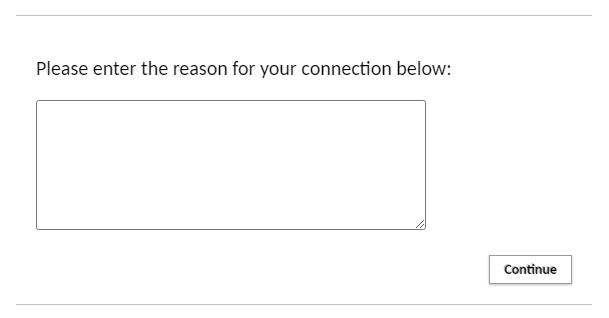
reasonRequiredForConnection | RDP | This property only applies to SSH Proxy and RDP Proxy in Session Manager Modules. When its value is set as “true”, a comment/reason field appears when users try to connect the devices in the device group. The text entered here will appear in the session logs and managerial approval emails and notifications (if enabled). |
sessionDurationLimitMinute | RDP/SSH | The property only applies to SSH Proxies and RDP Proxies in Session Manager Modules. User's sessions can be limited based on the sessions duration. |
Connection to Device with Current User
A device can be assigned to different device groups and a user can have authorized to access to all of these device groups. If the device groups have different global usernames, the Single Connect user chooses the user that connects to the target RDP device.

If the user wants to connect to a device with their own username, the “addSessionUserToUserSelection” property must be set as “true” on the device group that has the target device.


Managerial Approval for User connecting to device
To enable managerial approval via e-mail for users connecting to devices, the “approvalRequiredForConnection” property must be set as “true” on a device group that has the target devices.

RDP Idle Time Settings
To calculate idle time for RDP Connections in a defined time limit, follow the steps below:
- Log in to the Single Connect Web GUI
- Navigate to Administration > System Config Man.
- Set required parameter
nsso.remote.desktop.idle.threshold = “millisecond” (time limit to start calculation of idle time)

Note |
|---|
If the “nsso.remote.desktop.idle.threshold” property isn’t set at System Config Mang., this property’s value is set at 30000ms(30seconds) as default. |
RDP Idle Session Timeout Settings
User's sessions can be terminated based on their idle duration. To set a timeout limit, follow the steps below:
- Log in to the Single Connect Web GUI
- Navigate to the Administration > System Config Man.
- Set the following parameters;
rdp.idle.session.timeout=”millisecond”

RDP Sessions Duration Based Limitation Settings
User's sessions can be limited based on the session’s duration. To set a time limit, follow the steps below:
- Log in to the Single Connect Web GUI
- Navigate to Device Groups
- Right-click Device Group, and click the “Show Properties” option
- Set the “
- Set the “nsso.remote.desktop.session.duration.limit.warning.before.min” parameter (time limit for warning message before ending session)


OCR Language Settings
To get OCR logs in required language, Set OCR language by following the steps below:
- Log in to the Single Connect Web GUI
- Navigate to Administration > System Config Man.
- Set the following parameter;
nsso.remote.desktop.ocr.lang= lang1+lang2+lang3
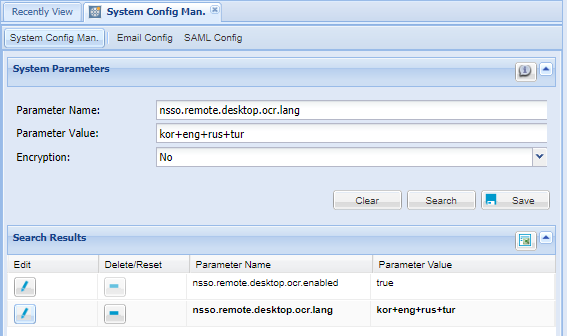
Supported Languages | Code |
|---|---|
Dutch, Flemish | nld |
English | eng |
German | deu |
Italian | ita |
Japanese | jpn |
Korean | kor |
Portuguese | por |
Russian | rus |
Serbian | srp |
Spanish | spa |
Turkish | tur |
Settings to Disable RDP Key Logging for a while
Key-Logger of RDP sessions logs all the key motions in clear text. When users enter their critical information like passwords, the critical information is recorded. To obsecure certain data, follow the steps below:
- Log in to the SingleConnect Web GUI
- Navigate to Administration > System Config Man.
- Set the “
- Set the “
When users press the defined key twice in 500 milliseconds, keys pressed after are not logged up to the defined hidden key limit.
The default key is ESC. Potential keys that can be set up in System Config Man. are;
[Alt] | [F10] | [F8] | [Print] |
|---|---|---|---|
[Begin] | [F11] | [F9] | [Right] |
[Break] | [F12] | [Home] | [Scroll_Lock] |
[Ctrl] | [F2] | [Insert] | [Shift] |
[Delete] | [F3] | [Left] | [Shift_Lock] |
[Down] | [F4] | [Num_Lock] | [Tab] |
[End] | [F5] | [Page_Down] | [Up] |
[Esc] | [F6] | [Page_Up] | |
[F1] | [F7] | [Pause] | |
Note | |
|---|---|
If “nsso.remote.desktop.key.logger.hidden.key.limit” is not defined manually at System Config Man., the hidden key limit is 15 keys as default. | |
Logs are shown like the figure below:

To disable the key log hiding feature on certain user groups, follow the steps below:
- Log in to the Single Connect Web GUI
- Navigate to Policy Control > Portal Functions
- Open the Function Group Definition tab.
- Enter the Function Group Name then select the Function as
- Open the Realm Definition tab
Set realm for the user group and “disallow hiding key” function
Limiting Applications on Windows RDP Devices Settings
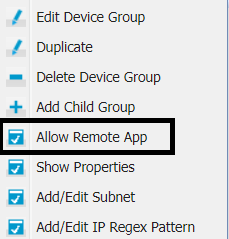
Single Connect enables to limit applications to be accessed on windows servers and it is possible to set permissions for Device Groups for each application. To adjust allowed applications on a windows server, follow the steps below;
- Application path should be defined.
- Log in to the Single Connect Web GUI
- Navigate to Administration > Remote Desktop App
- Fill the Application Name and Path fields

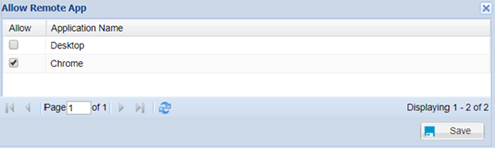
- Applications to be allowed should be chosen on the Device Group.
4. Navigate to Device Groups 5. Right-click on Device Group, and select Allow Remote App
6. Choose which application will be allowed for the devices in this device group.
- If the application path is different from the path that is defined at “Administration-Remote Desktop App” page for a device, change the path on the device.
7. Navigate to Device Inventory 8. Right-click on target device 9. Choose the “Add/Edit Remote App” option

10. Add/Edit application name and path

Remote Application Seamless Login
- Log in to the Single Connect Web GUI
- Navigate to Device Management > Device Group
- Right-click on the device group that you want to edit and select “Allow Remote Application”
- Click the “Set Auto Login Properties” button.
OCR Text: Text to recognize if login page has loaded successfully Key Template: Login key template to insert username and password Username: Username to log in to application Password: Password to log in to application Timeout: Duration to detect login page

Assigned Credentials
When connecting to the RDP devices through a Single Connect RDP Proxy, the following credentials can be used for logging in to the remote device:
- Global Username and Global Password (static values)
- Global Username as an SAPM account, with changed password
- User’s own credentials, if they are allowed to log in to the remote device
- Different assigned credentials for each user, like john.local account for the user John, julia.local account for the user Julia, etc.
For the fourth option, Assigned Credentials should be used. The following steps should be followed:
- Log in to the Single Connect Web GUI as an admin user.
- Navigate to Device Management > Device Groups
- Right-click a Device Group and select Show Properties
- Save the “addAssignedCredentialToUserSelection” property as “true”
These steps enable the Assigned Credential usage for a device group. (This device group should be put in a device group realm with the user group including users, beforehand) To set up the assigned credentials for different users, first SAPM or Secret Data Vault accounts should be saved. (“SAPM” is used for passwords that are being rotated by the Password Manager, while “Secret Data Vault” can be used for static usernames and passwords) After that, these steps should be followed:
- Log in to the Single Connect Web GUI as an admin user
- Navigate to User Management > Assigned Credential section.
- Start typing username in “User” text box, matching users will appear just below. Select the one for whom another credential will be assigned.
- Select “SAPM” or “Secret Data Vault” as the Credential Source. (“SAPM” is used for passwords that are being rotated by Password Manager, while “Secret Data Vault” can be used for static usernames and passwords)
- According to the selection either select the “SAPM Username” or “Secret Data Vault” name.
- Save
After these steps are completed, assigned credentials will be used for the connection when these Single Connect users that are defined in these steps are trying to open an RDP session.


Legal Disclaimer Message
Please ask consultation from Kron Technical Support
Reason Field for Device Connections
A mandatory reason field can be enabled to be filled by users when connecting to devices. This text entered here would appear in Session Logs and the managerial approval emails and notifications. To enable this feature, the “reasonRequiredForConnection” property must be set as “true” on a device group that includes the target devices.
Transferring Files between RDP endpoints
Transferring files between RDP endpoints is possible. To activate this functionality Please ask consultation from Kron Technical Support [email protected]