2.1 Managing Users
Managing Users
Adding Users to Single Connect Manually
Authorized users can add new users to Single Connect. To add new users:
- Log in to the Single Connect Web GUI
- Navigate to User Management > User Accounts
- Open the User Definition tab
- Enter the user’s information and Save
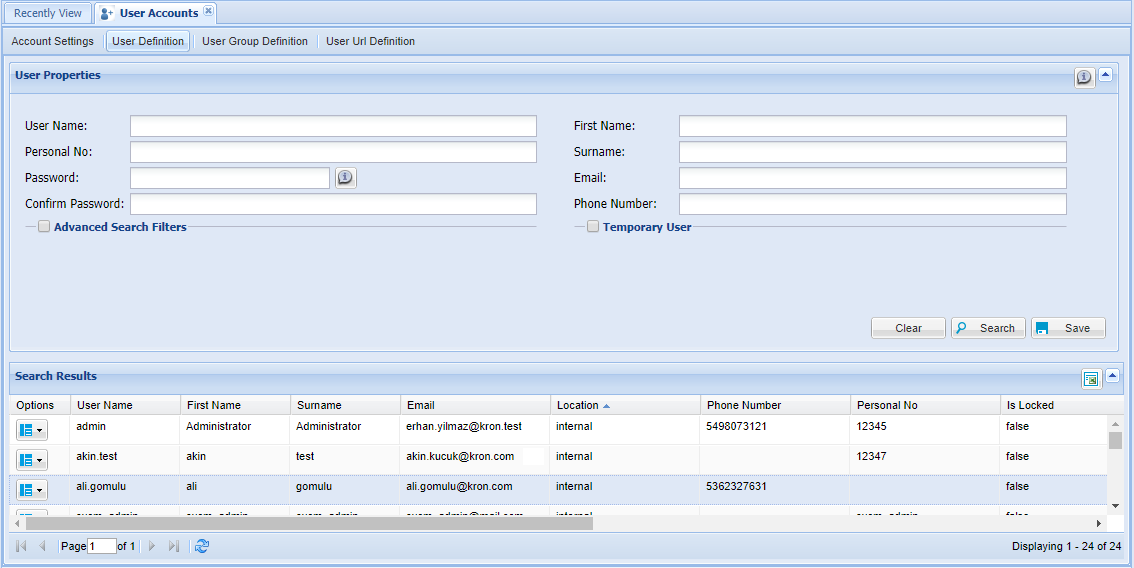
Searching for Single Connect Users
Authorized users can search for and list Single Connect users.
- Log in to the Single Connect Web GUI
- Navigate to User Management > User Accounts
- Open the User Definition tab
- Enter parameters and Search
Editing Single Connect Users
Authorized users can edit Single Connect users.
- Log in to the Single Connect Web GUI
- Navigate to User Management > User Accounts
- Open User Definition tab
- Search for the user to be modified
- From the User Options drop-down menu, click Edit User, which will show the user’s details
- Edit the desired fields and Save.
Setting User Properties
Authorized users can adjust properties of Single Connect users.
- Log in to the Single Connect Web GUI
- Navigate to User Management > User Accounts
- Open the User Definition tab
- Right-click on the User Options button and click Show Properties
- Add/Edit the user properties and Save
Property Keys |
|---|
externalDirectorySource |
forcePasswordChangeOnNextLogin |
isLocked |
isTemporaryUser |
lockReason |
phoneNumber |
temporaryUserEndTime |
temporaryUserStartTime |
ubaThreshold |
unlockOnPasswordChanged |
unlockTime |
Force New User to Change Password
New users can be forced to change their password when they first log in to Single Connect. To enable “forced password change” on new users, follow the steps below:
- Log in to the Single Connect Web GUI
- Navigate to Administration > System Config. Man.
- Set the "aioc.user.force.password.change.for.new.user" parameter value as “true”
Note | |
|---|---|
Default value of the parameter “aioc.user.force.password.change.for.new.user” is “false”. | |
User Password Strength Settings
Please ask consultation from Kron Technical Support
User Password Hash Algorithm Settings
Multihash options are available to encode the password of users. Possible values to define are, MD5(default), SHA256, SHA384, SHA512, and NTLM.
- Log in to the Single Connect Web GUI
- Navigate to Administration > System Config Man.
- Set the "aioc.user.password.algorithm" parameter value with the preferred algorithm
LDAP / Active Directory Integration
LDAP or Active Directory can be integrated with Single Connect. Single Connect Setup Wizard can be used to configure LDAP/Active Directory integration.
- Log in to the Single Connect Web GUI
- Navigate to Setup Wizard > Single Connect Setup Wizard
- Select the "Import users from LDAP automatically" radio button
- Enter related configuration parameters
- Click the "Import Users" button
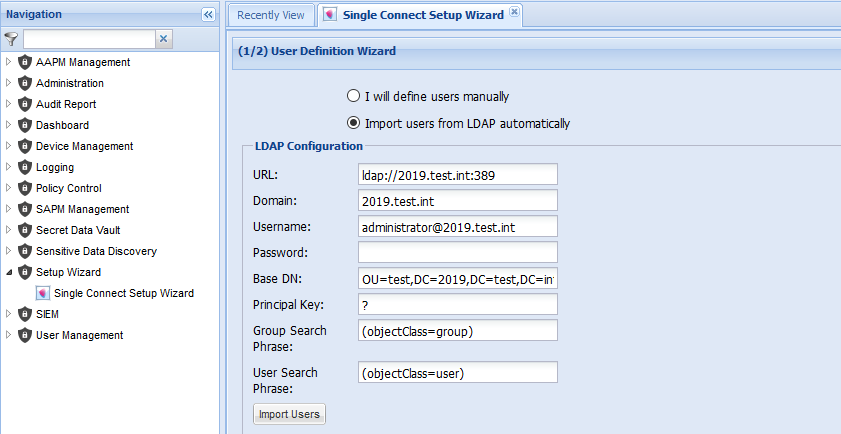
Adding Users Automatically
A job running periodically on Single Connect synchronizes user groups from Active Directory. This job integrates the changes made to Active Directory with Single Connect since it last ran.
Manually Trigger LDAP Sync Job
LDAP Sync Job can be manually triggered.
- Log in to the Single Connect Web GUI
- Navigate to Administration > Jobs Scheduler
- Click "Trigger List"
- Click the “Trigger as Simple Trigger” link in the “LdapDataCollector” line.
Importing User Groups in Single Connect
Same as individual users, the “LdapDataCollector” job integrates user groups with Single Connect periodically.
Note | |
|---|---|
For some cases, multiple usernames can have the same email addresses in Active Directory/LDAP servers. It is not possible to add these users by default. The “aioc.user.allow.duplicated.email” parameter should be set as “true” in System Config Management menu to allow importing of multiple usernames with the same email address. | |