Using MFA for SSH Connections
Regardless of how MFA is used for Single Connect logins, it can also be used to establish connections (SSH/RDP) to target devices using any method. In this section will provide information on how to configure MFA for SSH connections.
Only users in enabled User Groups can use MFA for SSH connections. To enable MFA use for the user group, please refer to the section Enabling One-Time Password (OTP). To set up MFA for SSH connections:
- Pre-requisite: Admin and users have the QR code, installed the Single Connect mobile app, scanned the QR code with the mobile app, and OTP is enabled for the user group that will be using MFA for SSH connections. (See sectionsSending MFA QR Codes to Users, Creating a Connection Between Single Connect and the Single Connect Mobile Application, Enabling One-Time Password (OTP) )
- Establish an SSH connection to Single Connect from the SSH client as a root.
- Run the following commands to set the required parameters in the config file: cd /u01/nssoapp/conf/ vi nsso.properties Check the configuration file to see if the parameter below is already configured in it. If not, add the lines below. If there is a hash (#) sign in front of the parameters, delete the hash (#) sign to activate the parameter. If the parameter value is “false”, change it to “true”. To type or add anything in the vi editor, first press the Insert button on the keyboard, then type in the necessary line. Press Esc to exit typing mode. To save the file press Esc, then colon (:), type in “wq!” and press Enter. If you do not want to save the changes to the file, press Esc, then colon (:), then type in “q!” and press Enter. nsso.connection.otp.enabled=true nsso.otp.cache.enabled=true nsso.otp.cache.seconds=300 The first command enables OTP. The second command sets up OTP caching, and the third one sets the cache value to 300 seconds. This means that if a user logs in with OTP they will not be asked for any token for the next 300 seconds, even if the user disconnects and connects again.
- After the parameters are set, restart nssoapp by running the command: systemctl restart nssoapp
- After these settings, a user belonging to an enabled user group will be asked for a token when logging in to an SSH server.
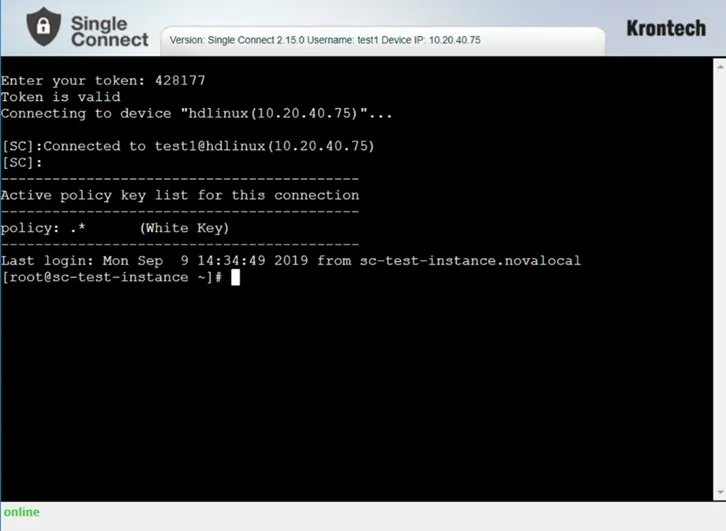
SSH Connection Using MFA Token