External Device Database Integration for Devices
The external device database import configurations allow Single Connect to automatically detect and discover instances for the relevant Device Groups, based on their custom tags.
The following configuration is required in order to add/discover devices from external device databases.
Configurations on the System Config Manager
Navigate to Administration > System Config Man. and set the following parameters:
Parameter Name | Parameter Value | Encryption |
|---|---|---|
device.database.driver_n | Database driver for external database connection. Ex.: device.database.driver_0 = org.postgresql.Driverdev | |
device.database.password_n | External database password. | must be set as “yes” |
device.database.source | Database IP addresses. Multiple values must be separated by “;”. Ex.: 10.10.10.10;20.20.20.20 | |
device.database.sql_n | SQL Query to import devices. IP address, hostname, element type specifier and one of the tag values is mandatory. Ex.: device.database.sql_0 = SELECT dynName AS IP_ADDRESS, server AS HOSTNAME , os AS ELEMENT_TYPE_SPECIFIER , id AS PORT, os as TAG_OS, site as TAG_SITE FROM devicedatabase. | |
device.database.url_n | JDBC URL address for database connection. E.g: device.database.url_0 = jdbc:postgresql://10.10.10.10:5432/databasename | |
device.database.user_n | External database username. | |
Add/Edit Element Type Properties for External Database Integration
Importing instances from an external database requires an Single Connect job for synchronization. The job will update the information on Single Connect periodically, depending on the cron expression:
- Navigate to Administration > Jobs Scheduler.
- Open the Trigger List tab.
- Select DeviceDatabaseImportJob as the Job.
- Fill in the Trigger Name and Cron Expression fields.
- To enable the job, select Enabled for the Active field and click Save.
Device Inventory Export
Devices with SSH/Telnet or MSSQL access protocols, can be exported to be used in other clients. SSH/Telnet devices are exported in the SecureCRT client format. MSSQL devices are exported in the SQL Server Management client format. To export devices in the supported format:
- Navigate to Device Management > Device Inventory.
- Click the Export button at the bottom of the device group list. Two options are displayed after clicking the Export button: MSSQL EXPORT and SECURECRT EXPORT.
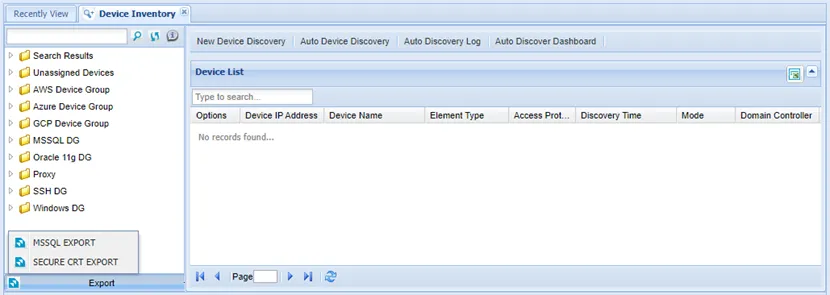
- To export MSSQL devices, select MSSQL EXPORT and click OK.
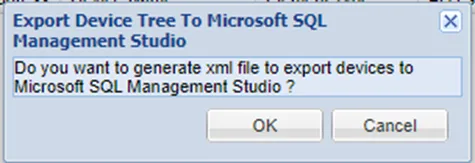
An xml file is exported in the “regsrvr” format. The exported file is imported to the “Registered Servers Field” of the SQL Management Studio client for easy usage. When the Single Connect IP address and the bind port related to the target MSSQL device are exported into the file, only the username and password are required to log in.
- To export devices with SSH/Telnet access protocol, select SECURECRT EXPORT.
- Select Operating System and fill in the Username field, then click OK.
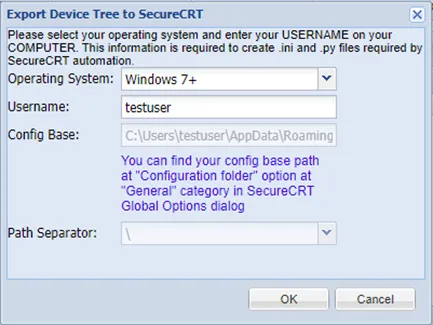
A zip file is exported in the SecureCRT format to be imported to the SercureCRT client. The Single Connect IP, SSH proxy port, device IP and the port are exported into the file. During the connection from SecureCRT, only the username and password will be required.