Assigning Single Connect Credentials to Target Databases
In some cases, Single Connect users are connected to target devices with different credentials. In other cases, there are more than one privileged user accounts in the target system, and different user groups use different privileged accounts to log in to target systems. The Assigned Credential feature matches the Single Connect users with the target device users.
The following steps should be followed to configure the Assigned Credential feature. These steps enable Assigned Credential use for the device group with target databases.
- Navigate to Device Management > Device Groups.
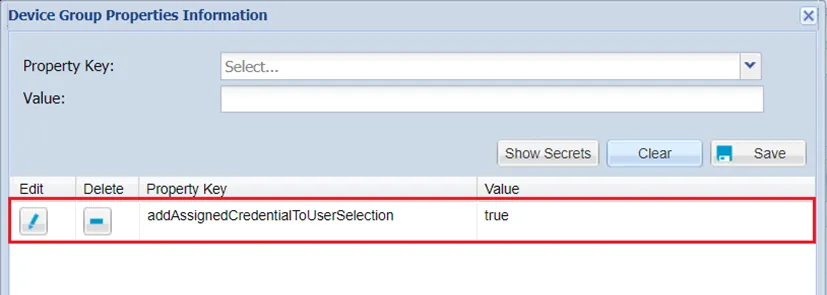
- Right-click the desired Device Group and select Show Properties.
- Set the addAssignedCredentialToUserSelection property as “true” and click Save.
To set up Assigned Credential for different users, the SAPM or Secret Data Vault accounts should be saved first. SAPM is used for passwords that are being rotated by the Password Manager, while the Secret Data Vault can be used for static usernames and passwords. After saving the SAPM or the Secret Data Vault accounts:
- Configure the SAPM or Secret Data Vault account for the target system.
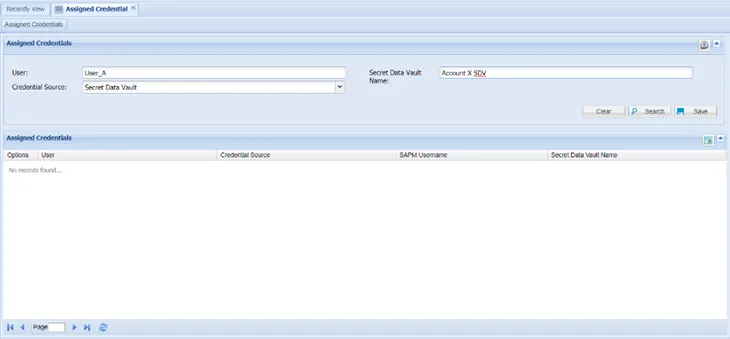
- Navigate to User Management > Assigned Credential.
- Start typing in the username in the User text box. Matching users will appear just below. Select the one for whom another credential will be assigned.
- Select SAPM or Secret Data Vault as the Credential Source.
- According to the selection, either select the SAPM Username” or Secret Data Vault name and click Save.
Once these steps are completed, assigned credentials will be used for the connection whenever the Single Connect users defined in these steps are trying to open an SSH session.
Only one assigned credential must be defined for a specific database IP address for each user. If multiple assigned credentials are defined, log in fails. Also, the Secret data vault and SAPM accounts must be defined for specific IP address.