Signing In and Using the MCP Gateway
The first request of a user without a valid session starts the browser sign-in. Local and LDAP users sign in the same way.
To sign in to the MCP Gateway:
- In the AI client, call the gateway_login tool or send a request that uses an MCP server. The gateway returns a sign-in link.
- Open the link in a browser.The link expires in five minutes.
- On the Kron PAM sign-in page, enter your username and password and click the Login button. Existing MFA rules apply.
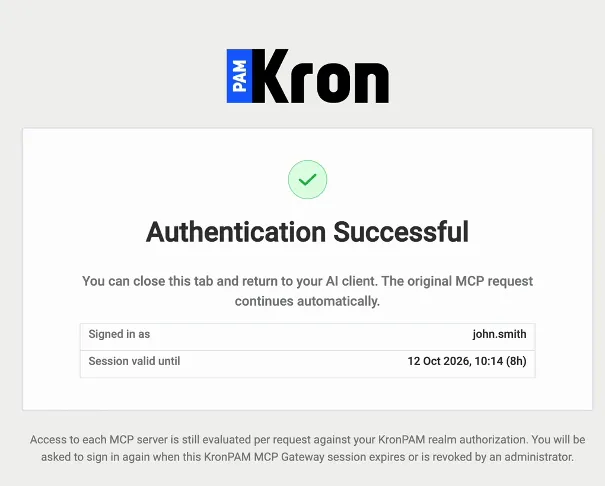
- Confirm that the Authentication Successful page shows your username in the Signed in as field and the session end time in the Session valid until field.
- Close the browser tab and return to the AI client.
Using MCP Server Tools
Ask the AI client to list the available tools, or call the list_tools tool. The gateway returns only the MCP servers and tools that your Realms authorize.
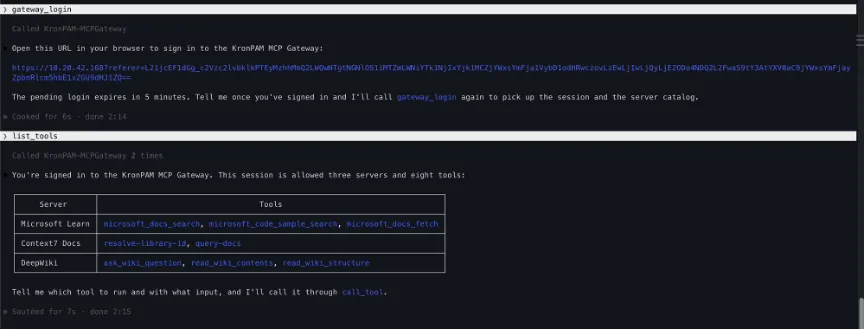
To use a tool, describe the task to the AI client. The client calls the call_tool tool, and the gateway forwards the request to the MCP server after the Realm check.
Signing Out
Call the gateway_logout tool to end the session. The gateway invalidates the session token and the next request starts the sign-in again.