Datasets
The Datasets page lists all datasets in Superset. Use this page to find, create, and import datasets.
To find a dataset:
1. Click Datasets on the top menu.
2. Narrow the list with one or more filters:
o Type a dataset name in the Name field.
o Select a value in the Type, Database, Schema, Owner, Certified, or Modified by field.
3. Click the dataset name. The chart editor opens with the dataset selected, as for a new chart. For details, see Configuring a New Chart.
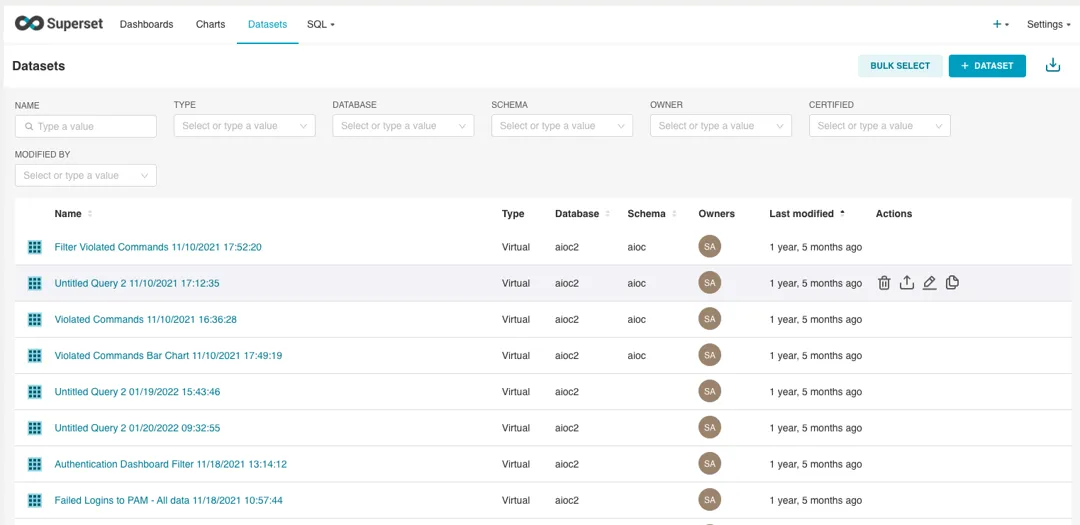
The columns on the Datasets page:
Column | Description |
|---|---|
Name | Shows the dataset name. Click the name to open the chart editor with the dataset selected. |
Type | Shows the dataset type, Virtual or Physical. |
Database | Shows the database that the dataset uses. |
Schema | Shows the schema of the dataset. |
Owners | Shows the owner of the dataset. |
Last modified | Shows the time that has passed since the last change. |
Actions | Provides the following actions for each dataset: Delete removes the dataset, Export exports the dataset, Edit opens the dataset for editing, and Duplicate creates a copy of the dataset with the same query. The Duplicate action is available only for virtual datasets. |
To work with datasets, use the following controls:
· + Dataset: Creates a new dataset. For details, see Creating a New Dataset.
· Bulk select: Selects multiple datasets at once.
· Import icon: Imports a previously exported dataset.