Creating Script
Scripts in Privileged Task Automation are commands or tasks that run on target devices. A script can contain one or more lines of commands. This section explains how authorized users can add scripts and configure dynamic fields in commands.
A script group must exist, and you must hold both the kronpam.pta.scripts.moduleVisibility and the kronpam.pta.scripts.add portal functions.
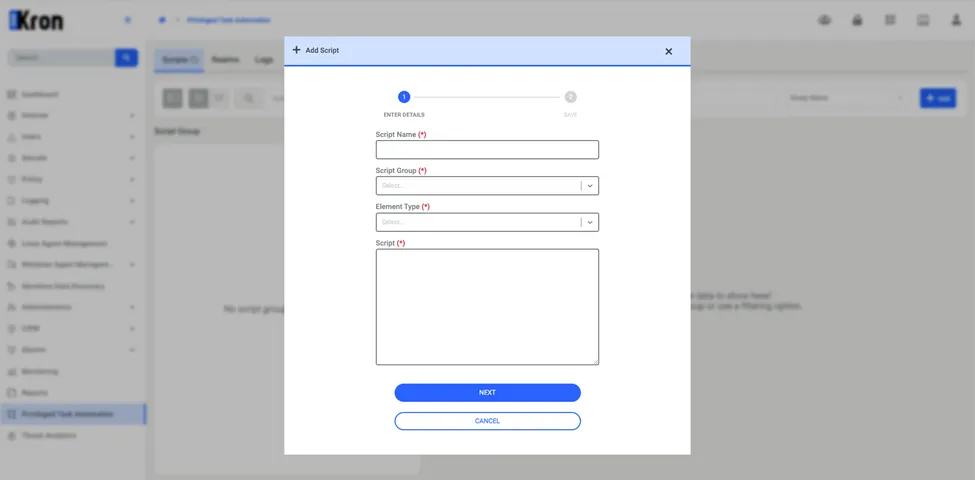
To add a script:
1. Navigate to Privileged Task Automation > Scripts.
2. On the Scripts tab, click Add in the upper-right corner, and then select Add Script.
3. In the Add Script window, enter the following details:
Script Name: Enter a descriptive name for the script.
Script Group: Select the script group for the script.
Element Type: Select the target device type for the script, for example, Linux Server or Windows Server.
Script: Enter the commands to run.
To let users enter values during execution, define dynamic fields in the commands. A dynamic field uses the %value% format, and one script supports several dynamic fields with different names.
For example, enter df -kh %partition%. Kron PAM prompts the user for a %partition% value at execution time.
4. Click Next.
5. Review the script details, and then click Save.