Windows Audit Report
The Windows Local User Audit Report is used to report the current security status of local Windows accounts.
Create the Report Configuration:
- Navigate to Audit Report > Windows Audit Report.
- Open the Report Configuration tab.
- Create the report configuration by filling the fields after clicking Add. The report job can be executed manually or periodically (as scheduled).
- Exclude Service Accounts parameter can be enabled on the device group. If enabled, then it excludes all service accounts from fetch in the Windows audit report. When we execute the audit report, we enable this highlighted parameter.
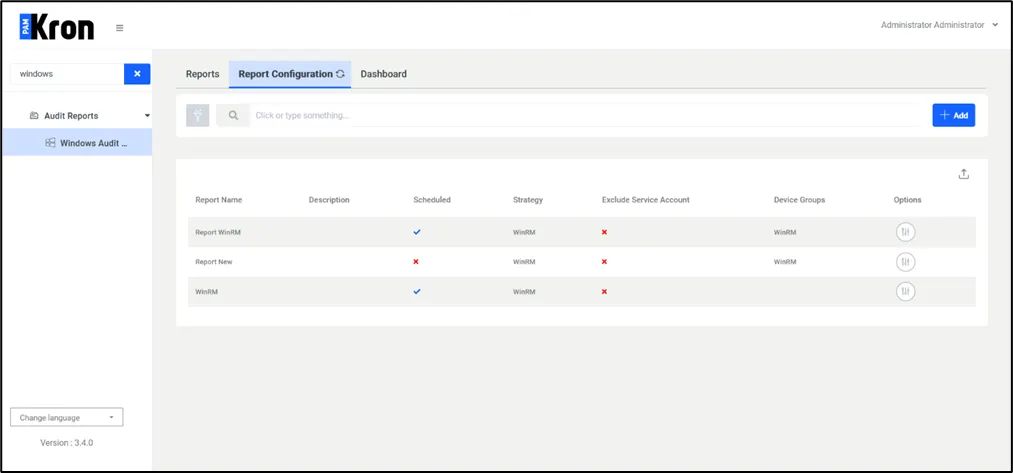
To execute the report job manually, click the Options pop-up menu button and select Run.

To execute the report job periodically, the Scheduled field needs to be configured in the Report Configuration. The period can also be configured from the Jobs Scheduler by editing the WindowsAuditJob.
For the Audit Report, the selected device groups must have the globalUsername and globalPassword properties defined. See also section Device Group Properties. To be able to access the report detail, the user defined as globalUsername should be a privileged user.
globalUsername should be entered in <username> format if it is a Vault account. It should be entered in <username>@<ipAddress> format if it’s an account defined on another server, like an LDAP server. globalPassword would be discarded if globalUsername is defined as a Vault account.
Report Details
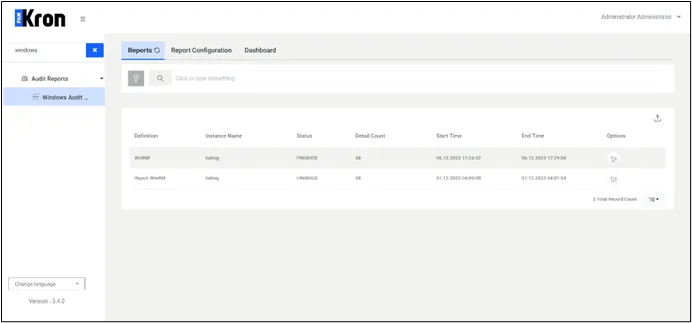
When a job finishes, the reports are listed in the Reports tab. To access the report:
- Navigate to Audit Report > Windows Audit Report.
- Open the Report tab.
- Click the Options drop-down menu button and select Show Details.
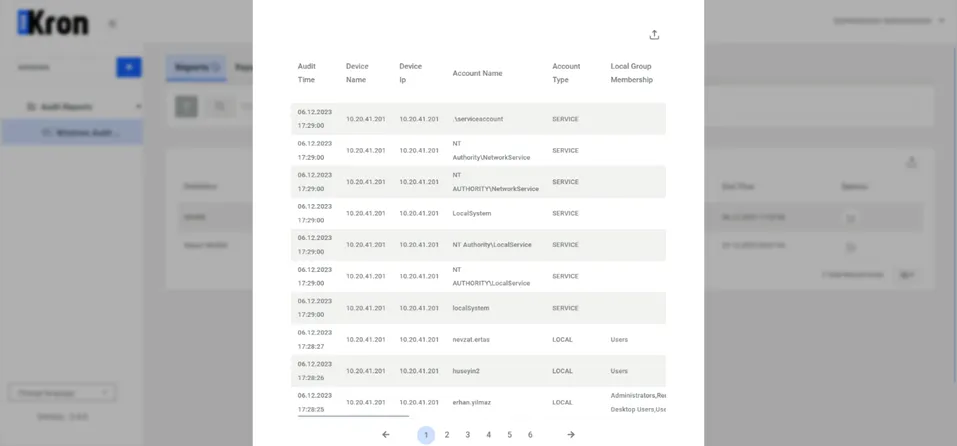
Report details are shown in the Windows Audit Report Details section:
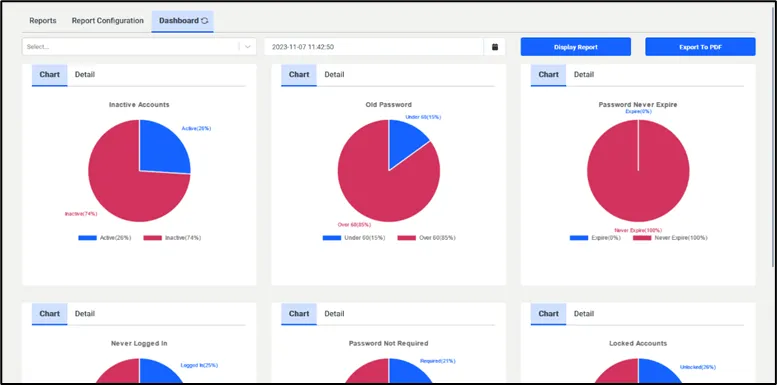
Dashboard
- Navigate to Audit Report > Windows Audit Report.
- Open the Dashboard tab.
- Choose the desired fields and click the Display Reports button.