Time Restriction Policy
Sessions are warned and disconnected by the time defined in the time restriction policy.
To create a time Restriction for the RDP Profile:
- Navigate to Policy > Policy > Add.
- Select Time Restriction from the drop-down menu and click Next.
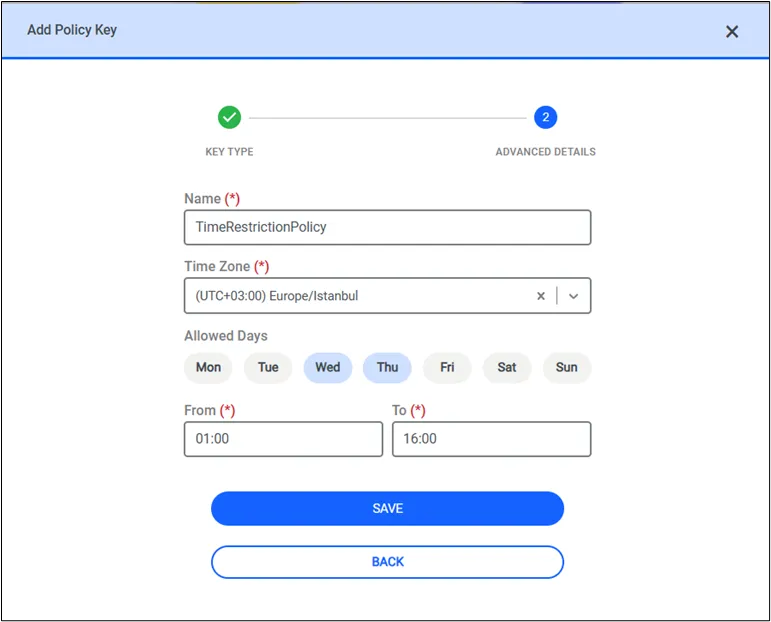
- Fill out the Name and Time Zone fields.
- Select the allowed days and define a time interval for the restriction, and click the Save button.
- The Time Restriction policy now appears in the All Policy Keys section of the policy screen.
To be able to use the Time Restriction Policy, there must be a policy group including an rdp profile defined in the realm.
- The timezone list includes a Server Default option, which sets the timezone to the default time zone of the PAM server (e.g., Europe/Istanbul).
- The default value in the Timezone area of the Edit Policy Key shows the UTC timezone offset.
- The input area for hours in the Edit Policy Key is restricted to the HH:MM format (a warning appears if an incorrect format is entered).
Working principle of time restriction policy: Time restrictions only control session allowance and termination. Kron PAM supports automatic merging of time intervals based on their continuity or overlap but does not support switching RDP profiles dynamically between different time windows. See definitions and examples on the table below. Limitations: Multiple RDP Profiles for different time intervals are not supported in the latest version. Example: Time A → RDP Profile 1 Time B → RDP Profile 2 Time C → RDP Profile 3 ❗ These cannot dynamically switch within a single session.
Type | Definition | Behavior | Example |
|---|---|---|---|
Consecutive | Time intervals are adjacent with no gap. | Merged as a single continuous block. | 10:00-15:00 and 15:00-20:00 → Connect at 11:00 → Ends at 20:00 |
Overlapping | Time intervals intersect (have overlapping duration). | Merged and treated as one long block. | 10:00-16:00 and 14:00-20:00 → Connect at 10:00 → Ends at 20:00 |
Non-overlapping | Time intervals have a gap between them. | Treated as separate blocks. Session ends at current interval's end. | 06:00-09:00 and 11:00-14:00 → Connect at 07:00 → Ends at 09:00 |
To add this RDP Profile to a Policy Group:
- Navigate to Policy > Policy.
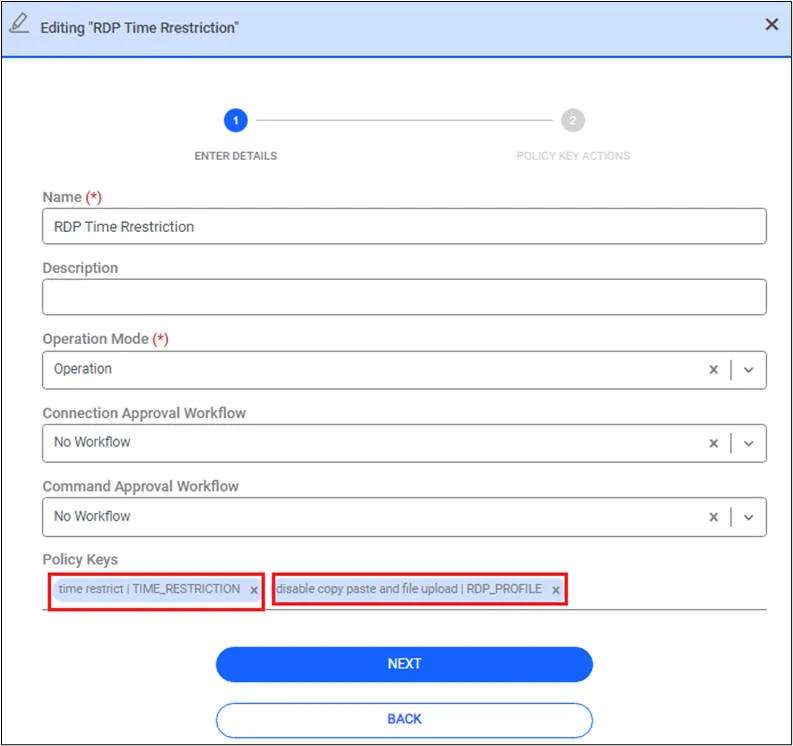
- Edit a policy group.
- Select the RDP Profile under Policy Keys.
- Save the policy group.
To link this Policy Group with a Device Group Realm, please refer to section Device Realm Creation.
The profile rules apply whenever an RDP Profile is part of a Policy Group included in the Device Realm for connection. When it is not included, the Device Properties take precedence, regardless of the users that are connecting.