PKI Authentication
PKI Authentication is a security method that verifies the identities of users, devices, or applications using digital certificates and public-private key pairs. It relies on a trusted certificate authority (CA) to issue certificates, ensuring secure and authenticated connections across networks.
Kron PAM supports PKI Authentication. The creation of the client certificate is beyond the scope of this document, but in a well-configured Microsoft domain, client certificates are automatically produced when the end user logs into the endpoint joined to the domain.
Client certificates are issued by a Certificate Authority (CA). This CA certificate must be placed into the Kron PAM certificate store, and therefore, the CA certificate must be obtained beforehand.
A trust store to contain the client-verifying CA certificates needs to be set up with the following command:
Make an SSH connection to Kron PAM:
- Navigate to the /pam/gui/conf/cert directory.
- Run the following command (ca-cert.pem is the CA certificate):
- keytool -import -alias tomcat -keystore pam_truststore.jks -file ca-cert.pem
- Set a keystore password when prompted. After creation, assign the necessary permissions for the Keystore to pamuser.
- Edit the server.xml file to include the keystore file specified above.
- vi /pam/gui/conf/server.xml
- Add the part following the 26th line in the sample xml below. Ensure that the passwords for the trust store and certificates are changed accordingly."
<Connector
               port="443"
               protocol="org.apache.coyote.http11.Http11NioProtocol"
               maxThreads="200"
               scheme="https"
               secure="true"
               SSLEnabled="true"
               server="PAM Server"
               allowTrace="false">
               <SSLHostConfig
                    protocols="TLSv1.2"
                    ciphers="TLS_ECDHE_ECDSA_WITH_AES_128_GCM_SHA256,
                             TLS_ECDHE_ECDSA_WITH_AES_256_GCM_SHA384,
                             TLS_ECDH_RSA_WITH_AES_256_GCM_SHA384,
                             TLS_ECDH_ECDSA_WITH_AES_256_GCM_SHA384,
                             TLS_ECDH_RSA_WITH_AES_128_GCM_SHA256,
                             TLS_ECDH_ECDSA_WITH_AES_128_GCM_SHA256,
                             TLS_ECDHE_RSA_WITH_AES_128_GCM_SHA256,
                             TLS_ECDHE_RSA_WITH_AES_256_GCM_SHA384">
               <Certificate
                    certificateKeystoreFile="/pam/gui/conf/cert/pam_certificate.jks"
                    certificateKeystorePassword="password of the pam Certificate"
                    certificateKeyAlias="tomcat"
                    type="RSA"/>
               </SSLHostConfig>
  ////////ADD EVERYTHING BELOW THIS LINE////////
               <SSLHostConfig
                    hostName="pki.pam.com"
                    certificateVerification="optional"
                    truststoreFile="/pam/gui/conf/cert/pam_truststore.jks"
                    truststorePassword="password of the trust store"
                    protocols="TLSv1.2"
                    ciphers="TLS_ECDHE_ECDSA_WITH_AES_128_GCM_SHA256,
                             TLS_ECDHE_ECDSA_WITH_AES_256_GCM_SHA384,
                             TLS_ECDH_RSA_WITH_AES_256_GCM_SHA384,
                             TLS_ECDH_ECDSA_WITH_AES_256_GCM_SHA384,
                             TLS_ECDH_RSA_WITH_AES_128_GCM_SHA256,
                             TLS_ECDH_ECDSA_WITH_AES_128_GCM_SHA256,
                             TLS_ECDHE_RSA_WITH_AES_128_GCM_SHA256,
                             TLS_ECDHE_RSA_WITH_AES_256_GCM_SHA384">
               <Certificate
                    certificateKeystoreFile="/pam/gui/conf/cert/pam_certificate.jks"
                    certificateKeystorePassword="password of the pam Certificate"
                    certificateKeyAlias="tomcat"
                    type="RSA"/>
               </SSLHostConfig>

</Connector>- Edit web.xml file to allow Tomcat Cors filter for https://pam.com
- vi /pam/gui/conf/web.xml:
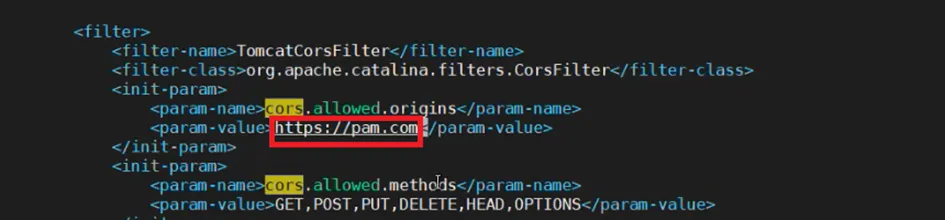
If not present, add the following to web.xml as well:
<init-param>
    <param-name>cors.support.credentials</param-name>
    <param-value>true</param-value>
</init-param>
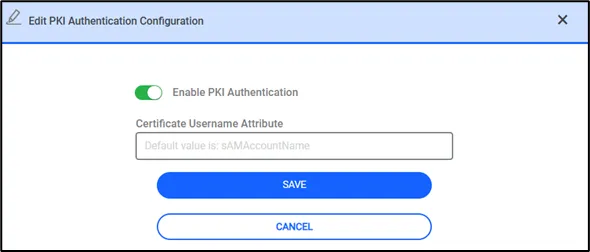
PKI authentication must now be enabled on the GUI. Follow the steps below:
- Open Administration > Syst. Config. Man. > PKI Authentication.
- Click the toggle button to enable it. The username attribute value on the client certificate can also be specified. This means that the Subject Alternate Name (SAN) on the client certificate must contain this attribute, which is verified by the CA certificate. By default, sAMAccountName will be checked by the CA.
- If the client certificate is signed by the imported CA authority and the username attribute is properly imported from LDAP, the signing operation will be successful.
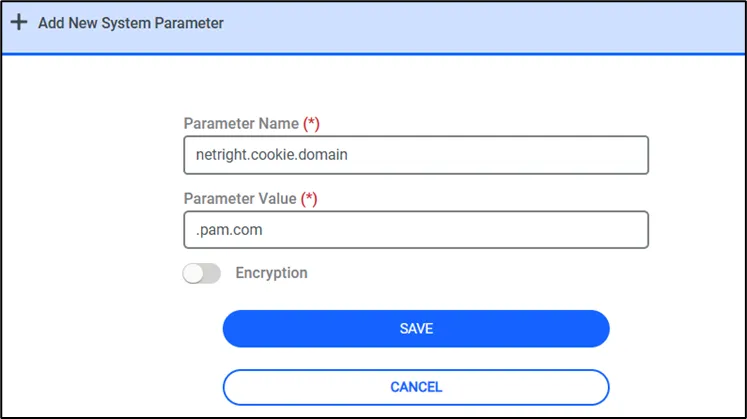
The following parameter must be added to the system configuration parameters:
- Navigate to Administration > Syst. Config. Man. > Add New Parameter.
- netright.cookie.domain = .pam.com
- The PAM GUI service must be restarted using the following command.
- An SSH connection must be made to the PAM server, and the following command must be executed: systemctl restart pam-gui.service. Lastly, two DNS records for PKI authentication must be created on the DNS server."
For instance, if the IP address of the PAM server on DNS is 1.1.1.1, the configuration requires the following two DNS records:
- 1.1.1.1 pam.com
- 1.1.1.1 pki.pam.com
If a load balancer (LB) is used and 1.1.1.1 is the LB address, the same configuration should be applied.
To test this:
- The endpoint must be logged in with a domain user, and the pam.com DNS record must be accessible.
- Next, click the Login with PKI Authentication button.
- The browser should prompt for a client certificate, which must be selected to proceed with the login.