Password Vault Accounts Bulk Import
You can add Accounts in bulk to Kron PAM by following the steps below:
- Navigate to Secrets > Vault.
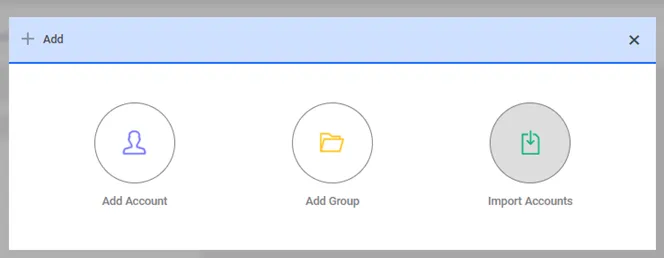
- Click Add and select Import Accounts.
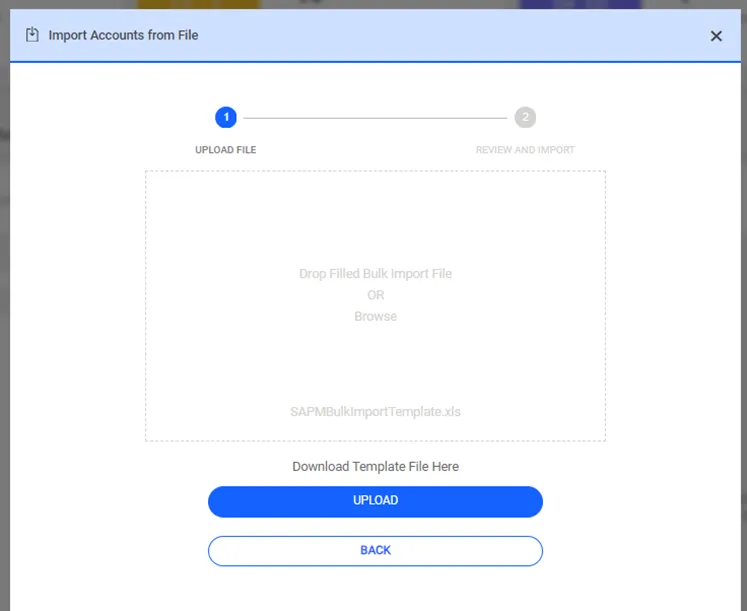
- Open the template file and enter account information as described in the User Bulk Import Rules and Template Column Descriptions.
- Save the edited template file on your computer.
- On the Import Accounts popup, click Browse and select the file you saved.
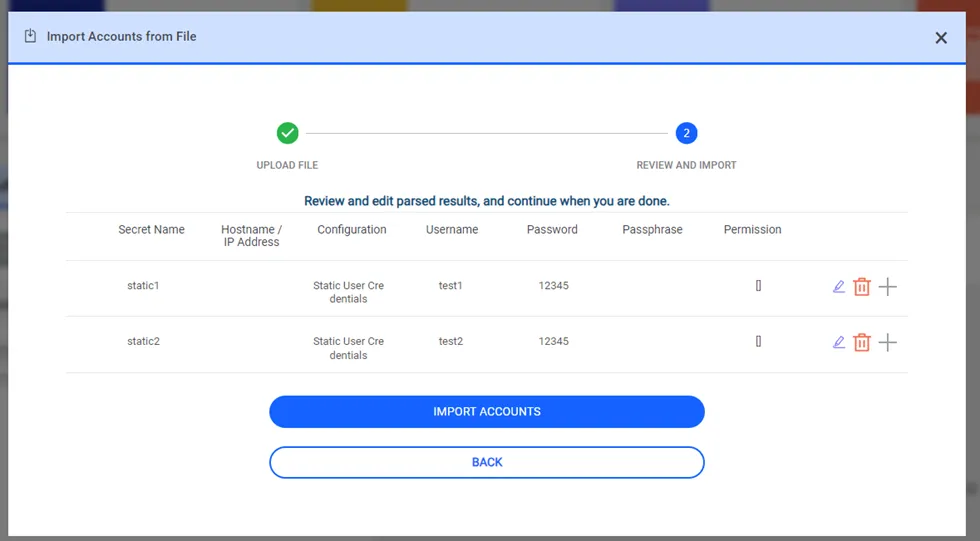
- Click Upload to add the accounts list to the Parse Results section on the Import Accounts Popup.
- Click Import Accounts.
After these steps, the passwords will change next time the Password Vault Change job runs for dynamic accounts.
Password Vault Account Bulk Import Template Column Descriptions
Column | Required/Optional | Description |
|---|---|---|
No | Required | No refers to the row number. Enter each account in a separate row. |
Secret Type | Required | Secret Type indicates whether the account is Static or Dynamic. Select Dynamic or Static from the combo box. Password rotation occurs for Dynamic accounts. |
IP Address / Hostname | Optional | Enter the IP Address / Hostname where the account exists. Not mandatory if the Static Strategy is selected. You must select the IP address of a device that is already present in Kron PAM device inventory. |
Secret Name | Required | All accounts to be managed must have a name. Enter a name; this name will appear in Kron PAM Vault. |
Password Vault Group | Optional | Enter a group for the account to be managed through the specified group. The account does not have to be in the specified group. |
Vault Configuration | Required | Select the Vault configuration from the pre-defined values. The Vault Configuration combo box will also list the user-defined configurations. |
Vault Account Username | Required | Enter the Password Vault account username. It is important to write the username on the device correctly if you didn’t select a configuration with Static Strategy in the Vault Configuration field. |
Vault Account Password | Required | Enter the Vault account password. |
Change Period (Periodic Recurrent) | Required | The user will be able to select the password change frequency, how many days after the password (as in the current system), on a certain day of the week, on the day of the month, and time |
Change Period Periodic (Day) | Optional | Day information on how many days the password will change |
Change Period Recurrent (Recurrence Unit) | Required | Password change period
|
Change Period Recurrent ((Recurrence Periods (Day)) | Required | If the Password change Period is defined as a Day, the value shows how many days the password should be changed. |
Change Period Recurrent (Daily Starting Time) | Required | The start of time at which the password is to be changed. |
Change Period Recurrent (Days of Month) | Required | If the Password Change period is defined as a Month, the information on which day of each month the password will be changed. |
Change Period Recurrent (Every (n) Month(s)) | Required | Information on how often to change the password. |
Permissions | Optional | Enter the Permissions field as follows: {UserGroupA=FULL_CONTROL, UserGroupB=READ_ONLY} |
Passphrase | Optional | Enter the SSH passphrase if SSH Key Configuration is selected in the Vault Configuration. |
Private Type | Required | Private accounts cannot be seen by other users in the same user group. Select Yes to set the Vault account as private. |
Owner | Required | Enter the owner’s username. Each account has one user ownership. Owners should be selected from existing users. |
Description | Optional | Enter the Vault account description. |