Optical Character Recognition (OCR)
Optical Character Recognition is the extraction of data from printed or written text on a scanned document or image file, followed by converting the text into a machine-readable form to be used for data processing like editing or searching. Kron PAM extracts texts from the computer screen with OCR and utilizes it for autologin.
To configure OCR:
1. Navigate to Devices > Inventory > Device Groups.
2. Select the device group you want to edit and select Remote Apps.
3. Set Enable Auto Login.
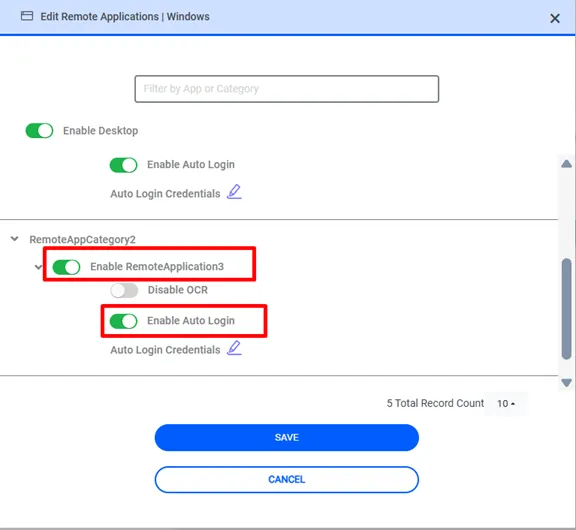
4. Edit Auto Login Credentials popup opens directly.
5. Click the Auto Login Options button and fill in the required fields with the information shown in the image below.
6. Select OCR from Auto Login Options and configure accordingly.
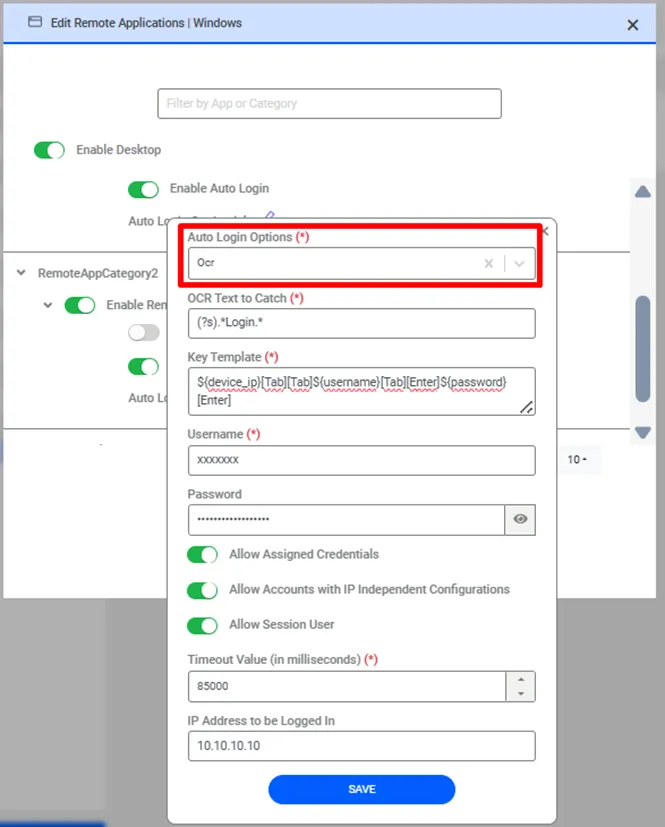
OCR text and Key template fields should be entered according to the application, as configurations will be different for every application.
OCR Text | Text to recognize if the login page has loaded successfully. OCR scans the screen and looks for this text. Upon successful detection, it starts to enter the Key Template. |
|---|---|
Key Template | Login key template to insert username and password. Consists of key and character combinations. The special keys are written consecutively in “[Tab], [Enter],” etc. format. The Username and Password are sent with ${username} and ${password} placeholders. A standby time can be set in milliseconds and added to the key template in a regular format as well. For example, if [wait-3000] is added to the key template, it means “wait for 3 seconds” before the execution of the next key. |
[Alt] | [F10] | [F8] | [Print] |
|---|---|---|---|
[Begin] | [F11] | [F9] | [Right] |
[Break] | [F12] | [Home] | [Scroll_Lock] |
[Ctrl] | [F2] | [Insert] | [Shift] |
[Delete] | [F3] | [Left] | [Shift_Lock] |
[Down] | [F4] | [Num_Lock] | [Tab] |
[End] | [F5] | [Page_Down] | [Up] |
[Escape] | [F6] | [Page_Up] | |
[F1] | [F7] | [Pause] | |
Allow Assigned Credentials | Allows assigned credentials for the current user to be selected in the user selection at the beginning of the session. If enabled, assigned credential configuration needs to be in place for the user. |
|---|---|
Allow Session User | Allows the current Kron PAM user to be selected from the user options at the start of the session. This can be used for LDAP connections for applications if LDAP is integrated with Kron PAM and the application, or if the same username and password is used for Kron PAM and the application. |
Username | The username to log in to the application. |
Password | Password to log in to the application. |
Timeout | The time window to detect the login page (value in miliseconds). |
Device IP | The IP address of the remote application. Can also be a DNS record. |