Adding Function Groups
Menu permissions and privilege definitions in Kron DAM are configured based on user groups.
Kron DAM provides default portal function groups. Users can be granted rights through the default groups. New function groups can be created using the desired portal functions for various authorization purposes.
To create a new function group:
1. Navigate to Policy > Portal Functions.
2. Open the Function Group Definition tab.
3. Click on the +Add button.
4. Fill in the Function Group Name and Description fields.
5. Select the functions and module views to be assigned to the users.
6. Click Save.
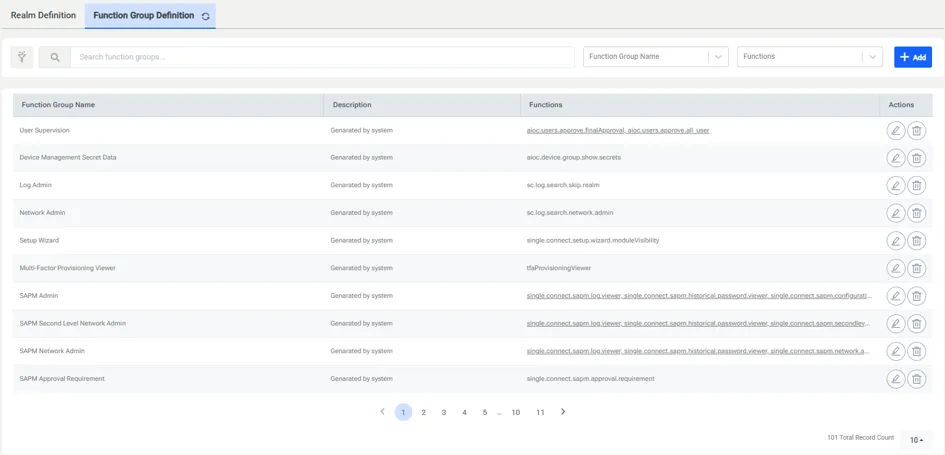
To edit a current function group:
- Navigate to Policy > Portal Functions.
- Open the Realm Definition.
- Click the action button and Edit Realm.
- Select the functions and module views to be assigned to the users.
- Click Save.
Function | Description | |
|---|---|---|
aioc.device.group.moduleVisibility | Grants rights to view the Device Groups screen in the Device Management menu. Device groups are created in this menu and device realms are created to determine the authorizations of user groups in the device groups. | |
aioc.device.group.show.secrets | Grants rights to view the “Show Secrets” button in the Device Group Properties tab. Device group secrets can be viewed like passwords with this button. | |
aioc.discovery.add.device | Grants access rights to the Inventory, Discovery, Auto Discovery Log and Auto Discovery Dashboard tabs under the Devices section and the grants rights to add devices. | |
aioc.discovery.delete.device | Grants access rights to the Inventory, under the Devices section and the right to delete devices. | |
aioc.discovery.manage.unassigned | Grants rights to manage devices in unassigned device groups under the Device Inventory section. | |
aioc.element.type.moduleVisibility | Grants rights to view the Element Type screen in the Device Management menu. This menu is used to create, delete, or edit devices manually. Properties of an element type are assigned here. | |
aioc.help.manager.moduleVisibility | Grants rights to view the Help Manager screen in the Device Administration menu. This is used to create, edit, or delete the help menu content. | |
aioc.platform.activity.logs.moduleVisibility | Grants rights to view the Activity Logs screen in the Logging menu. System events and all transactions made in the web interface are logged and these logs can be viewed from here. | |
aioc.platform.sysconfig.moduleVisibility | Grants rights to view the System Config Management screen in the Administration menu. From here, if authorized, users can add, edit, or delete system configuration parameters. | |
aioc.users.approve.all_user | Grants rights to approve new user requests, even if not an admin. | |
aioc.users.approve.finalApproval | Grants rights to approve pre-approved user requests. | |
aioc.users.manage.user | Grants rights to manage users. | |
aioc.users.manage.user_group | Grants rights to manage user groups. | |
netright.discovery.moduleVisibility | Grants rights to view the Device Inventory screen in the Device Management menu. This section enables adding, deleting or editing devices. | |
netright.log.moduleVisibility | Grants rights to view the System Log Viewer screen in the Administration menu. System logs can be monitored from this section. | |
netright.realms.moduleVisibility | Grants rights to view the Portal Functions screen in the Policy Control menu. The authorization of user groups is determined in this section. | |
netright.user.approval.moduleVisibility | Grants rights to view the User Approval in the User Management menu. The User Approval section displays all users who have sent the “New User” request from the main page and is used to confirm their requests. | |
netright.users.moduleVisibility | Grants rights to view the User Accounts screen in the User Management menu. You can define users and user groups in this section. | |
sc.reservation.manager.request.on.behalf.of.group.users | Grants the right to the group manager to enter a connection reservation request on behalf of any group members. When granted, the “For User” selection field appears in the Connection Reservation screen for the group manager. | |
sc.sensitive.data.discovery.moduleVisibility | Grants rights to view the Sensitive Data Discovery screen in the Sensitive Data Discovery menu. This section is used to discover sensitive data in databases. | |
single.connect.assigned.credential.moduleVisibility | Grants rights to view the Assigned Credentials menu and add/edit assigned credentials in the Users menu. | |
single.connect.dashboard.moduleVisibility | Grants rights to view the Statistic screen in the Dashboard menu. The activities and commands ran by users are viewed in this section. | |
single.connect.policy.enforcement.moduleVisibility | Grants rights to view the Session Policy screen in the Policy Control section. The system policies are created and edited by using the Policy Control section. You can manage the “Policy Key”, “Time Restriction”, “Policy Group”, “Policy Realm”, “Permit Zone”, and “User Location” tabs from this section. | |
single.connect.sapm.admin | This function makes the user an admin. Admins have rights to manage all SAPM accounts and view all logs. | |
single.connect.sapm.approval.requirement | This function restricts users from viewing passwords without approval. When a user wants to retrieve the SAPM password, an approval email is sent to the admin. After approval by the admin, the user can view the password. | |
single.connect.sapm.auditor | This function grants rights to list all SAPM accounts, without seeing details. | |
single.connect.sapm.configuration.admin | Grant rights to access the Configuration section in the SAPM Management menu. SAPM configurations can be edited in this section. | |
single.connect.sapm.historical.password.viewer | Grants rights to view the old passwords of SAPM accounts. | |
single.connect.sapm.log.viewer | Grants rights to see the “Password Change”, “New Users”, and “Password Check” logs in the SAPM page. | |
single.connect.sapm.moduleVisibility | Grants rights to view the SAPM Management menu. | |
single.connect.sapm.network.admin | Grants rights to manage and view all the device accounts associated with a user. | |
single.connect.sapm.network.auditor | Grants rights to list all device accounts defined in user device group realms, without seeing the details. | |
single.connect.sapm.secondlevel.admin | Grants rights to give second level approval for all SAPM accounts and view all logs. | |
single.connect.secondlevel.approval.requirement | This function restricts viewing the password without a two-level approval. | |
single.connect.sapm.secondlevel.network.admin | Grants rights to give second level approval for all device accounts defined in user device group realms. | |
single.connect.session.active.logs.moduleVisibility | Grants rights to view the Active Sessions screens in the Policy Control menu. Administrators can manage active proxy sessions, such as wiring to the session or killing the session. | |
single.connect.sessionmanager.ui.moduleVisibility | Grant rights to view the Session Manager screen in the Administration menu. User activities can be viewed in this section. | |
single.connect.sql.proxy.moduleVisibility | Grants rights to view the SQL Proxy Policy screen in the Policy Control menu. The dynamic masking policy and masking methods are defined and managed in this section. | |
single.connect.tenant.admin | Kron PAM’s multi-tenancy function can provide multiple and independent applications and functions. It enables an architecture in which a single instance serves multiple customers. Each customer is called a tenant. Tenants may be given the ability to customize some parts of the application. This function works if the “multitenancy.enabled” parameter is set as “true” on the System Configuration Management. Tenant admins can only manage devices and users that they are allowed to access and can only see the logs related to the devices and users they have access to. | |
single.connect.twofactor.hardwareToken.management | Grants rights to access the Hardware Token Management, and the Hardware Token Bulk Import tabs under the 2FA Provisioning section. | |
single.connect.twofactor.acc.moduleVisibility | Grants rights to view the Two-Factor Provisioning section in the Administration menu. Kron PAM provides a Two-Factor Authorization by mobile application or SMS verification. | |
single.connect.twofactor.assign.hardware.token | This function provides the right to assign hardware tokens in the 2FA Provisioning section. | |
single.connect.twofactor.barcode.viewer | Grants rights to see the Token’s QR Code or written code in the 2FA Provisioning section. | |
threat.analytics.dashboard.visibility | Grants rights to view statistics regarding threat analytics. | |
| | |
aioc.database.object.explorer.moduleVisibility | Shows the DAM Object Explorer, which displays the hierarchical structure of connected databases after metadata sync. |
|---|---|
aioc.database.management.visible | Provides visibility of database/device management page where administrators configure database connections and device properties. |
sc.sensitive.data.discovery.moduleVisibility | Exposes the Sensitive Data Discovery module that scans databases to locate sensitive fields and ensure compliance. |
single.connect.sql.proxy.moduleVisibility | Grants access to the SQL Proxy module that logs SQL sessions and enforces policies like blocking queries and masking data. |
aioc.database.session.log.moduleVisibility | Grants rights to view the Database Session Log screen in the Database Activity Monitoring menu. Database session logs can be monitored from this section. |
aioc.database.session.log.kill.session.visible | Allows administrators to kill an active database session from the session log interface. |
single.connect.database.audit.report.moduleVisibility | Makes the Database Audit Report module visible; the module checks security statuses of database users and generates audit reports. |
single.connect.database.audit.report.viewer | Grants permission to view generated database audit reports. |
single.connect.database.audit.configuration.viewer | Allows viewing audit report configuration settings (e.g., scheduling report jobs). |
single.connect.database.audit.dashboard.viewer | Provides access to an audit dashboard summarizing audit results and compliance status. |
single.connect.vulnerability.scanner.report.moduleVisibility | Makes the Vulnerability Scanner report module available for scanning database devices for vulnerabilities. |
single.connect.vulnerability.scanner.report.viewer | Allows users to view vulnerability scanner reports and findings. |
single.connect.vulnerability.scanner.configuration.viewer | Provides visibility to configure vulnerability scanning (e.g., scanning frequency, credentials). |
| |
alarm-manager-viewer.visible | Duplicate of the above alarm viewer (historic ID). |
dam.threat.analytics.moduleVisibility | Displays the Threat Analytics module, which analyses queries and behaviours to detect threats and anomalies. |
dam.threat.analytics.lock.user.visible | Allows locking a user account directly from the Threat Analytics interface when suspicious behaviour is detected. |
dam.threat.analytics.suspend.user.visible | Enables suspending a user’s access via the Threat Analytics dashboard. |
dam.threat.analytics.kill.session.visible | Provides a control to kill a malicious or suspicious database session from the Threat Analytics screen. |
alarm-manager-viewer.visible | Shows the Alarm Manager viewer, which lists triggered database alarms, their details, and acknowledgement options. |
alarm-manager-policy.visible | Displays existing alarm policies and rule sets in the alarm manager. |
alarm-manager-policy-management.visible | Allows creating, editing and deleting alarm policies that define triggers and notification actions. |
alarm-manager-notification.visible | Shows the list of notification targets (e‑mail/SMS addresses) used by alarms. |
alarm-manager-notification-management.visible | Enables adding, editing or retiring notification targets for alarm delivery. |
| |
alarm-manager-event-management.visible | Allows management of alarm events, such as reviewing details, acknowledging or deleting alarm records. |