SSH Proxy Connection Interfaces
The SSH Proxy is available both in the Kron PAM Web GUI, and Kron PAM Desktop Client. The architecture developed in the Kron PAM SSH Proxy is also available to connect to other native clients. The configuration to connect to the Kron PAM SSH Proxy from these interfaces is outlined below.
Kron PAM Web GUI
The Kron PAM Web GUI can be used to establish SSH connections:
- Navigate to Devices > Inventory.
- Search for the device to connect to on the panel.
- Click the desired device and select Connect.
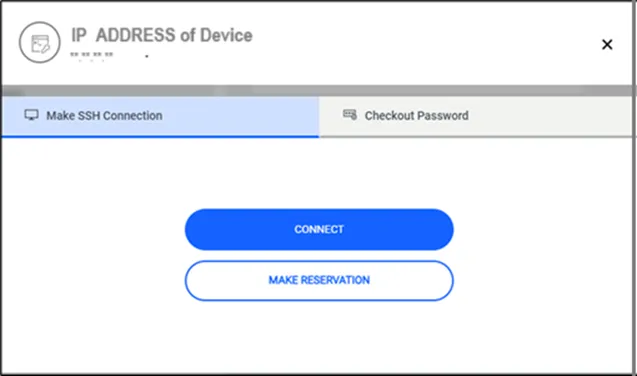
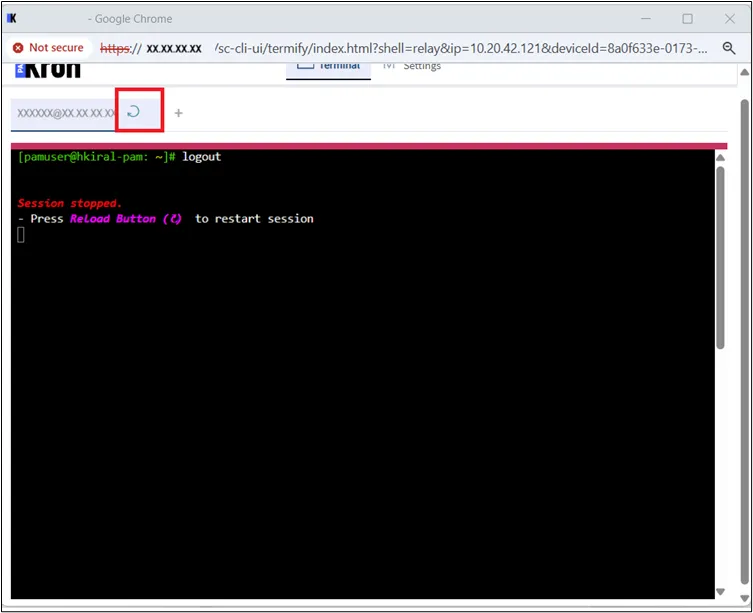
When the SSH session is terminated, users can reconnect to the same device with the Reload Button that appears at the top of the screen.
Kron PAM Desktop Client
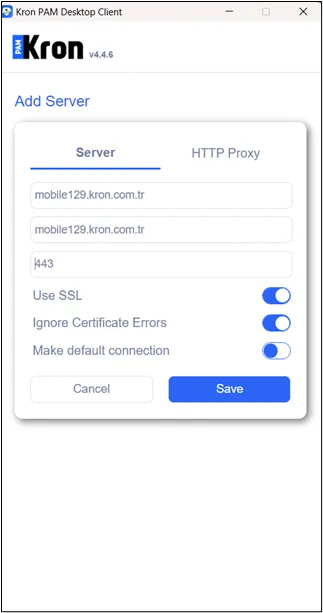
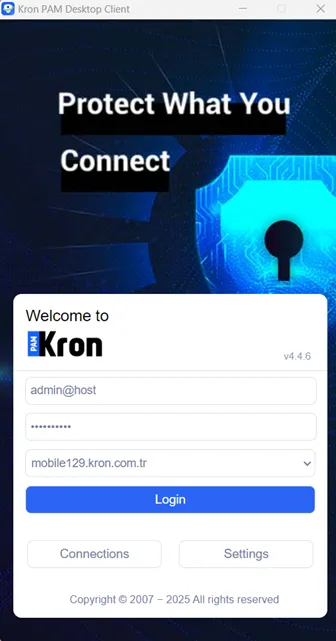
Privileged users can establish SSH sessions by using the Kron PAM Desktop Client with existing authentication and authorization policies. The desktop client can be downloaded from the link in the Kron PAMWeb GUI login screen.
- Open the Desktop Client and enter the connection settings.
- Log in to the Desktop Client using the configured settings and search for the device to connect to.
- Double-click the device to initiate the SSH session.
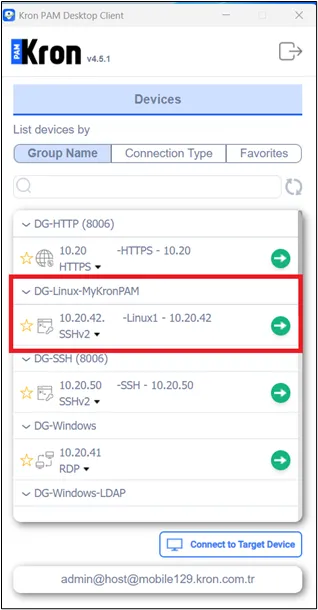
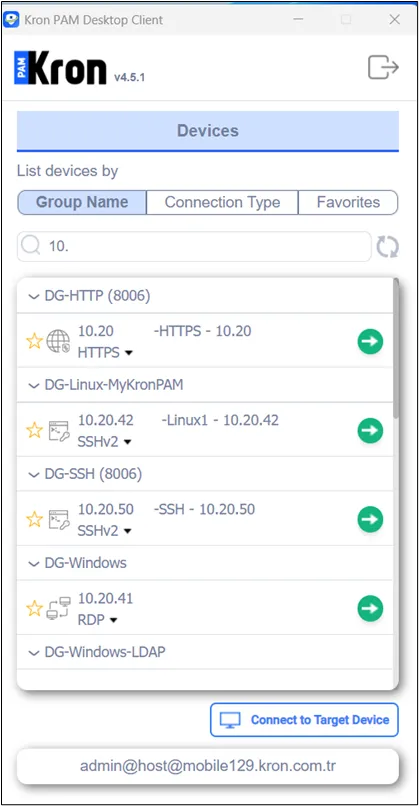
Users can expand the search for a device in the Desktop Client.
Native Clients
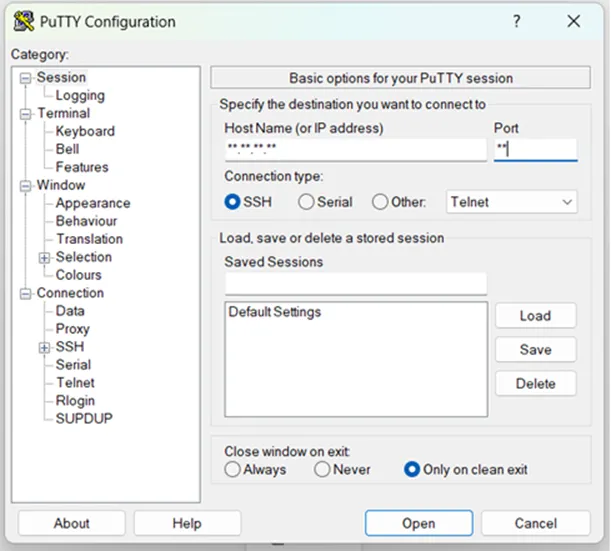
Users can also use their own preferred SSH clients (PuTTY, MobaXterm, etc.) to connect to their target systems through the Kron PAM SSH Proxy. To connect to Kron PAM SSH Proxy:
- Enter the Kron PAM IP address as the host IP address and 2222 as the connection port (2222 is the default SSH proxy port, and can be changed by the system administrator).
- After logging in to the Kron PAM SSH proxy, press “*” to list all the configured devices for the connection, or type part of the IP address or hostname and press enter to search the list.
- Enter the number of the device to establish the SSH connection.
To establish an SSH Proxy connection via a native client Kex, Host Keys and Cipher algorithms must be selected from the encryption algorithms supported by Kron SSH Proxy.