RDP Profiles
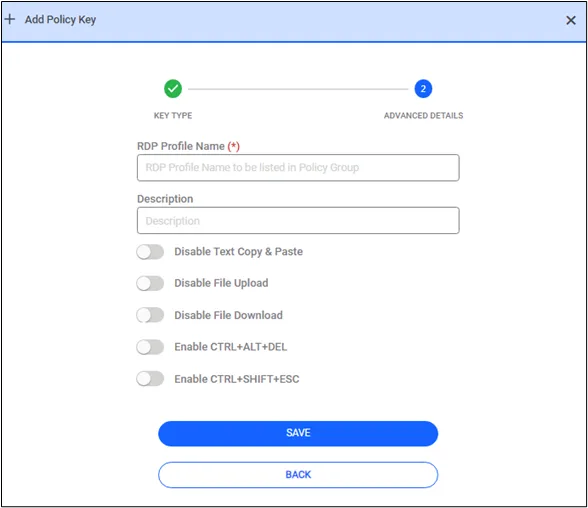
Some of the permissions for RDP sessions can be grouped in RDP profiles. These profiles appear in the Policy Keys list in the Policy Groups screen so that they can be assigned to different Policy Realms to allow or restrict user permissions. Currently, the following permissions can be set using RDP Profiles:
- Disable Text Copy & Paste Copy-paste operations from/to RDP servers are disallowed when chosen. When this option is enabled the clipboard will be inaccessible in both directions, but the two options below can be chosen. Copy and paste behavior may vary from browser to browser, as some web browsers such as Firefox do not allow applications access to their clipboards. For our use of the clipboard so far, we refer to Chrome.
- Enable Clipboard from Endpoint to Local Upon disabling the clipboard, users can choose to enable clipboard operations in one direction from the endpoint to local. This will allow users to extract clipboard data from the RDP session.
- Enable Clipboard from Local to Endpoint Upon disabling the clipboard, users can choose to enable clipboard operations from the local machine to the endpoint. This will allow users to send local clipboard data to the RDP session.
- Disable File Download: File download operations to/from RDP servers are disallowed when selected, or allowed when unselected.
- Disable File Upload: File upload operations to/from RDP servers are disallowed when selected, or allowed when unselected.
- Enable CTRL+ALT+DEL When this option is enabled on the RDP Proxy session, there will be a clickable button to emulate CTRL+ALT+DEL keystrokes.
- Enable CTRL+SHIFT+ESC When this option is enabled on the RDP Proxy session, there will be a clickable button to emulate CTRL+SHIFT+ESC keystrokes.
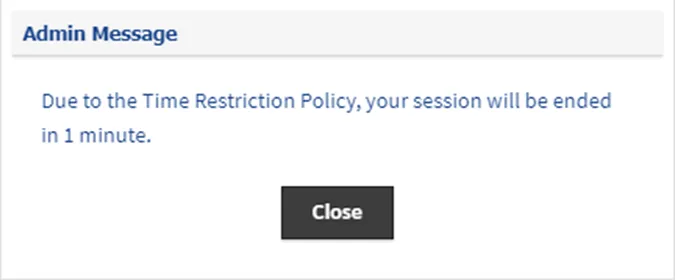
If you want an RDP profile to apply only during specific periods, you can add a time restriction to the policy group. This ensures that the RDP Profile is only active within the defined time frame and behaves as if it doesn't exist outside of these periods. If there is no Time Restriction specified in the policy group, the RDP profile always remains active. Before the time expires (about 1 minute left), Kron PAM warns that the session will be terminated . (Warning Before Endtime in RDP Proxy)
To create a new RDP Profile:
- Navigate to Policy > Policy > Add.
- Select the RDP Profile tab.
- Fill out the Name and Description fields.
- Select the permissions to be given and click Save.
- The RDP Profile now appears in the All Policy Keys table.