Importing New Users to Password Vault
Firstly, after the Audit screen is opened and new users are listed, they can be transferred to Vault by following the steps below:
- Select the user to be imported to Password Vault.
- Click the Import to Vault button. A pop-up window will appear.
- Fill in the configuration, password change period, and the password.
- If the password is not known, the user can be added by a superuser.
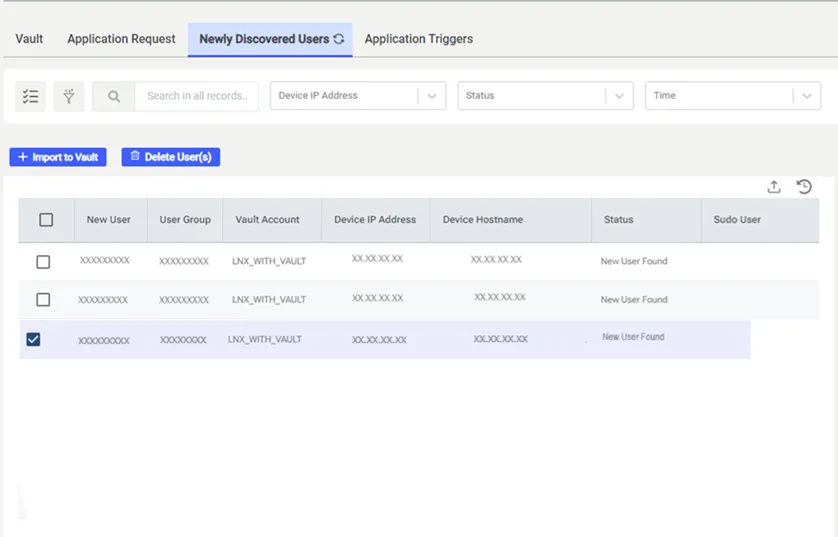
Importing the user to Vault
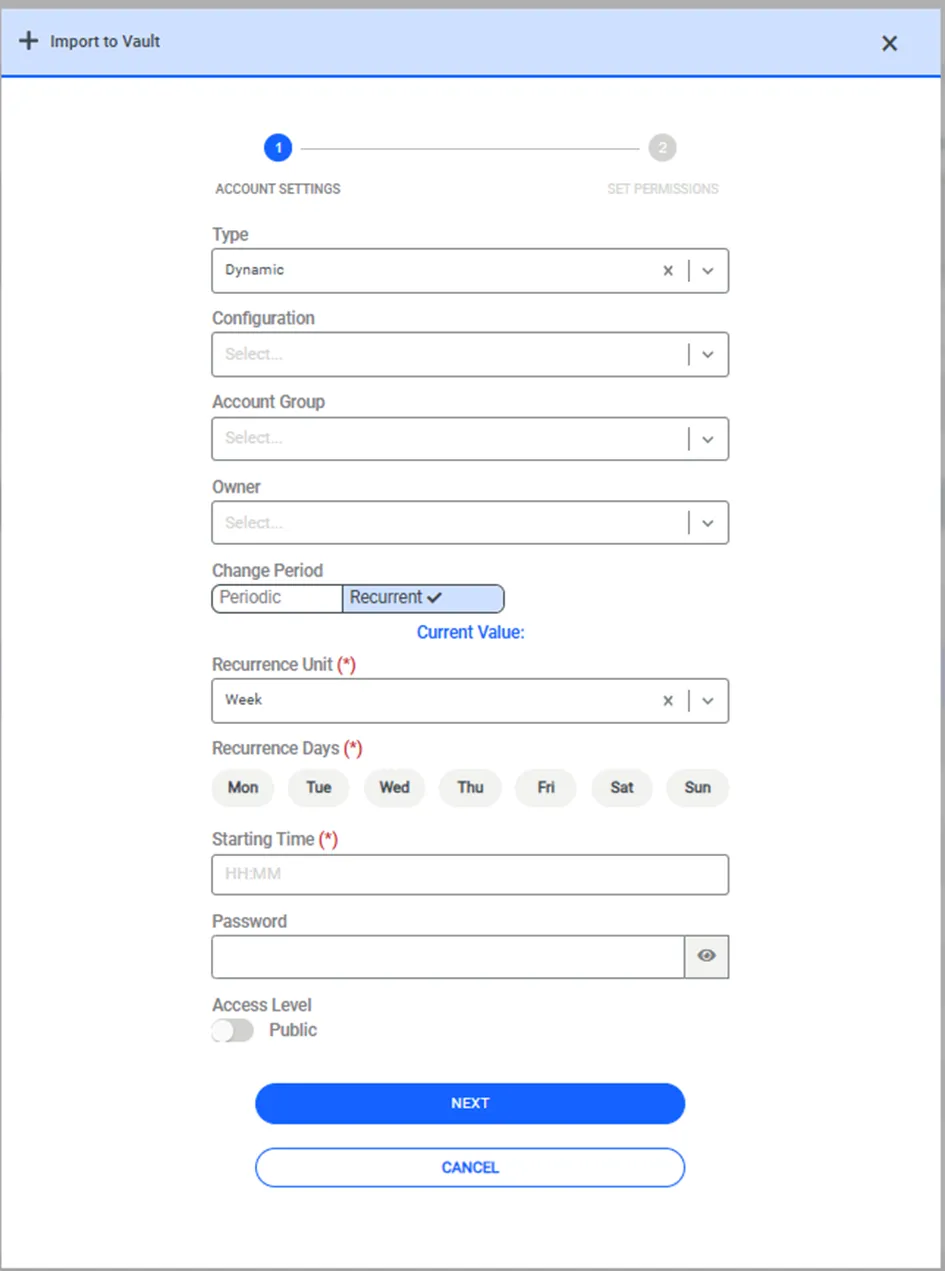
In addition to the method outlined above, new users can be imported to Vault by a superuser (for Linux, the superuser is root; for Windows, it is the Administrator). This superuser logs in to the target system changes the new users’ passwords and stores them in the Vault configuration.
To configure password changes by superusers:
- Navigate to Secrets > Vault.
- Open the Vault Configurations tab.
- Click search and find the related configuration for the target system device.
- Click the Green arrow button for the related configuration and select Edit Configuration.
- Enter the following properties:
- change.password.with.super.user = true
- super.username = (enter the superuser's username)
- super.password = (enter the superuser's password. If the superuser is already configured as a Vault account, the super.password is not needed)
- change.password.command.template = (this is specific to the element type, the example illustrated below applies to Linux) passwd ${username}\n${newPassword}\n${newPassword}\nlogout
This configuration allows all Account passwords for the related Vault configuration to be changed by the superuser.

Change account password with super user
To test the password change, open the Vault, click the new account Options menu, and select Reset Password.