Azure AD Configuration
Log in to Azure Active Directory with a user who has the required administrative rights and follow the below steps to create a Kron PAM application for SAML SSO.
- Click Enterprise Applications.
- Click New Application.
- Click Create your own application.
- Give your app a name.
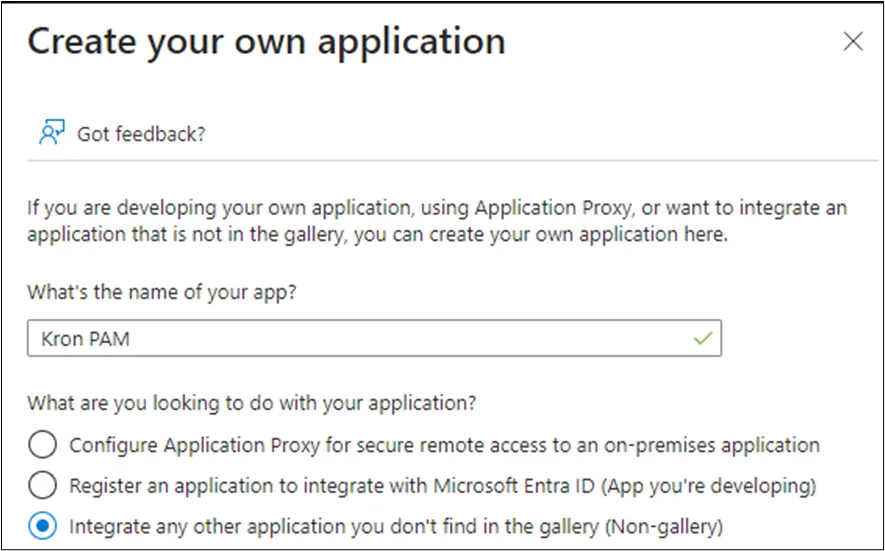
- Go to the newly created Kron PAM Application on Azure Portal.
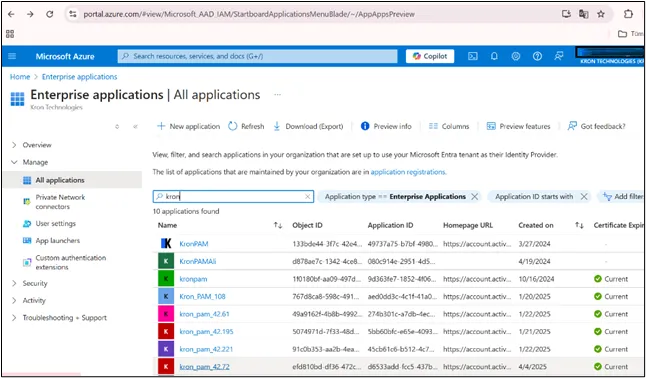
- On the left pane, choose Single Sign-on under the Manage heading.
- Click edit for Basic SAML Configuration on Azure Portal.
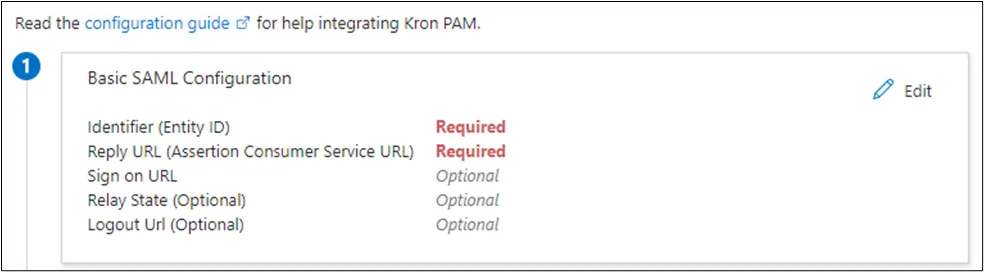
- Fill the fields in accordance with the access information of your Kron PAM installation.
The IP address of the Kron PAM app will change according to your environment. These examples use the address 10.10.10.10 for convenience.
Identifier (Entity ID): https://10.10.10.10/aioc-rest-web/servlet/saml/samlCheck
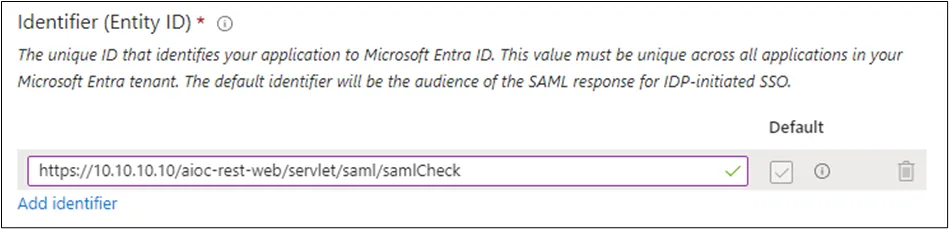
Reply URL: https://10.10.10.10/aioc-rest-web/servlet/saml/samlRecipient
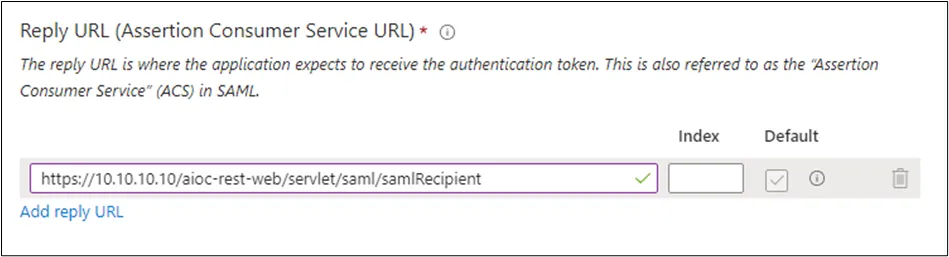
Logout Url: https://10.10.10.10/aioc-rest-web/servlet/saml/samlLogout

After making the above configurations, the basic SAML Conf. tab can be closed.
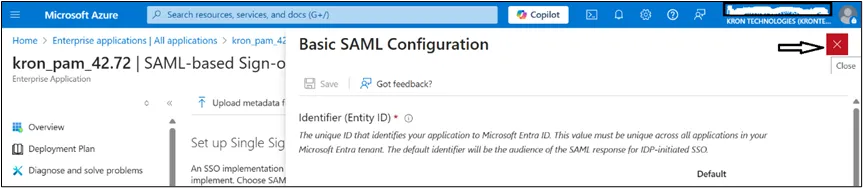
- Go to Step 3 for SAML Certificates on Azure Portal.
- Download the Certificate (Base 64) and open it with Notepad, and copy the entire text.
- We will paste it to the SAML configuration on Kron PAM as SAML X509 Certf. Key.
- Go to Administration > System Configuration Manager > Integration > SAML Configuration.
Keep the SAML Configuration modal on Kron PAM open for further configurations.
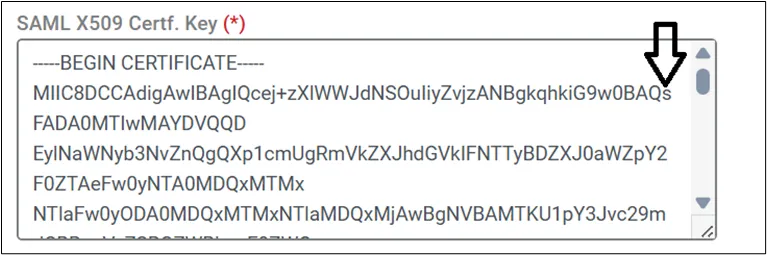
Click the checkbox to enable SAML on the SAML Configuration popup on Kron PAM.
- Go to Step 4 for Kron PAM Configurations on Azure Portal.
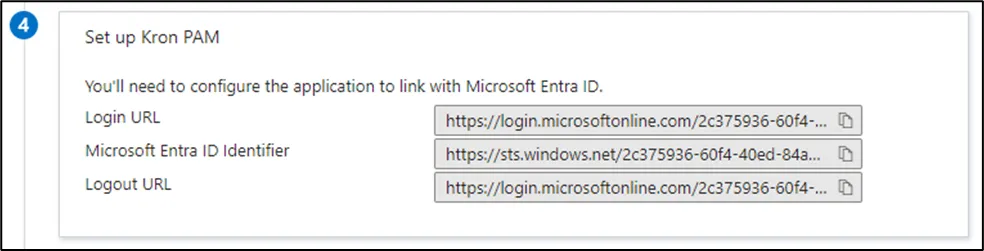
We will copy the above configurations from the Azure portal and paste them as the SAML configuration on Kron PAM.
The login URL from the Azure portal will be pasted as the SAML Logout URL in the SAML Configuration.
The Microsoft Entra ID Identifier from the Azure portal will be pasted as SAML Entity ID in the SAML configuration.
Keep the SAML Configuration modal on Kron PAM open for further configurations.
- Go to Properties under Manage on the left pane of the Azure portal for configured applications.
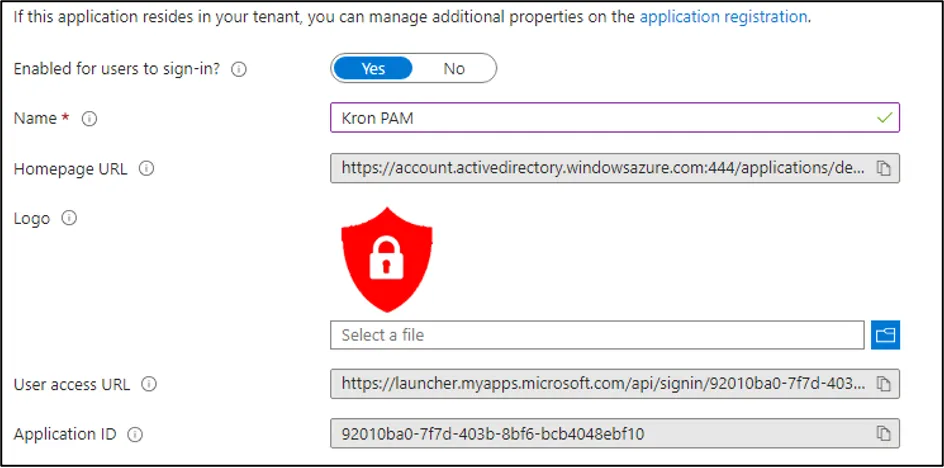
- Copy the User access URL from the Azure portal and paste it as the SAML URL in the Kron PAM SAML configuration on Kron PAM.
- Enter the Kron PAM Web URL (https://10.10.10.10/login) as the SAML Remote URL in the SAML configuration of Kron PAM.
- Service Provider Name on configuration popup in Kron PAM can be provided as requested (For example, Azure Entra). To display service provider login on the login page, toggle “Enable Service Provider Login”.
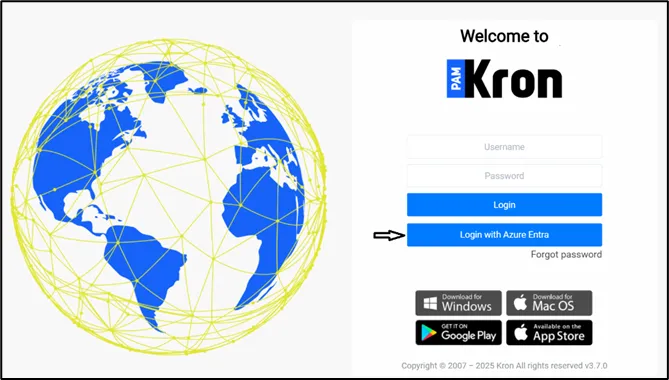
- When all steps are complete, the SAML Configuration modal on Kron PAM should look similar to this:
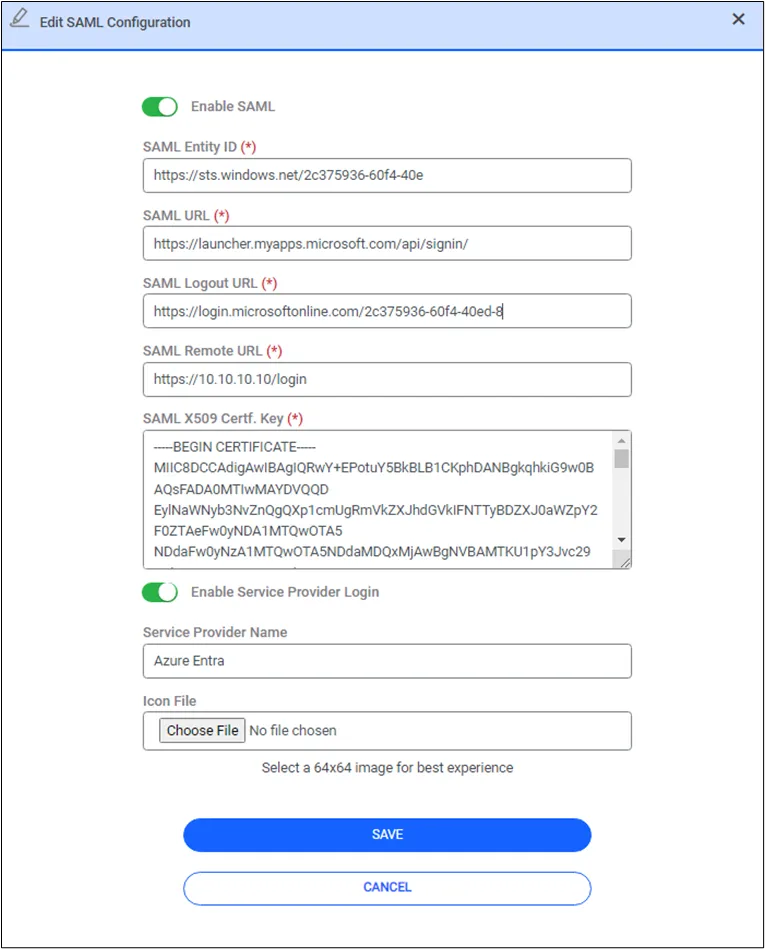
After completing the required configurations, you need to edit TomcatCorsFilter in the tomcat configuration. After connecting to the Kron PAM server via SSH:
- Open the web.xml file under the following directory: /pam/gui/conf
- Find the TomcatCorsFilter filter and add the Entra ID URL under cors.allowed.origins.
- To test the SSO process go to the application on Azure, click Single Sign-on on the left pane, then go to step 5 on the Azure portal, and click the Test button.
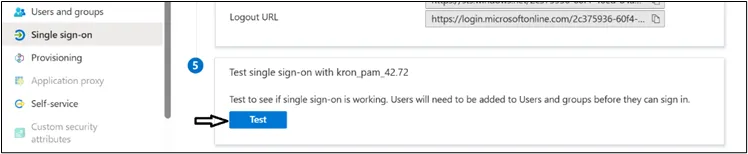
A page will open on the right side to ask for the user who will log in to the application. If this user exists in the Kron PAM application, you will log in with no further need for credentials.