Auto Login Feature for RDP Remote Applications
Kron PAM can log in to permitted applications automatically once the credentials are configured on Kron PAM. In such cases, the application’s credentials are invisible to the user whenever they access a device and an application on that device. All sessions are logged by Kron PAM. When a user logs in to a target machine using the auto-login feature, the application will be launched in kiosk mode to restrict access to other resources. When an application is minimized in kiosk mode, users are expected to use the CTRL + M key combination to bring the window back.
The application to be used with the auto login feature in the RDP Proxy should be added as a Remote App on the Kron PAM Web GUI.
1. Navigate to Administration > Remote Desktop App 2. Click the “Add” button to see the choice to add category and application. 3. Select “Add Remote Desktop App” to add remote desktop application. 4. Add the name and path of the application to be opened automatically in kiosk mode during an RDP session and Save.
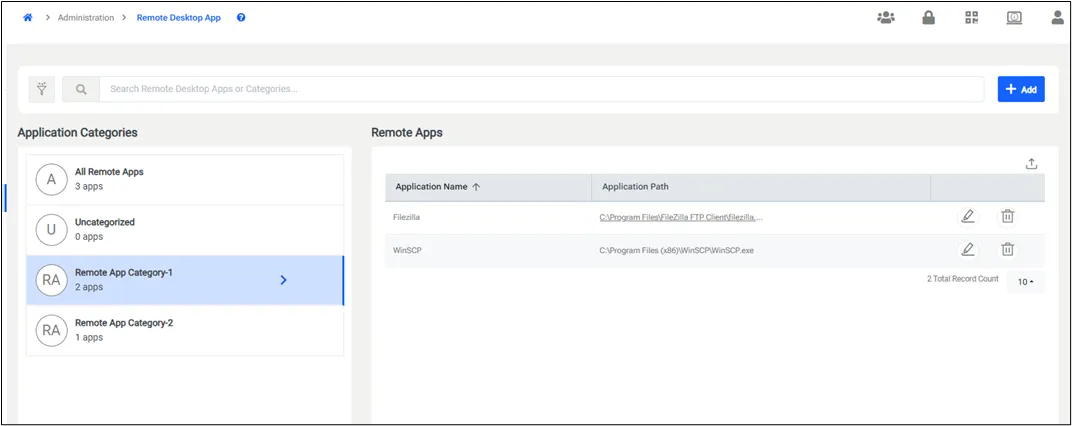
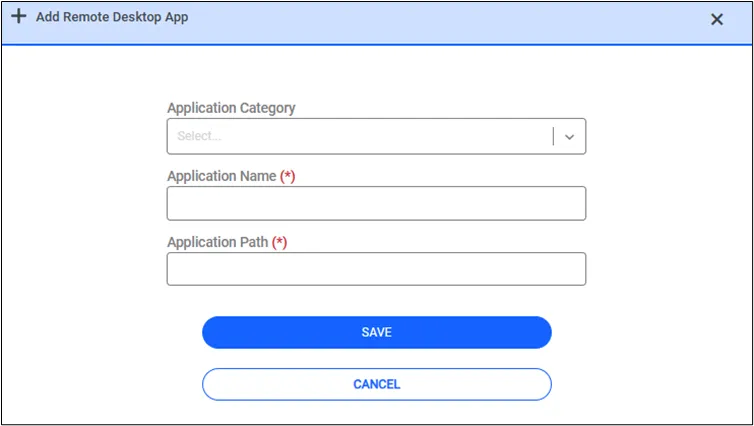
- As shown in the above figure, we first need to define the application name and path. Then we need to configure the autologin feature. The autologin feature can be configured in three separate ways through the device group settings:
- Optical Character Recognition (OCR)
- Parametric Solution
- Application-specific Special Automation Scripts
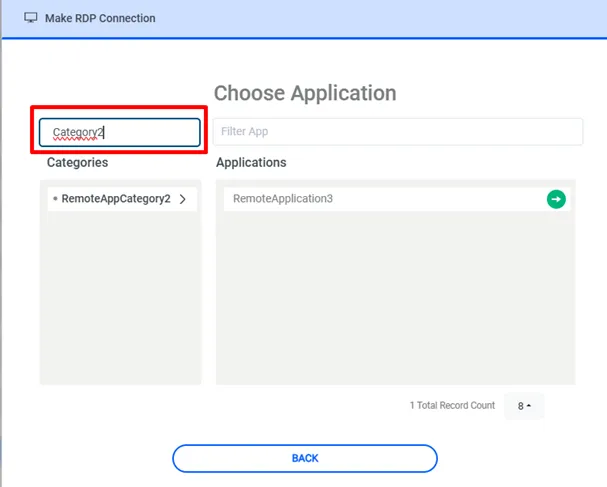
- You can set remote application categories from the remote desktop app page. While you are adding a remote app, if you type the previously created category to the category field, the new app will be added under this category. You can also remove or edit the added applications. After you add the application to the device group you can choose the application under this category.
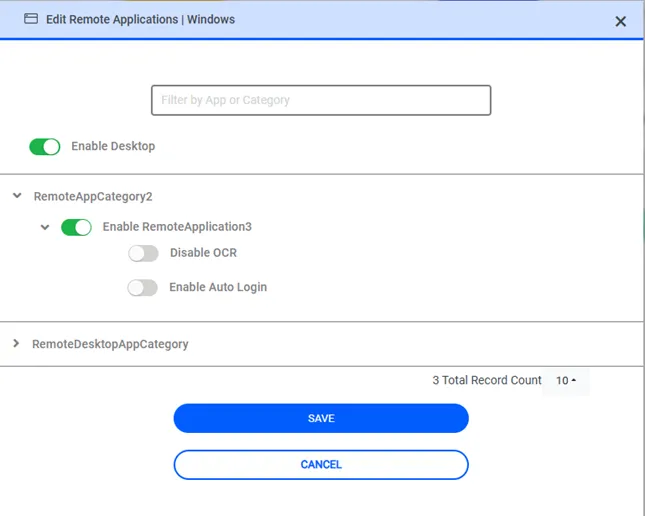
- When the configuration is done on Allow Remote App page you can see the applications list on the screen as categorized.
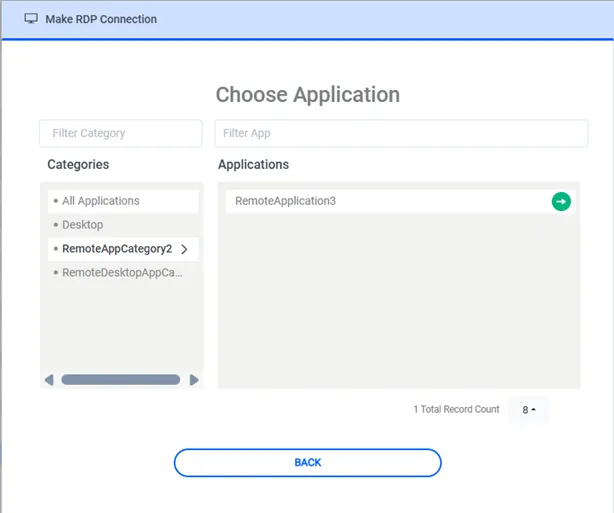
- Applications can also be searched on the screen.
If a session disconnects for any reason while a remote app session is active, the app's executable will not be run again upon restarting the remote app session, because as far as Kron PAM is concerned the same application is already active in the disconnected session and bringing that back can save existing progress. However, if a configuration is made on the server side for logging off a disconnected session, a remote app will be started again.