Audit Logs
Users can perform audits by checking the Kron PAM Logs. Logs can be assigned a status, such as Passed, Failed, or N/A. Audit users are users with the sc.log.session.auditor portal function (To assign this portal function to a user, please refer to section Menu Lists Management). These users can mark the sessions as Passed audit, failed, or N/A after they have examined the session, allowing admins to take action. The Audit Logs include the session ID, audit result, audit comment, audit time, auditor host IP, hostname protocol used, instance name (who connected to that system), session start and end time, user name, the global username used to connect to the system, and the client IP.
To see session audits:
- Navigate to Logging > Session Logs.
- Open the Audit Logs tab.
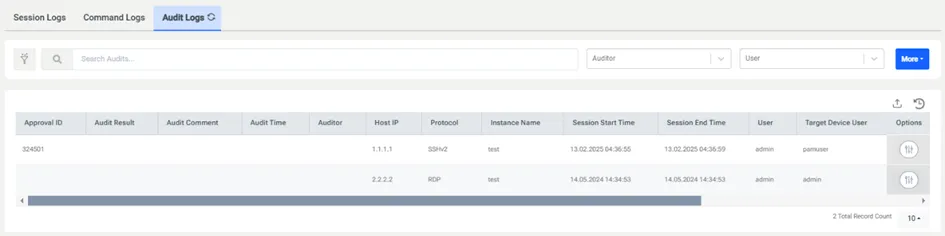
Audit users must have the sc.log.session.auditor portal function defined to reach the Audit Log screen.
To record session audit results:
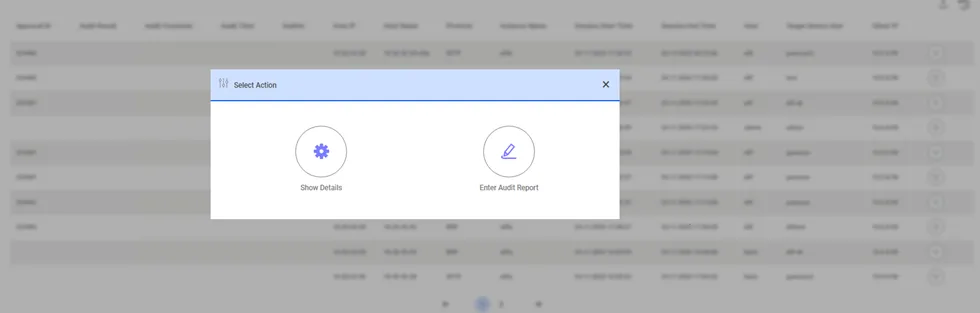
- Click the Options button, then click Enter Audit Report.
- Enter the Audit Result and the Audit Comment and click Save.
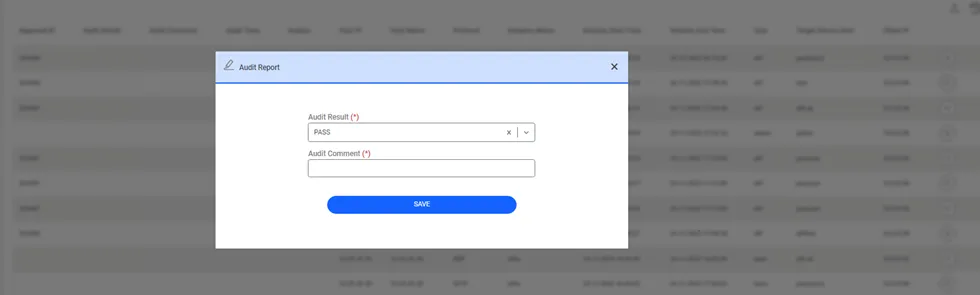
Multiple auditors can enter audit results for the same session.
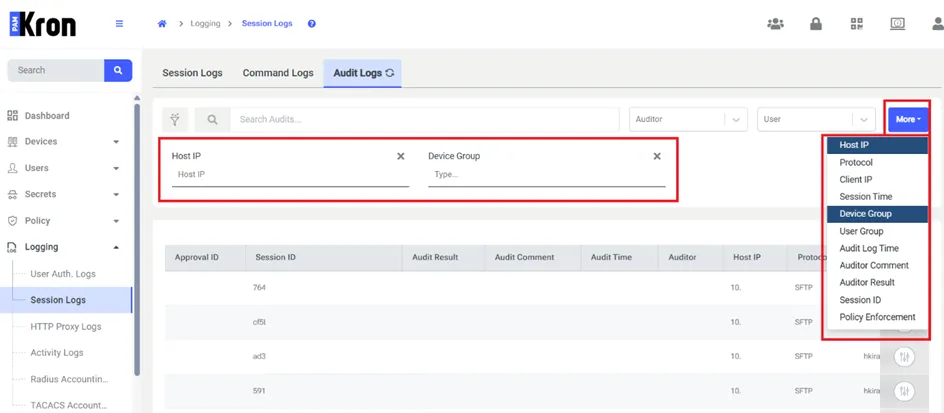
The More button has been added to the Audit Logs screens under the Logging Menu where users can list their log records for extra filtering. Additional filtering columns can be added to the screen with this button. When the button is clicked, more than one value can be selected from the popup. The selected columns will be added to the screen in order and filtering can be done according to the values entered by the user.