Approval Workflow
The Approval Workflow is available for Managerial Approval of Connections and Commands. The implementation of an approval workflow for connections and/or commands leads to a fully customized and flexible environment to manage the authentication process.
These Managerial Approval features allow the configuration of a one-level approval mechanism by default, with the user group manager as the managing authority. Increasing levels of managerial approval can be added, in which case, the approval authority can now be assigned for each level - the approval authority can be a user group manager, members of a user group, or any external email address or phone number, which are not required to be defined in the Kron PAM instance.
The Approval Workflow feature can be managed as a policy and used in a device realm to flexibly control each user group’s authentication and authorization processes for each device group.
To configure the Approval Workflow:
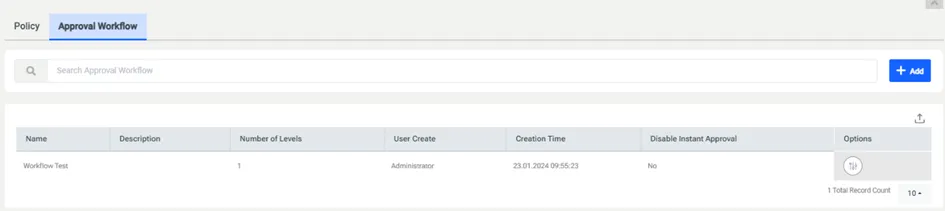
- Navigate to Policy > Approval Workflow.
- Click +Add.
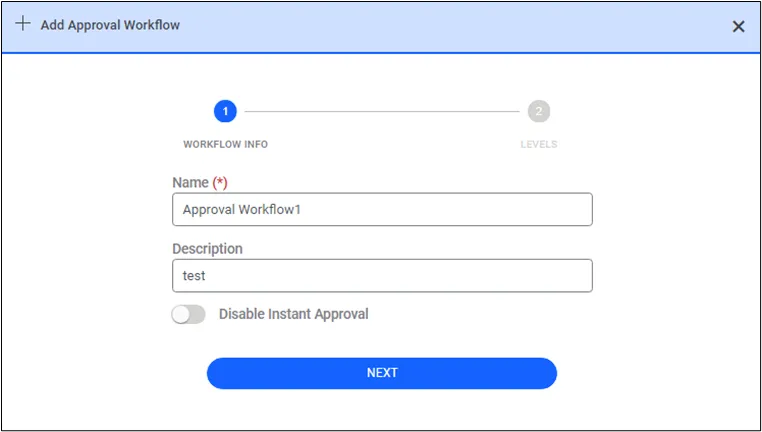
- Define a name for Workflow Info and description, then click Next to define workflow levels. (Select the Disable instant approval checkbox if you want to disable instant approval.)
- Configure the level details in the levels step, select the authority and approval tool, and click Save.
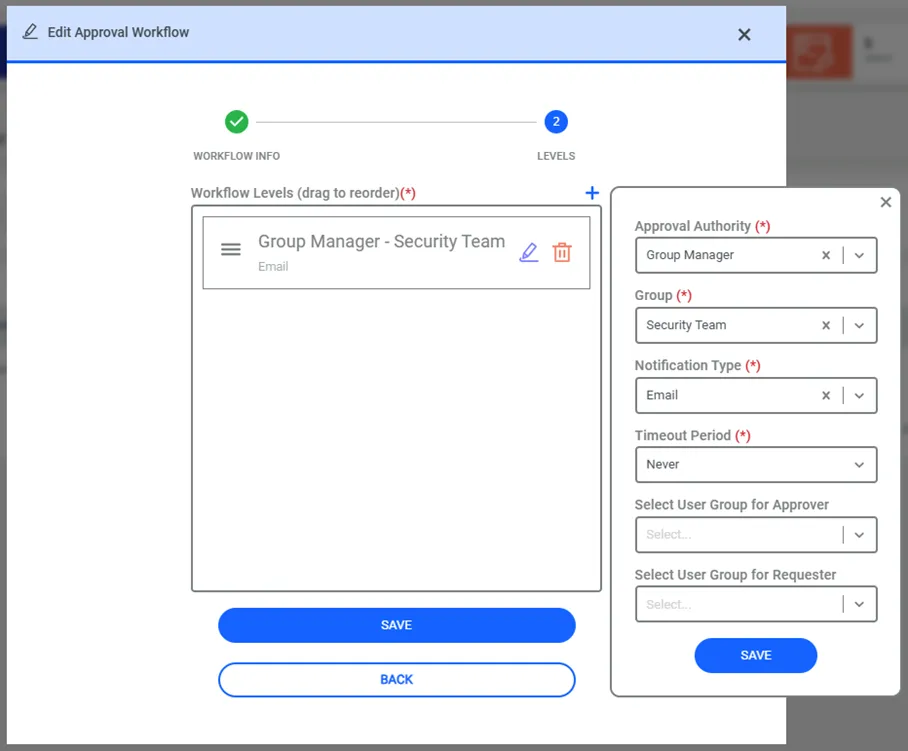
- After adding one level to the workflow, you can save the workflow or add more levels by using the click of the + plus button.
If a workflow level is deleted, the new workflow will only be used for new reservation requests. For already created requests the previously created workflow levels are used.
Hints for the Approval Workflow Configuration:
- The Authority field in the Add Level window includes three options:
- The Escalate to Group Manager option allows the manager of the selected group to respond to the approval request.
- The Escalate to Group option allows one of the selected group members to respond to the approval request.
- The AD Line Manager option allows the requester’s Active Directory manager to respond to the approval request.
- The Select User Group for Approver option allows you to send approval notifications to other approvers only.
- The Select User Group for Requester option allows you to send approval notifications to other requesters only.
- The Group field in the Add Level window is a combo box that defines which User Group’s Manager or members will be selected as the approving authority.
- The Notification Type field in the Add Level window includes three choices: Email, SMS, and Email and SMS - these are the mediums for sending the approval request to the approving authority.
- The Timeout Period field in the Add Level window is a combo box where you can select the timeout period to start an escalation. Default values are 30 minutes, 2 hours, and 24 hours. You can change the values in the combo box with the approval.workflow.level.timeout.period.values parameter in the System Config Manager. The request gets escalated to the Escalation Authority after the specified period. If nothing is selected, no escalation takes place.
- The Timeout Action field in the Add Level window defines the action after the Timeout Period. Selecting Escalate to Group Manager or Escalate to Group redirects the request to the Group Manager or the Group selected in the Escalation Field. The request expires after the timeout period if Expire is selected.
- The Escalation Group field in the Add Level window defines which User Group’s Manager or members will be selected for the approval escalation.