Using MFA for Kron PAM Mobile Client Application
Kron PAM’s built-in MFA can be used as a secondary layer of authentication for logging into the Kron PAM Mobile Client for its online features (Approval Management, Geo-Fencing, and Password Manager).
To enable MFA for Kron PAM Mobile Client Application:
- Admin and user must install the Kron PAM Mobile Client Application and register a token to receive Offline Tokens with the Kron PAM Mobile Client Application. (You get the Offline Tokens from the Offline Token > Add > Register Token menu).
- MFA must be enabled for the user group using MFA for Mobile Client connections. (See sections Sending the MFA QR Code to Users, Creating a Connection Between Kron PAM and the Kron PAM Mobile Client Application, Enabling Multi-Factor Authentication (MFA)
- Navigate to Administration > System Configuration Manager.
- Set the mobile.application.otp.enabled parameter as true.
After these settings are done and a login operation is started on the Kron PAM Mobile Client Application, the application will automatically look for a Registered Token in its Offline Tokens with the name that matches the tfa.otp.issuer parameter. If there is a registered token with another name, then it will prompt the user to change the registered token. The user selects yes and enters a new token on the next page window forward to the token page for entering a new token. If the token is matched the user can log in. Once the current six-digit value of the Offline Token is validated with the server, login will be successful.
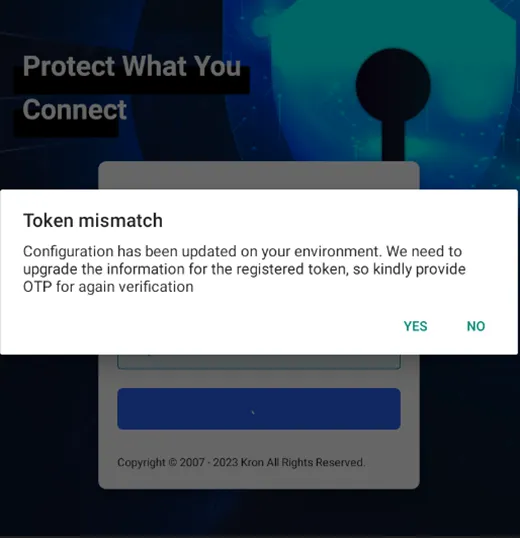
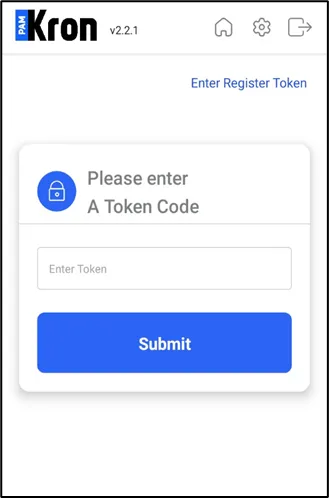
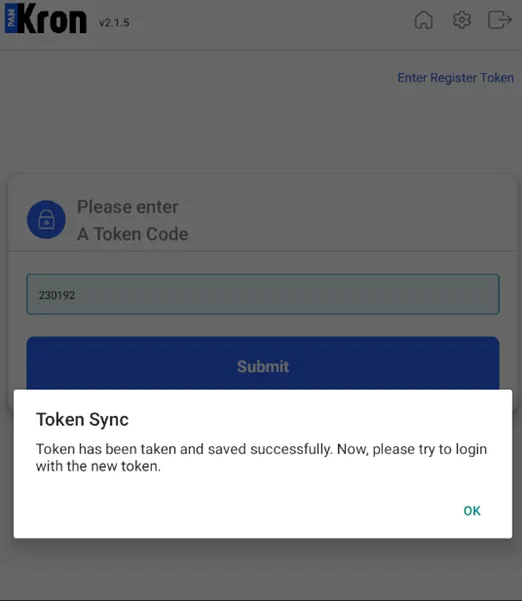
If there’s no Registered Token in the Kron PAM Mobile Client Application and MFA is enabled with the parameter above, registering a token also requires a Multi-Factor Authentication. The system will send a one-time- password (OTP) to the user’s phone number. The user will be asked to enter the OTP on her Kron PAM Mobile Client Application.
The Kron PAM Mobile Client MFA functionality works only with the registered tokens to ensure that the offline tokens are only working in one Kron PAM Mobile Client Application at a time.