SSH Proxy Connection Interfaces
Kron PAM Web GUI
The Kron PAM Web GUI can be used to establish SSH connections:
- Navigate to Device Management > Device Inventory.
- Search for the device to connect to on the left panel.
- Right-click the desired device and select Open Terminal.
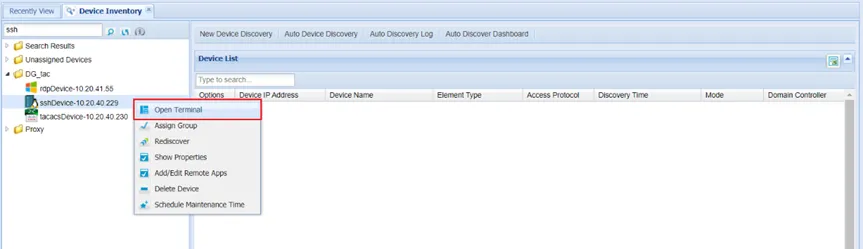
Device Inventory
Kron PAM Desktop Client
Privileged users can establish SSH sessions by using the Kron PAM Desktop Client with the defined authentication and authorization policies. The desktop client can be downloaded from the link in the Kron PAMWeb GUI login screen.
- Open the Desktop Client and complete the connection settings.
- Log in to the Desktop Client by using the configured settings and search for the device to connect to.
- Double-click the device to initiate the SSH session.
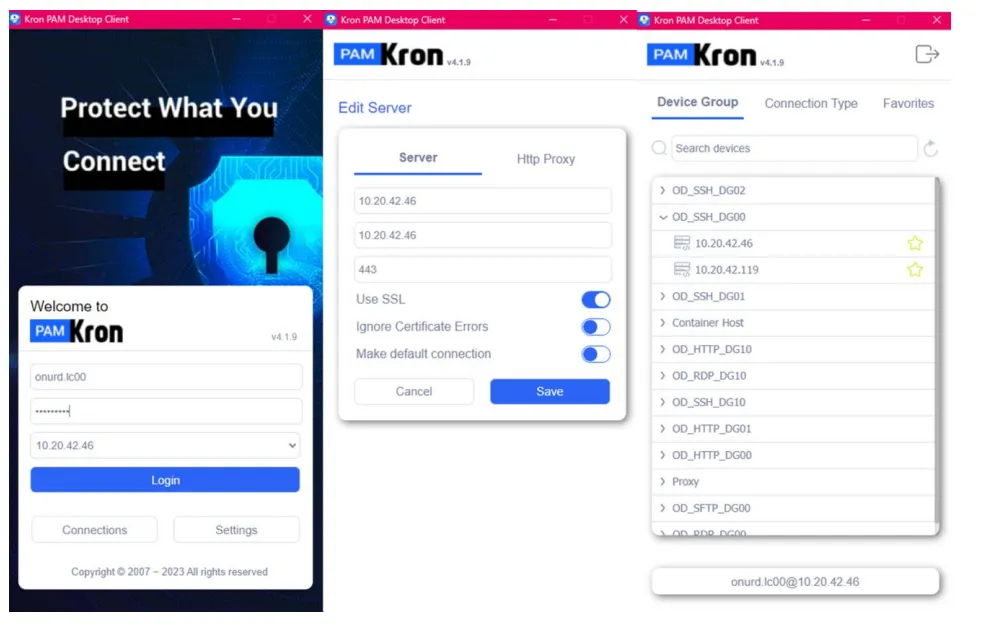
Desktop Client as an SSH Proxy
Users can expandable search a device in the Desktop Client.
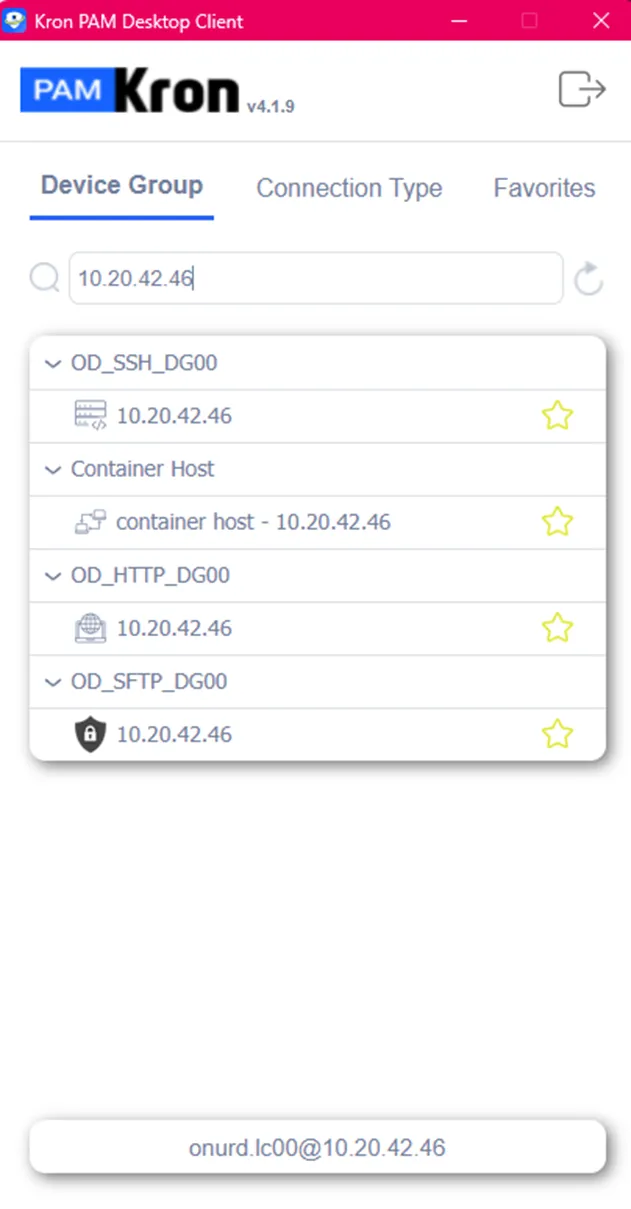
Search a device in the Desktop Client
Native Clients
Users can also use their own preferred SSH clients (PuTTY, MobaXterm, etc.) to connect to their target systems via the Kron PAM SSH Proxy. To connect to a Kron PAM SSH Proxy:
- Enter the Kron PAM IP address as the host IP address and 2222 as the connection port (2222 is the default SSH proxy port, and can be changed by the system administrator).
- After logging in to the Kron PAM SSH proxy, press “*” to list all the configured devices for the connection, or type part of the IP address or hostname and press enter to search the list.
- Enter the number of the device to establish the SSH connection.
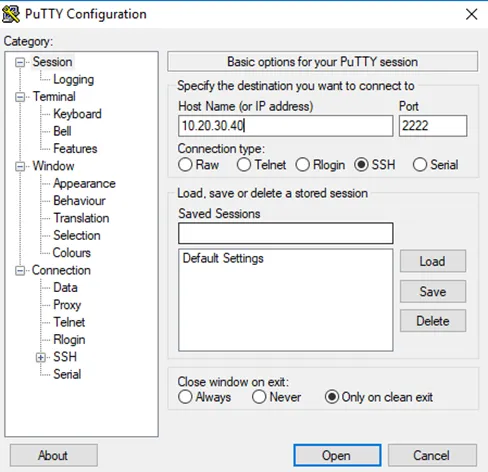
Connecting to an SSH Proxy