Things to check if the RPAM is not working (Troubleshooting)
0) (DETAILED LOG MODE) Before you start checking the following steps, you should enable the detailed log mode (“Debug” in the application.properties) for Remote Access Portal to collect information related to requests/responses that are sent to RPAM.
The logging on the portal should have different levels such as error, warn, info, verbose, and debug. “Debug level” has the highest amount of information, whereas “Error level” has the least amount of information. These levels (log.level.remote.access) can be configured on the application.properties file located on the Remote Access Portal. We should also consider the rotation for log files (log.time.rotation.remote.access) to prevent the log file from becoming enormous.
The default value of log.level.remote.access is info.
The default value of log.time.rotation.remote.accessis 1 week.
Example application.properties:
…
log.level.remote.access = error (the other values might be warn, info, verbose, debug)
log.time.rotation.remote.access = 1 day (the other values might be 3 days, 1 week, 2 weeks, 1 month, 3 months, no rotation)
1) Check whether the secure boot is disabled on both Remote Access Portal machine and RPAM Connector/Kron PAM Server. If it is enabled the Wireguard might not work.
Linux CLI | [root@rap~]# mokutil --sb-state |
|---|
SOLUTION: Disable the secure boot.
2) Check the Wireguard configuration file on both Remote Access Portal machine and RPAM Connector/Kron PAM server:
* Read the Wireguard config file command on the Remote Access Portal environment:
Linux CLI | [root@rap~]# cat /etc/wireguard/wg-server.conf |
|---|---|
Example | [root@rap~]# cat /etc/wireguard/wg-server.conf [Interface] PrivateKey = AAAAAAAL/mqg4KKabGXO1GvAmqhFpN3JmJi4A+SE4= ListenPort = 50044 Address = 10.0.0.1/32 [Peer] PublicKey = BBBBBBTqwb8QxlgG0c+RFlol/2eRATmwT7hI/wzjP14= AllowedIPs = 10.0.0.2/32 (or 10.0.0.2/32) PersistentKeepalive=25 |
* Read the Wireguard config file command on the RPAM Connector/ Kron PAM Server:
Linux CLI | [root@connector~]# cat /etc/wireguard/wg-client.conf OR [root@pam~]# cat /etc/wireguard/wg-client.conf |
|---|---|
Example | [root@connector~]# cat /etc/wireguard/wg-client.conf [Interface] PrivateKey=CCCCCCDUnTSCUfUSh3cROM8qnfLnct0XiRUh1RKSV1E= ListenPort=50044 Address=10.0.0.2/32 [Peer] PublicKey=DDDDDD9+EPCYlO4RxDaJ6WqPLLK9zVp691BkvZIP/jU= EndPoint=10.10.10.10:50044 AllowedIPs=10.0.0.1/32 PersistentKeepalive=25 OR [root@pam~]# cat /etc/wireguard/wg-client.conf [Interface] PrivateKey=CCCCCCDUnTSCUfUSh3cROM8qnfLnct0XiRUh1RKSV1E= ListenPort=50044 Address=10.0.0.2/32 [Peer] PublicKey=DDDDDD9+EPCYlO4RxDaJ6WqPLLK9zVp691BkvZIP/jU= EndPoint=10.10.10.10:50044 AllowedIPs=10.0.0.1/32 PersistentKeepalive=25 |
* Ping the Remote Access Portal’s Wireguard IP address and the RPAM Connector/Kron PAM Server’s Wireguard IP address on both environments (you should see that messages are received/sent).
Linux CLI | [root@connector~]# ping {Remote Access Portal’s Wireguard public IP} OR [root@pam~]# ping {Remote Access Portal’s Wireguard public IP} |
|---|---|
Example | root@connector~]# ping 10.0.0.1 OR [root@pam~]# ping 10.0.0.1 |
Linux CLI | [root@rap~]# ping {RPAM Connector/Kron PAM Server’s Wireguard public IP} |
|---|---|
Example | [root@rap~]# ping 10.0.0.2 OR [root@rap~]# ping 10.0.0.2 |
SOLUTION-1: Check the wireguard configurations, and restart them.
Linux CLI | [root@ ~]# wg-quick down {Wireguard configuration file name} [root@ ~]# wg-quick up {Wireguard configuration file name} |
|---|---|
Example | [root@rap~]# wg-quick down wg-server [root@rap~]# wg-quick up wg-server OR [root@connector~]# wg-quick down wg-client [root@connector~]# wg-quick up wg-client OR [root@pam~]# wg-quick down wg-client [root@pam~]# wg-quick up wg-client |
SOLUTION-2: If you still cannot ping, most likely, the firewall at the network-level blocks the secure tunnel messaging. You can check whether the transfer line as “0B received, 0B sent” after executing “sudo wg show” command.
If the transfer line has any “0B” text, you should use netcat/tcpdump (sudo dnf install nc && sudo dnf install tcpdump) commands to see that you can truly send/receive UDP packet to the target environment. Note that, it is better to check boths sides: 1) from RPAM Connector/ Kron PAM Server to the Remote Access Portal and 2) from Remote Access Portal to the RPAM Connector/ Kron PAM Server.
· Please do not rely on messages such as “UDP packet sent successfully” displayed by netcat. In UDP, this message only indicates that the packet was handed off to the local network stack; it does not confirm delivery to the remote host.
· The only reliable way to verify UDP communication is to confirm packet transmission and reception using tcpdump on both ends. If tcpdump doesn’t catch the packet please ask the customer to check their firewall rules at the network-level!!!
Side 1:
Linux CLI | [root@rap~]# tcpdump -i any port {UDP Port} |
|---|---|
Example | [root@rap~]# tcpdump -i any port 51820 |
Linux CLI | [root@connector~]# nc -u -vz {public IP address of Remote Access Portal} {UDP Port} OR [root@pam~]# nc -u -vz {public IP address of Remote Access Portal} {UDP Port} |
|---|---|
Example | [root@connector~]# nc -u -vz 12.12.12.12 51820 OR [root@pam~]# nc -u -vz 12.12.12.12 51820 |
Side 2:
Linux CLI | [root@connector~]# tcpdump -i any port {UDP Port} OR [root@pam~]# tcpdump -i any port {UDP Port} |
|---|---|
Example | [root@connector~]# tcpdump -i any port 51820 OR [root@pam~]# tcpdump -i any port 51820 |
Linux CLI | [root@rap~]# nc -u -vz {public IP address of Remote Access Portal} {UDP Port} |
|---|---|
Example | [root@rap~]# nc -u -vz 12.12.12.12 51820 |
SOLUTION-3: Rarely, Deep Packet Inspection (DPI) on the firewall blocks the Wireguard service. Especially, if the “netcat-tcpdump” duo is working explained in SOLUTION-2, but wireguard transfer value is still 0B, DPI should be turned off.
Deep Packet Inspection (DPI) is a firewall capability that analyzes packet payload (Layer 7), not just IP/port (L3/L4). It can identify applications like VPNs (including WireGuard) via signatures/heuristics and enforce policies based on the detected app.
DPI common in next-generation firewalls (NGFW):
- Palo Alto Networks (App-ID)
- Fortinet FortiGate (Application Control)
- Check Point (App Control)
- Cisco Firepower / ASA with FirePOWER
- Sophos XG
- Juniper SRX
- Some cloud NVAs / ISP carrier firewalls
Even if UDP/51820 is allowed, DPI can:
- classify traffic as wireguard / unknown-vpn
- drop or throttle it based on application policy
Example of application-aware allow rule:
Source: <connector IP or subnet>
Destination: <portal IP>
Protocol: UDP
Port: 51820 (or chosen port)
Application: wireguard / unknown-vpn / any
Action: allow
Inspection: disable (no DPI / no SSL inspection)
3) Check the iptables rules on the RPAM Connector:
Linux CLI | [root@connector~]# iptables -t nat -nvL |
|---|
You need to see at least one iptables rule.
SOLUTION: Add the iptables rules on the RPAM Connector/Kron PAM Server manually.
Linux CLI | [root@connector~]# iptables -t nat -A PREROUTING -p tcp --dport {HTTPS port} -j DNAT --to-destination {KronPAM Server’s IP}:{HTTPS port} iptables -t nat -A POSTROUTING -p tcp -d {KronPAM Server’s IP} --dport {HTTPS port} -j SNAT --to-source {RPAM Connector’s IP} |
|---|---|
Example | [root@connector~]# iptables -t nat -A PREROUTING -p tcp --dport 443 -j DNAT --to-destination 10.20.42.129:443 iptables -t nat -A POSTROUTING -p tcp -d 10.20.42.129 --dport 443 -j SNAT --to-source 10.20.42.17 |
4) Check the status of the pam-rap.service on the Remote Access Portal machine:
Linux CLI | [root@rap~]# sudo systemctl status pam-rap.service |
|---|
If the pam-rap.service is not working, you need to start it again.
SOLUTION: Restart pam-rap.service.
Linux CLI | [root@rap~]# sudo systemctl restart pam-rap.service |
|---|
5) Check the port allowance at the server-level that is defined in the firewalld service:
Linux CLI | [root@rap~]# sudo firewall-cmd --list-ports OR [root@connector~]# sudo firewall-cmd --list-ports OR [root@pam~]# sudo firewall-cmd --list-ports |
|---|
SOLUTION: Stop the firewalld service, if it is not needed:
Linux CLI | [root@rap~]# sudo systemctl stop firewalld OR [root@connector~]# sudo systemctl stop firewalld OR [root@pam~]# sudo systemctl stop firewalld |
|---|
6) Check the ip routing configuration on the both Remote Access Portal and RPAM Connector/Kron PAM Server:
Linux CLI | [root@rap~]# sysctl net.ipv4.ip_forward [root@connector~]# sysctl net.ipv4.ip_forward |
|---|
The result should be 1.
SOLUTION: If it is 0 please enable ip routing by setting with 1:
Linux CLI | [root@rap~]# sysctl -w net.ipv4.ip_forward=1 OR [root@connector~]# sysctl -w net.ipv4.ip_forward=1 OR [root@pam~]# sysctl -w net.ipv4.ip_forward=1 |
|---|
7)Check the SELinux security mode on the RPAM connector:
Linux CLI | [root@rap~]# getenforce OR [root@connector~]# getenforce OR [root@pam~]# getenforce |
|---|
The result should be permissive.
SOLUTION:If the result is Enforcing, please select permissive security mode with this command:
Linux CLI | [root@rap~]# setenforce 0 [root@rap~]# setsebool -P httpd_can_network_connect on [root@rap~]# setsebool -P httpd_can_network_connect 1 OR [root@connector~]# setenforce 0 [root@connector~]# setsebool -P httpd_can_network_connect on [root@connector~]# setsebool -P httpd_can_network_connect 1 OR [root@pam~]# setenforce 0 [root@pam~]# setsebool -P httpd_can_network_connect on [root@pam~]# setsebool -P httpd_can_network_connect 1 |
|---|
8) Check the portal rights of the users, if the SSH/RDP session over Remote Access Portal comes with blank or undefined@undefined page:
SOLUTION: Give these portal rights to the users through user groups:
single.connect.rdp.client.moduleVisibility
single.connect.cli.moduleVisibility
9) In the Kron PAM 3.8.0 server or previous versions, the Remote Access Portal might show a 403 error with “The remote access time given to you has expired!!!” message to the user repeatedly. This is because the target user is OTP-Enabled user.
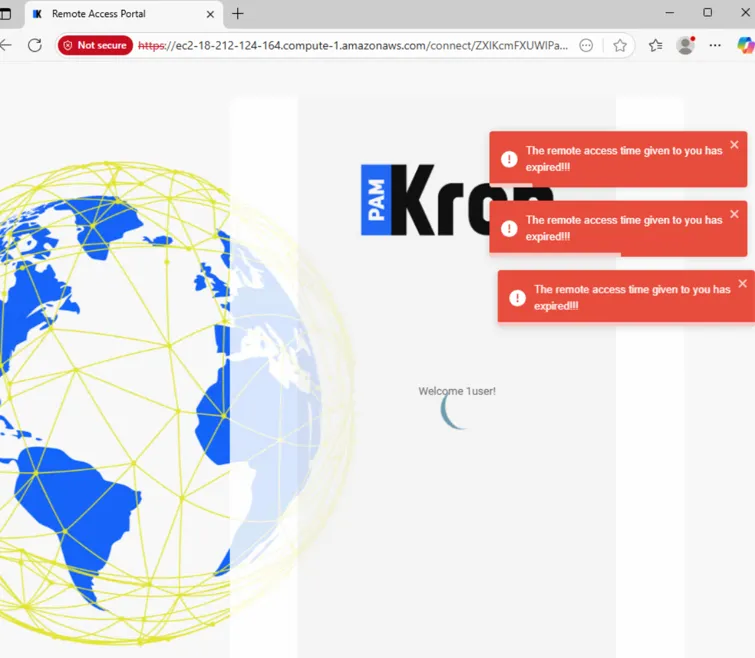
SOLUTION: EITHER update the Kron PAM/Remote Access Portal version to the 3.8.1 or above, OR disable OTP for the target user.
10) Check the nginx configuration file under /etc/nginx/nginx.conf on the Remote Access Portal:
Linux CLI | [root@rap~]# cat /etc/nginx/nginx.conf … upstream backend { server {RPAM Connector’s Wireguard public IP}:443; } … |
|---|---|
Example | [root@rap~]# cat /etc/nginx/nginx.conf … upstream backend { server 10.0.0.2:443; } … |
Check the server info in the upstream backend section at the nginx.conf and check the activiness of the nginx.service.
SOLUTION: If the nginx.service is not working, please restart it on Remote Access Portal machine.
Linux CLI | [root@rap~]# sudo systemctl restart nginx.service |
|---|
11) Check whether that you use correct nginx configuration file under /etc/nginx/nginx.conf on the Remote Access Portal machine. If the RPAM link returns 404 HTTP error, you need to check the nginx configuration file. The file should have these lines:
Linux CLI | [root@rap~]# cat /etc/nginx/nginx.conf … #------------------------------- # KronPAM - Internal redirections(frontend) #------------------------------- … location /rap-ui/static { proxy_set_header X-Forwarded-For $remote_addr; real_ip_header X-Forwarded-For; proxy_pass http://127.0.0.1:7777/static; } … |
|---|
SOLUTION: If these lines are not added yet, please add location /rap-ui/static { … block into nginx.conf file on the Remote Access Portal machine, and save the file. After that, restart nginx.service (sudo systemctl restart nginx.service)
12) If the RPAM links get the certificate error, please check whether the self-signed certificate and generic RSA private key are changed with the customer’s own certificate and RSA private key. The customer should remove the self-signed certificate and generic RSA private key on /etc/nginx/certs directory. After this, the customer should add the customer’s AWS certificate and RSA private key with the same names. Lastly, the customer should restart nginx service by using sudo systemctl restart nginx.service command.
SOLUTION: If the customer has its own certificate and RSA private key, put these files under /etc/nginx/certs by using the names of cert.crt and cert.key. After that, restart nginx.service (sudo systemctl restart nginx.service)
13) If you face this error: “RAP- REQUST NOT FOUND: request with id {no} could not be found” on the Remote Access Portal GUI, please check the CORS configuration on the Kron PAM server (for both with RPAM connector and without RPAM connector options):
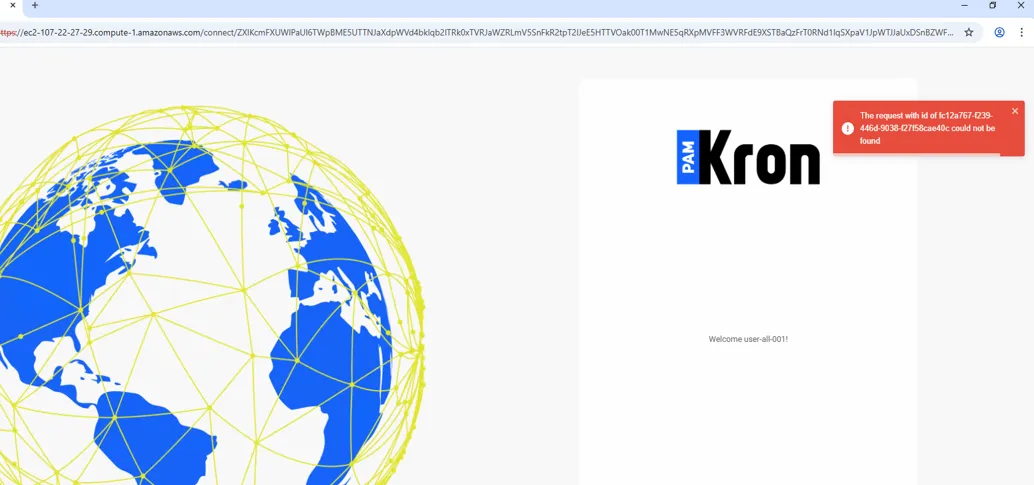
SOLUTION-1: Add {Portal URL} as a cors.allowed.origins parameter under /pam/gui/conf/web.xml.
Linux CLI | [root@pam~]# cat /pam/gui/conf/web.xml /cors … <param-name>cors.allowed.origins</param-name> <param-value> {Portal URL} e.g., https://remote.cloudpam.com</param-value> … |
|---|
SOLUTION-2: Set the users to have at least the following portal functions in order to list devices on the Remote Access Portal and make sessions through them:
- single.connect.rdp.client.moduleVisibility
- single.connect.cli.moduleVisibility
- remote.access.config.moduleVisibility
- desktop.device.group.moduleVisibility (not required for RPAM, but it is needed if the user lists the devices on the Kron PAM GUI or Desktop Client.)
14) (IP/Domain Name) Check the IP/Domain name information on both Remote Access Portal and the Kron PAM Server.
SOLUTION: Use the correct values in Remote Access Portal and Kron PAM Server.
14.1) If the IP is used in the RPAM links:
*On the Remote Access Portal:
Linux CLI | [root@rap~]# vi /etc/hosts {private IP of the Remote Access Portal environment} {public IP of the Remote Access Portal environment} |
|---|---|
Example | [root@rap~]# vi /etc/hosts 10.10.10.10 204.232.204.232 |
Linux CLI | [root@rap~]# vi /pam/remote-access-portal/conf/application.properties sc.server={private IP of the Remote Access Portal environment} |
|---|---|
Example | [root@rap~]# vi /pam/remote-access-portal/conf/application.properties sc.server=https://10.10.10.10 |
*On the Kron PAM Server:
System Config Man-> rap.cloud.server = {public IP of the Remote Access Portal environment + /connect}
Example= https://204.232.204.232/connect
14.2) If the Domain Name is used in the RPAM links:
*On the Remote Access Portal:
Linux CLI | [root@rap~]# vi /etc/hosts {private IP of the Remote Access Portal environment} {URL of the Remote Access Portal environment} |
|---|---|
Example | [root@rap~]# vi /etc/hosts 10.10.10.10 remote.testcloudpam.com |
Linux CLI | [root@rap~]# vi /pam/remote-access-portal/conf/application.properties sc.server={URL of the Remote Access Portal environment} |
|---|---|
Example | [root@rap~]# vi /pam/remote-access-portal/conf/application.properties sc.server=https://remote.testcloudpam.com |
*On the Kron PAM Server:
System Config Man-> rap.cloud.server = {URL of the Remote Access Portal environment + /connect}
Example= https://remote.testcloudpam.com/connect
15) Check the Remote Access Portal’s service log under /pam/remote-access-portal/ on the Remote Access Portal.
SOLUTION: Check the recent log lines to see if there are any errors.
Linux CLI | [root@rap~]# tail -1000f /pam/remote-access-portal/logs/application.log |
|---|
16) Check whether the rap-0.0.1-SNAPSHOT.jar is downloaded to /pam/remote-access-portal/ on the Remote Access Portal via the Remote Access Portal’s installation script. If it is not downloaded, fixing NetworkManager might solve this issue.
SOLUTION: Configure DNS with nmtui command on the Remote Access Portal machine to allow downloading the regarding jar file.
Linux CLI | [root@rap~]# nmtui ***Select eth0*** ***EDIT*** ***Change DNS as 8.8.8.8 and Save *** [root@rap~]# sudo systemctl restart NetworkManager |
|---|
17) Check the catalina.out and localhost_access_log.2025-XX-YY.txt under /pam/gui/logs on the Kron PAM server during the session opened on the Remote Access Portal:
SOLUTION: Check the recent log lines to see if there are any errors.
Linux CLI | [root@pam~]# tail -1000f /pam/gui/logs/catalina.out |
|---|
Linux CLI | [root@pam~]# tail -1000f /pam/gui/logs/localhost_access_log.{YEAR-MONTH-DAY}.txt |
|---|---|
Example | root@pam~]# tail -1000f /pam/gui/logs/localhost_access_log.2025-02-25.txt |