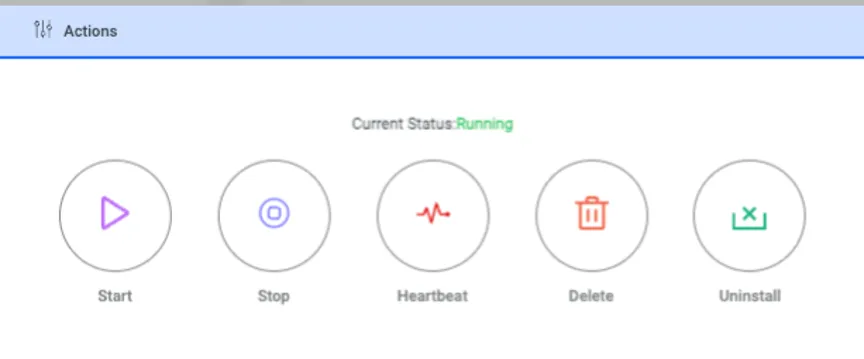
Remote Stop, Start and Uninstall of Agent
Under Linux Agent > Agent Dashboard, when you click the “All Agents” tab, all registered agents are listed.
Using the Setting button on each agent, you can perform agent-specific actions such as stopping or restarting agent services and uninstalling the agent.
The workflow starts when the agent retrieves the action from PAM. In other words, the action is not pushed from Kron PAM; the agent periodically checks in and pulls it. This process typically takes around 1 minute.
You can determine the agent’s status by the color of the Windows icon:
· Green → All agent services are running and functioning properly
· Black → The agent has been uninstalled from the endpoint
· Red → The service responsible for enforcing policies is stopped
· The Online / Offline label indicates whether the agent is sending heartbeats to PAM (i.e., whether it is up and reachable). When the agent is uninstalled, its status changes to Offline and the icon turns black

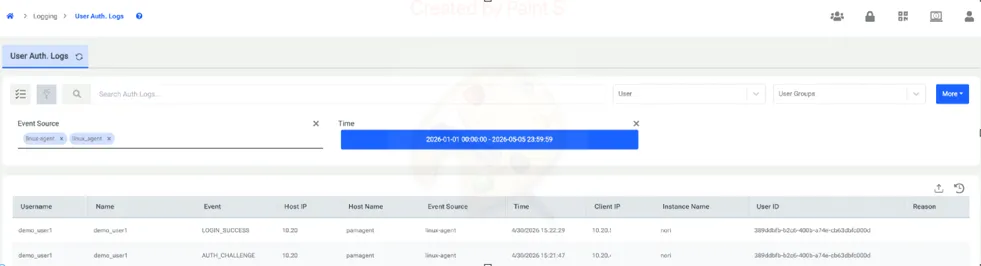
Session And Authentication Logs
There are 2 main kinds of log being sent to Kron PAM, one of them is user authentication logs and the other one is session logs.
1- Authentication Logs
Whenever a user attempts to log in to an endpoint with a Linux agent installed, this activity can be audited on the Authentication Log page in Kron PAM. The agent reports all login operations to Kron PAM, regardless of whether the attempt was successful or unsuccessful. Additionally, the logs provide visibility into whether the user was prompted for an OTP (One-Time Password) during the login process.
2- Session Logs
Sessions logs contain the actions carried by the user in the endpoint. It displays which commands are launched and whether it was allowed, blocked, or elevated by the agent. An example of a session log is shown below. Logs can be seen on session based in the session log tab or individually in the command logs tab. Session logs or command logs can be filtered by “Linux Agent”, as other protocols may also write to these logs.
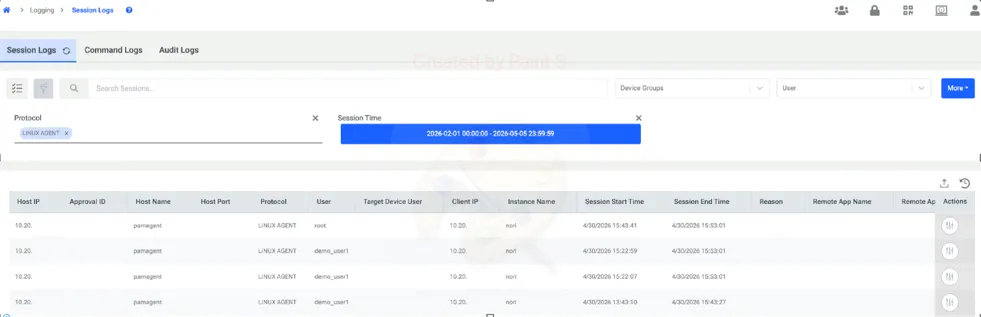
Users can access the session details upon clicking the button on the right side. Under actions column.
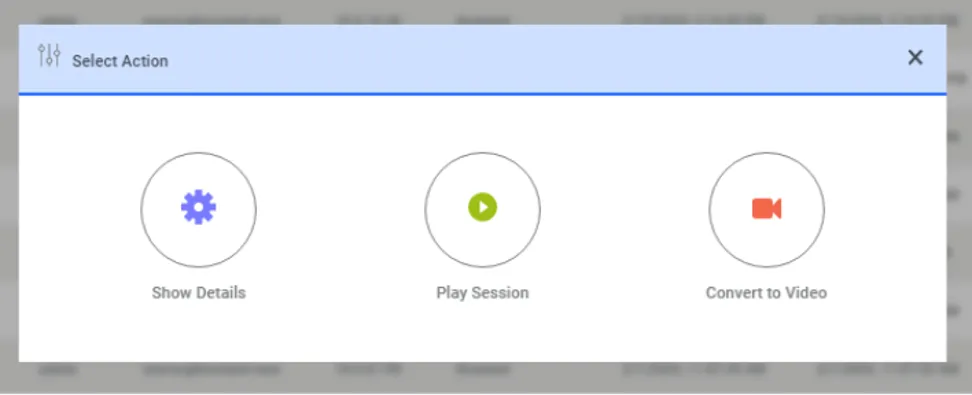
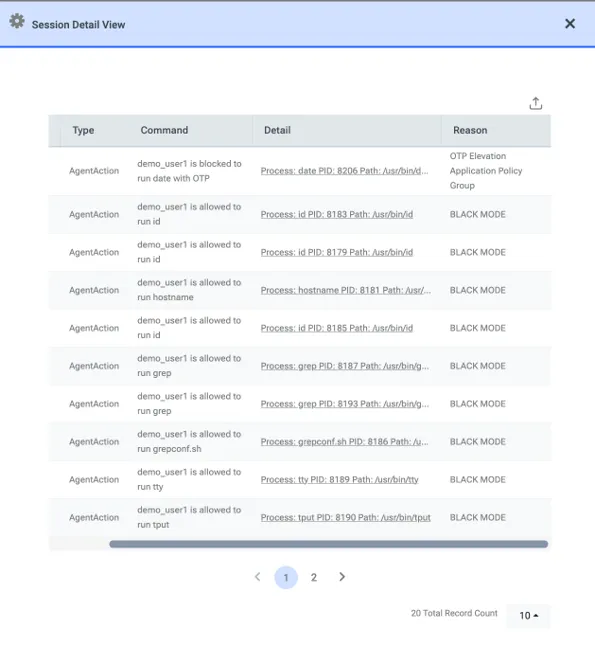
When "Show Details" is clicked, a comprehensive breakdown of all actions taken by the end user on the agent-installed endpoint during a specific session is displayed.
The following information is visible, complete with precise timestamps:
· Command Details: The exact command the user attempted to execute.
· Process ID (PID): The specific PID associated with the process.
· Action Status: Whether the command was executed (elevated), allowed, or blocked.
· Policy Reference: Which specific rule or policy was triggered to determine the outcome of the process.