Connecting with the Kron DAM SQL Proxy with MFA
Some configurations must be made to use MFA (Multi-Factor Authentication) when performing SQL Proxy for Oracle database devices. Please check Email Server Configuration before configuring MFA in SQL Proxy.
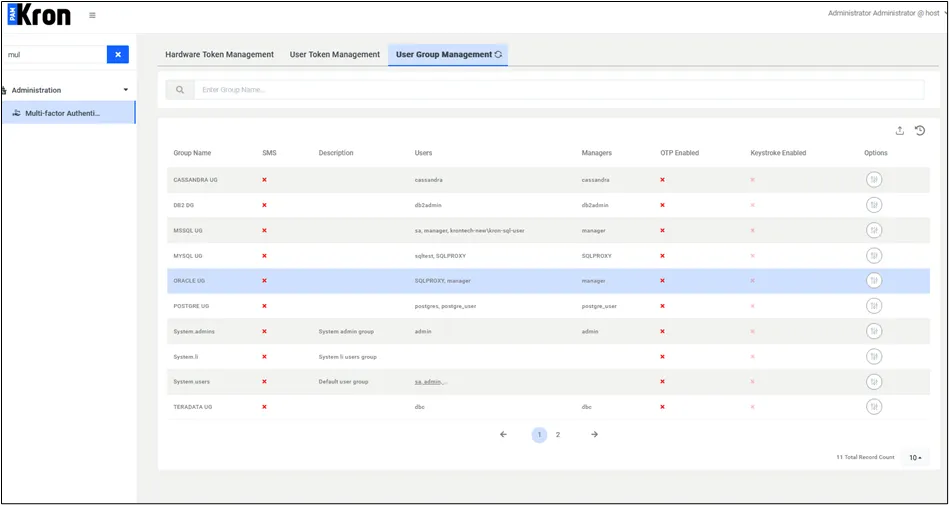
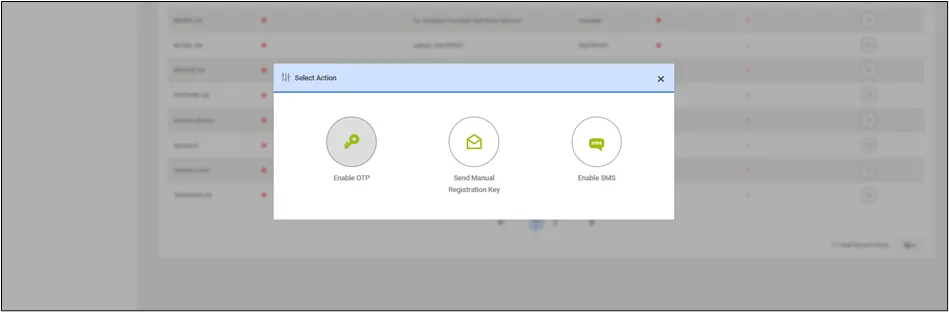
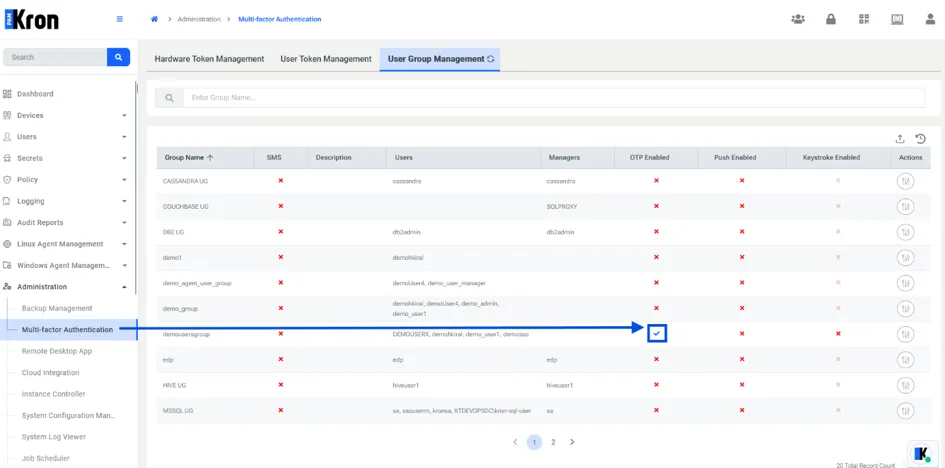
In the Multifactor Authentication and go to User Group Management, press the options button for the user group where the SQLPROXY user is (in this example, it is ORACLE UG). Then, press the Enable OTP option on the screen that appears.
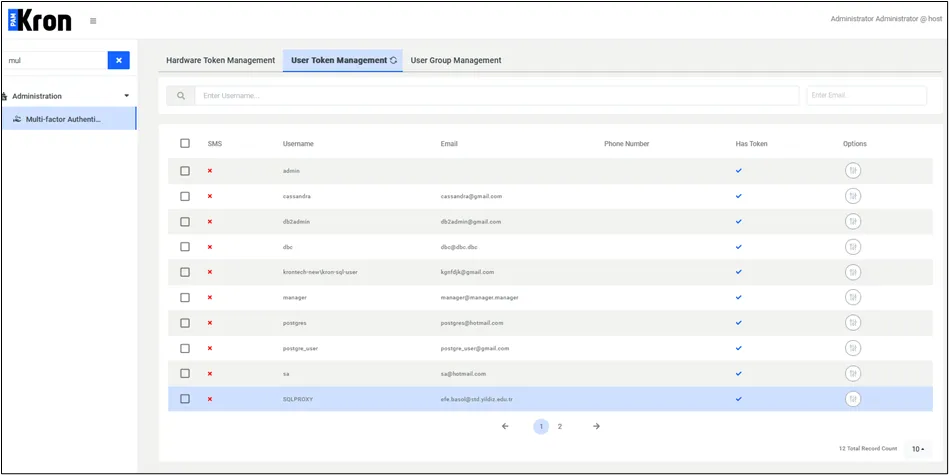
After this, navigate to the Multifactor Authentication page and go to the User Token Management page. Then, press the options button for the user used for the Oracle database (in this case SQLPROXY) and click the Send Manual Registration Key button.

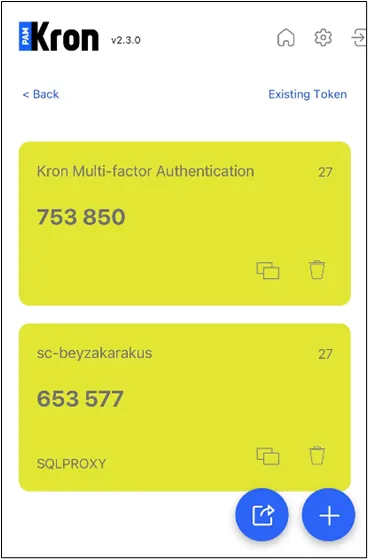
In this example, the QR code sent to the email address of the SQLPROXY user needs to be scanned using the Kron DAM mobile application.
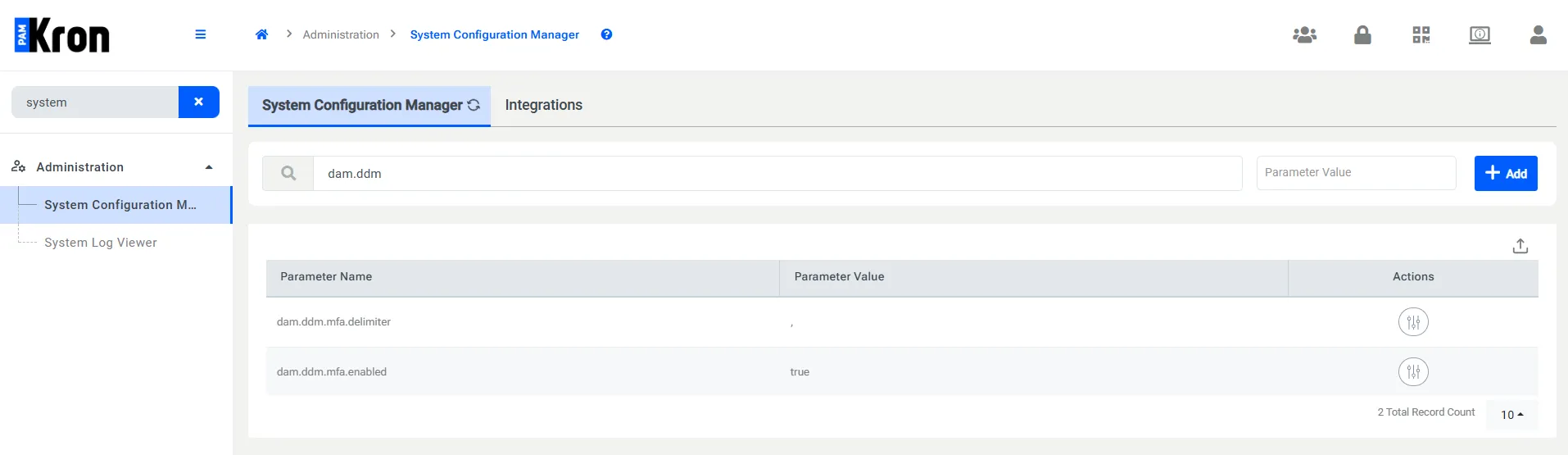
Then, two parameters must be entered in the System Configuration Manager. By pressing the +Add button, add the following parameters:
- dam.ddm.mfa.enabled with a value of true
- dam.ddm.mfa.delimiter with a value of #
- The delimiter is your choice (in this example, # is used)
Navigate to Multi-Factor Authentication → User Group Management. Locate the user group that contains the database user connecting through SQL Proxy (for example, ORACLE UG). Click the Options button for the user group and select Enable OTP.
This configuration defines which user groups are allowed to authenticate using MFA when connecting via SQL Proxy.
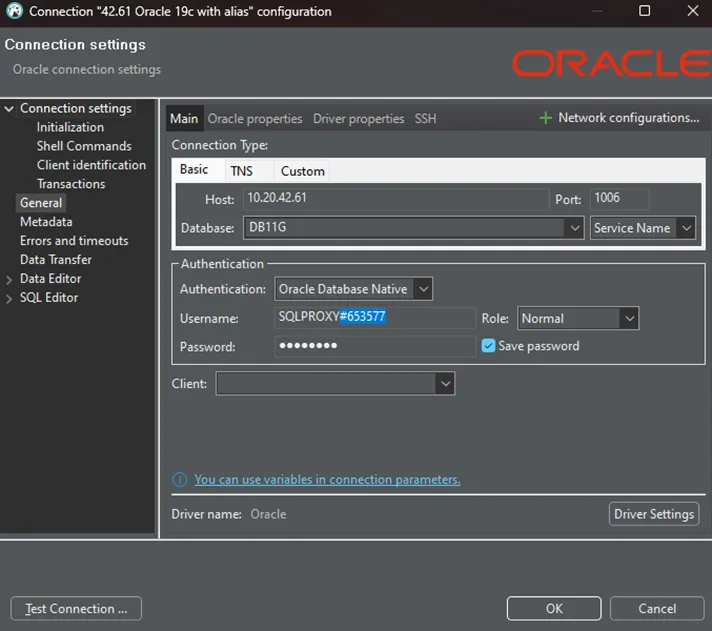
Next, proceed to an SQL Client (in this example, DBeaver is used). The Database Name, Port, and Password are the same as in the SQL Proxy steps.
The username is different; here, as an example, enter (SQLPROXY) customer delimiter (#) and the 6-digit code displayed in the Kron DAM application in the Username field. The user should be able to connect successfully.