RDP Device Properties
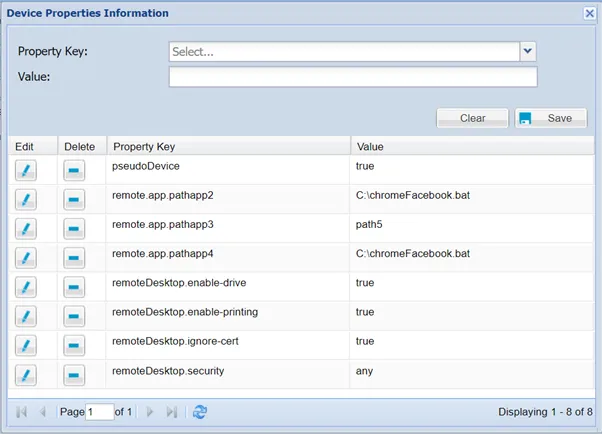
There are properties that can be configured at the “device” level. To set device-based configurations:
- Navigate to Device Management > Device Inventory.
- Right-click the desired device and select the Show properties option.
- Set the related properties.
Property | Definition | ||||||
|---|---|---|---|---|---|---|---|
remoteDesktop.color-depth | This parameter is optional. The color depth to request, in bits-per-pixel. If specified, its value must be either 8, 16, or 24. Regardless of what value is chosen, if a particular update uses less than 256 colors, the Single Connect Remote Desktop Client will always send that update as a 256-color PNG. | ||||||
remoteDesktop.disable-audio | Audio is enabled by default in both the client and in “libguac-client-rdp”. If you are concerned about bandwidth usage, or if the audio is causing problems, you can explicitly disable audio by setting this parameter as "true". | ||||||
remoteDesktop.domain | This parameter is optional. The domain to use when attempting authentication, if any. | ||||||
remoteDesktop.dpi | This parameter is optional. The desired effective resolution of the client display, in DPI. If this value is not specified, the resolution and size of the client display will be used together to determine, heuristically, an appropriate resolution for the RDP session. | ||||||
remoteDesktop.enable-audio-input | If set to "true", audio input support (microphone) will be enabled, leveraging the standard "AUDIO_INPUT" channel of RDP. By default, audio input support within RDP is disabled. | ||||||
remoteDesktop.enable-drive | File transfer is disabled by default, but if enabled, RDP users can transfer files to and from a virtual drive which persists on the Single Connect server. Enable file transfer support by setting this parameter as "true". | ||||||
remoteDesktop.enable-printing | Printing is disabled by default, but if enabled, RDP users can print to a virtual printer that sends a PDF to the Single Connect Remote Desktop client. Enable printing by setting this parameter as "true". | ||||||
remoteDesktop.height | This parameter is optional. The height of the display to request, in pixels. If this value is not specified, the display height of the connecting client will be used. | ||||||
remoteDesktop.ignore-cert | If set as "true", the certificate returned by the server will be ignored, even if that certificate cannot be validated. This is useful if you universally trust the server, and your connection to it, and know that the server's certificate cannot be validated (for example, if it is self-signed). | ||||||
remoteDesktop.remote-app | Specifies the RemoteApp to start on the remote desktop. If supported by your remote desktop server, this application, and only this application, will be visible to the user. | ||||||
remoteDesktop.resize-method | This parameter is optional and used to update the RDP server when the width or height of the client display changes. If this value is not specified, no action will be taken when the client display changes size. Usually, the display size of an RDP session is constant and can only be changed when initially connecting. As of RDP 8.1, the "Display Update" channel can be used to request that the server change the display size. For older RDP servers, the only option is to disconnect and reconnect with the new size. Possible values are: display-update - Uses the "Display Update" channel added with RDP 8.1 to signal the server when the client display size has changed. Reconnect - Automatically disconnects the RDP session when the client display size has changed, and reconnects with the new size. | ||||||
remoteDesktop.security | The security mode to use for the RDP connection. This mode dictates how data will be encrypted and what type of authentication will be performed, if any. By default, standard RDP encryption is requested, as it is the most widely supported. Possible values are: Rdp - Standard RDP encryption. This is the default and should be supported by all RDP servers. Nla - Network Level Authentication. This mode requires log in information and performs an authentication step before the remote desktop session actually starts. If the username and password are not provided, the connection cannot be made. tls - TLS (Transport Layer Security) encryption. TLS is the successor to SSL. Any - Allows the server to choose the type of security. | ||||||
remoteDesktop.server-layout | The server-side keyboard layout. This is the layout of the RDP server and has nothing to do with the keyboard layout in-use on the client side. The Single Connect Remote Desktop client is independent of the keyboard layout. Possible values are: de-de-qwertz - German keyboard (qwertz) en-us-qwerty - English (US) keyboard fr-fr-azerty - French keyboard (azerty) fr-ch-qwertz - Swiss French keyboard (qwertz) it-it-qwerty - Italian keyboard ja-jp-qwerty - Japanese keyboard sv-se-qwerty - Swedish keyboard tr-tr-qwerty - Turkish keyboard failsafe - Unknown keyboard - this option sends only Unicode events and should work for any keyboard, though not necessarily on all RDP servers or applications. If your server's keyboard layout is not yet supported, this option should work in the meantime. | ||||||
remoteDesktop.enable-font-smoothing If set to true, text will be rendered with smooth edges. Text over RDP is rendered with rough edges by default, as this reduces the number of colors used by text, and thus reduces the bandwidth required for the connection. If set to true, text will be rendered with smooth edges. Text over RDP is rendered with rough edges by default, as this reduces the number of colors used by text, and thus reduces the bandwidth required for the connection. | If set to true, text will be rendered with smooth edges. Text over RDP is rendered with rough edges by default, as this reduces the number of colors used by text, and thus reduces the bandwidth required for the connection. If set to true, text will be rendered with smooth edges. Text over RDP is rendered with rough edges by default, as this reduces the number of colors used by text, and thus reduces the bandwidth required for the connection. If set to true, text will be rendered with smooth edges. Text over RDP is rendered with rough edges by default, as this reduces the number of colors used by text, and thus reduces the bandwidth required for the connection. | ||||||
remoteDesktop.width | This parameter is optional. The width of the display to request, in pixels. If this value is not specified, the width of the connecting client display will be used. |
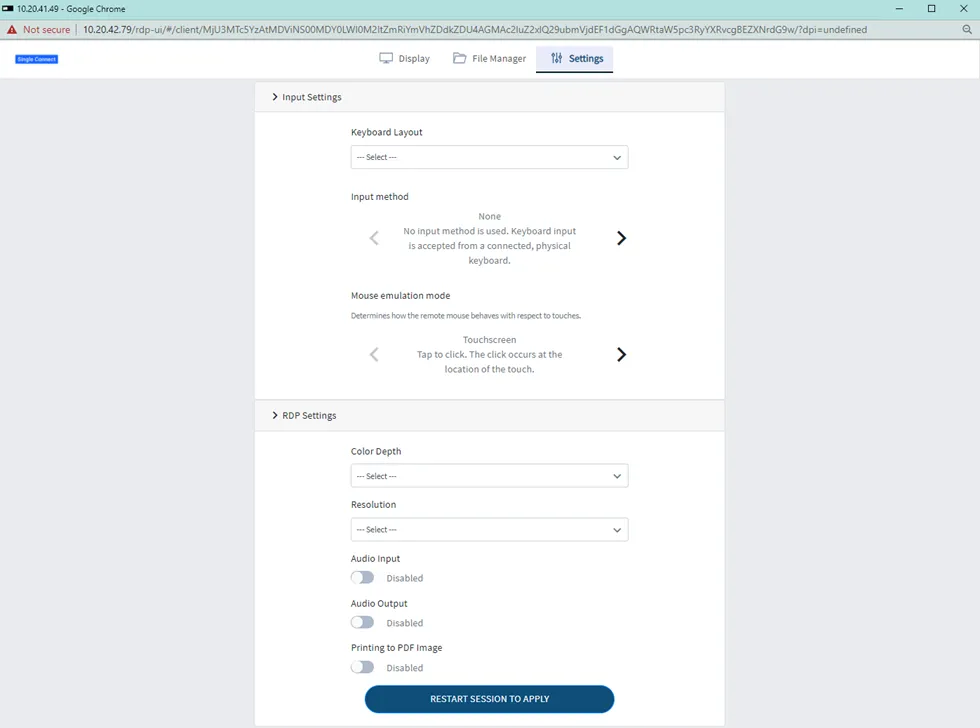
Some of these settings can be set up on-the-fly using the Settings tab in the RDP Session. These are: Keyboard Layout (remoteDesktop.server-layout), Input Method, Mouse Emulation Mode, Color Depth (remoteDesktop.color-depth), Resolution (remoteDesktop.dpi), Audio Input (remoteDesktop.enable-audio-input), Audio Output (remoteDesktop.disable-audio), and Printing to PDF Image (remoteDesktop.enable-printing).
Remote Desktop Properties can also be set globally on the System Config Management page. To do this we need to add rdp parameter as sc.rdp.default.xxxx So if you want to add parameter remoteDesktop.dpi as global in sys config man we add it like sc.rdp.default.remoteDesktop.dpi When we set this parameter in sys config man all RDP devices will take this parameter.