Auto Login Feature for RDP Remote Applications
Single Connect can log in to permitted applications automatically once the credentials are configured in Single Connect. In these cases, the application’s credentials are invisible to the user whenever they access a device and an application on that device. All sessions are logged by Single Connect. The application to be used with the auto login feature in the RDP Proxy should be added as a Remote App on the Single Connect Web GUI.
- Navigate to Administration > Remote Desktop App.
- Add the name and path of the application to be logged into automatically during an RDP session, and Save.
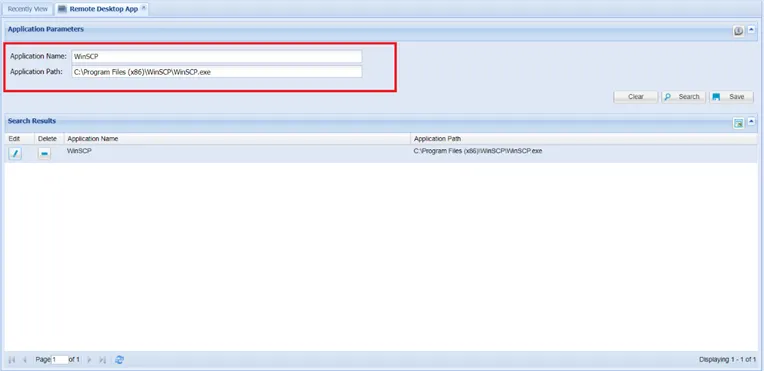
As shown in the above figure, we first need to define the application name and path. Then we need to configure the autologin feature.
The autologin feature can be configured in three different ways: a) Optical Character Recognition (OCR), b) Parametric Solution, and c) Application-specific Special Automation Scripts.
The following functionality is introduced in release 3.0.0. A remote application is defined on Single Connect and started on a jump server. If the session ends (disconnected for some reason) and a new session is restarted from Single Connect, a new remote app will not be started. This is because, according to Single Connect, the same application has already been started (in the disconnected session). However, if a configuration is made on the server side for logging off a disconnected session, a remote app will be started again.