License Manager
1 min
The Single Connect License Manager enables the software’s licensing model based on module, device count, user count based on proxy, admin count, concurrent SSH/Telnet sessions, concurrent RDP, total concurrent sessions (RDP+ SSH/Telnet), and session time. Only authorized users can manage the License Manager. To upload a new license file:
- Log in to the Single Connect Web GUI.
- Navigate to License Manager.
- Click Add New License File and select the license file.
- Establish an SSH connection to Single Connect from port 22 and restart the Web Portal service using the command systemctl restart pam-gui.
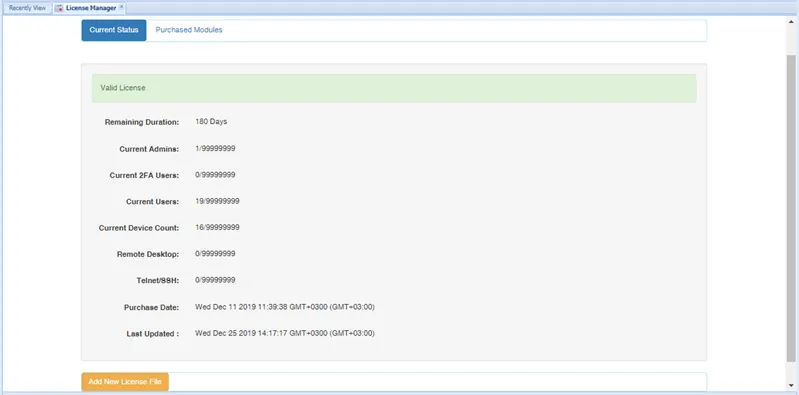
License Manager
Then restart other proxy services using the commands, systemctl restart pam-ssh, systemctl restart pam-sql, systemctl restart pam-http, and systemctl restart pam-sftp.