License Renewal

LICENSE RENEWAL
LICENSE RENEWAL
SECTION I: LICENSE ENROLMENT REQUIREMENTS
- Ip address of Single Connect Server for SSH access
- Authorized User account for SSH access
- Password of this authorized user
- License file which has delivered by mail (Kron)
SECTION II: HOW TO USE LICENSE APPLICATION • SFTP access information to download the license application
SFTP Adress | User name | Password |
|---|---|---|
filerepo.krontech.com | filerepo-tr | Sx7u&nR!zp |
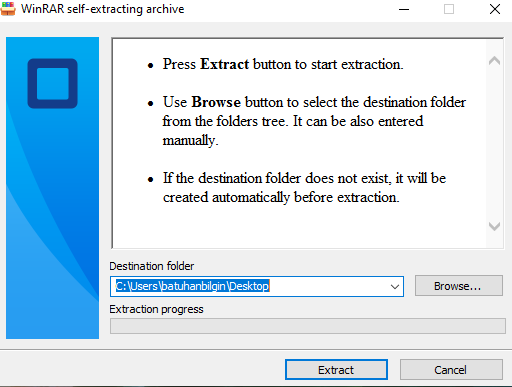
Download Path : /singleconnect/License/ Download File :SC_License_Installer.exe Download and unpack the RAR file from designated FTP server
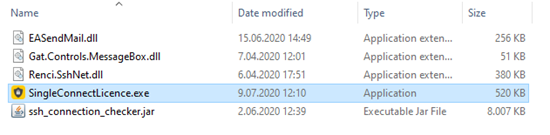
Please run the application name "SingleConnectLicense.exe" which is located in the extracted folder.
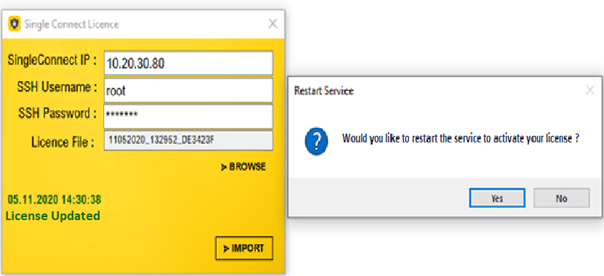
Please fill the necessary fields in the application by the information mentioned to you to gather at the beginning of the document.
# | Field name | Explanation |
|---|---|---|
1 | Single Connect IP | Ip address of Single Connect Server for SSH access |
2 | SSH Username | Authorized User account for SSH access |
3 | SSH Password | Password of this authorized user |
4 | License File | License file which has delivered by mail (Kron) |
|
|
|
Download the License file from the mail.
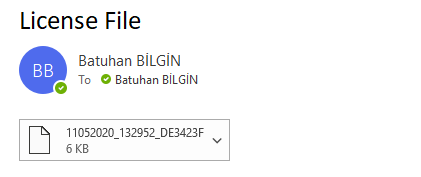
Select the license file that is prepared and forwarded by e-mail.
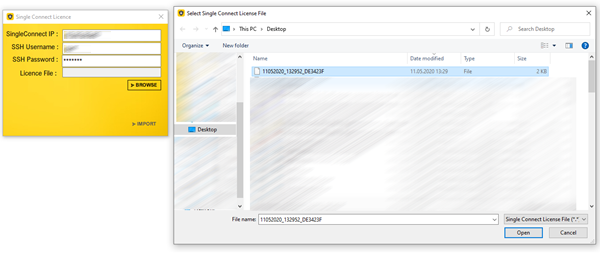
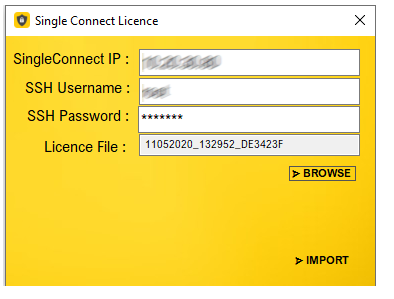
If import is pressed, the license will be installed for the Singleconnect server specified in the relevant license. In order to install a license, the device on which the app is running must have access to the specified single connect ip. Pressing IMPORT will take action successfully when the device on which the app is running has access to the specified Single Connect ip(SSH 22)
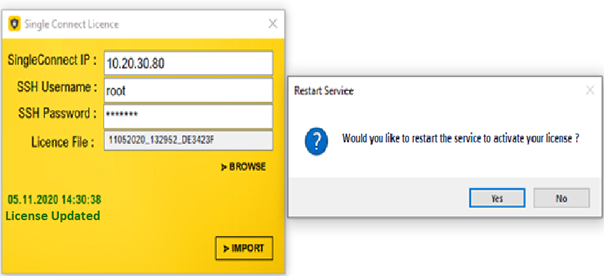
Pressing the "yes" button for restart will restart the Application service and be notified as in the following example
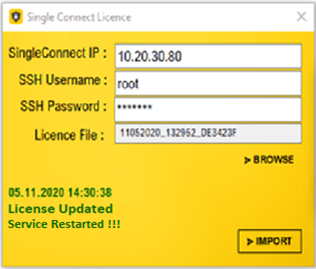
If restart is not requested after the license installation ends, option No will be selected and will provide information as in the following example
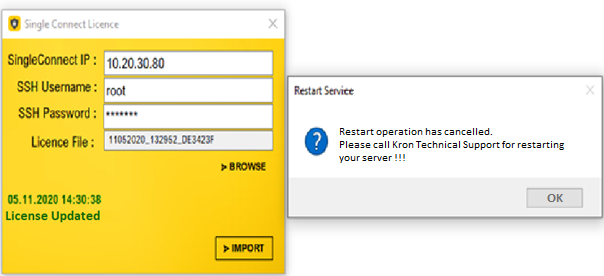
The same license file cannot be used more than once and system will warn you about it. In such a case, a Secure Key must be entered which have received from the support team for solving this situation.
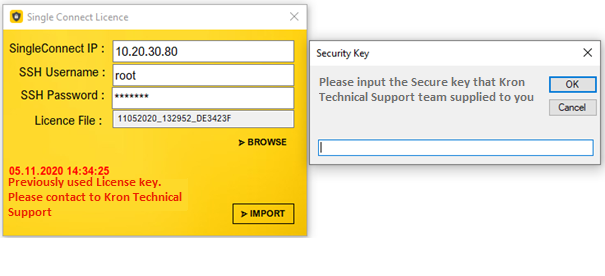
The Security key forwarded by the Support Team is valid for a period of 4(four) hours. The forwarded Security key must be updated and installed within 4 hours from the date of the forwarding date by writing it into the Application.
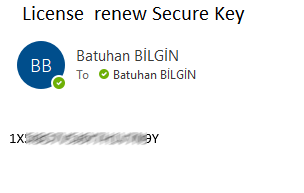
After the new SecureKey has supplied and entered correctly, you will be able to update and add the license file you have entered.
The license key will be updated when the security key that is passed to you is entered into the relevant field and the "OK" key is pressed.
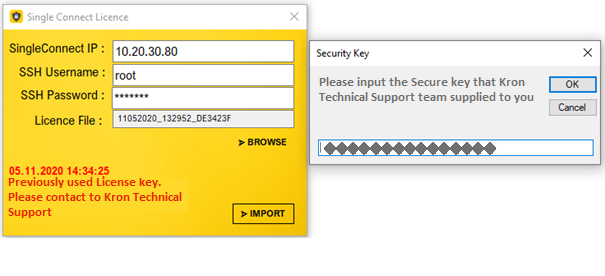
If the security key is entered within the validity period, the license will be updated and installed successfully.