Auto Login Configuration

AUTO LOGIN CONFIGURATION
Auto Login Configuration
SECTION I: Windows Server Configuration
Run "regedit" on the Windows Terminal server and go to "HKEY_LOCAL_MACHINE\SOFTWARE\Microsoft\Windows NT\CurrentVersion\Terminal Server\TSAppAllowList\ Path".
Set "fDisabledAllowList" value as "fDisabledAllowList= 1".
If fDisabledAllowList does not exist, add the value as in example.
Windows restart may need for the modified parameter.
Supported browsers = Chrome,iexplore (internet Explorer), Firefox
Supported mode = Browser/application
When the user log closes after the end of the operation on the terminal server, the "EXE" will detect the disconnect user and log off the relevant session.
- Setup is performed with the attached setup file
- Installation takes place under C:\RemoteApplication\ path
- Remote Desktop App definition on Single Connect;
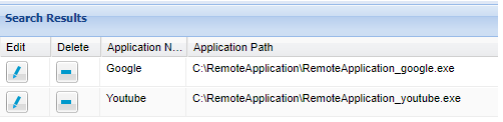
- Copy the "EXE" for each site that needs to be done on the server and give the appropriate name as in the example

- Text must be created under C:\RemoteApplication\conf\ as in the same instance as EXE (EXE reads the browser and link that it will use when it runs)
- The file should not be blank and the insertion logic should be as follows
To circumvent the site certificate error used in "Auto Login", the config must be modified as follows
<application>-<application path&exe file name >
- Once the arrangements are made, the terminal will be opened as a browser kiosk and private mode when connected with the server. The application would run the file written with path directly.
- The application cache path> "-" sign must be present as brace, as shown in the example.
- The applicationccleaner parameter is a parameter created specifically to clean up the cache file.
- The sample image has the file name as shown in the illustration and its contents must be as shown in the example.
- The windows custom path content for the Cache file that is requested to be deleted is used on the application. For example, in order to go to the %LocalAppData% extension, the following image can be identified in accordance with the image.
For custom folder definitions, you can find descriptions in the table below;
# | Custom Path | Description |
|---|---|---|
1 | AdminTools | The file system directory that is used to store administrative tools for an individual user. The Microsoft Management Console (MMC) will save customized consoles to this directory, and it will roam with the user. Added in the .NET Framework 4. |
2 | ApplicationData | The directory that serves as a common repository for application-specific data for the current roaming user. A roaming user works on more than one computer on a network. A roaming user's profile is kept on a server on the network and is loaded onto a system when the user logs on. |
3 | CDBurning | The file system directory that acts as a staging area for files waiting to be written to a CD. Added in the .NET Framework 4. |
4 | CommonAdminTools | The file system directory that contains administrative tools for all users of the computer. Added in the .NET Framework 4. |
5 | CommonApplicationData | The directory that serves as a common repository for application-specific data that is used by all users. |
6 | CommonDesktopDirectory | The file system directory that contains files and folders that appear on the desktop for all users. This special folder is valid only for Windows NT systems. Added in the .NET Framework 4. |
7 | CommonDocuments | The file system directory that contains documents that are common to all users. This special folder is valid for Windows NT systems, Windows 95, and Windows 98 systems with Shfolder.dll installed. Added in the .NET Framework 4. |
8 | CommonMusic | The file system directory that serves as a repository for music files common to all users. Added in the .NET Framework 4. |
9 | CommonOemLinks | This value is recognized in Windows Vista for backward compatibility, but the special folder itself is no longer used. Added in the .NET Framework 4. |
10 | CommonPictures | The file system directory that serves as a repository for image files common to all users. Added in the .NET Framework 4. |
11 | CommonProgramFiles | The directory for components that are shared across applications. |
To get the x86 common program files directory in a non-x86 process, use the ProgramFilesX86 member. | | |
12 | CommonProgramFilesX86 | The Program Files folder. Added in the .NET Framework 4. |
13 | CommonPrograms | A folder for components that are shared across applications. This special folder is valid only for Windows NT, Windows 2000, and Windows XP systems. Added in the .NET Framework 4. |
14 | CommonStartMenu | The file system directory that contains the programs and folders that appear on the Start menu for all users. This special folder is valid only for Windows NT systems. Added in the .NET Framework 4. |
15 | CommonStartup | The file system directory that contains the programs that appear in the Startup folder for all users. This special folder is valid only for Windows NT systems. Added in the .NET Framework 4. |
16 | CommonTemplates | The file system directory that contains the templates that are available to all users. This special folder is valid only for Windows NT systems. Added in the .NET Framework 4. |
17 | CommonVideos | The file system directory that serves as a repository for video files common to all users. Added in the .NET Framework 4. |
18 | Cookies | The directory that serves as a common repository for Internet cookies. |
19 | Desktop | The logical Desktop rather than the physical file system location. |
20 | DesktopDirectory | The directory used to physically store file objects on the desktop. Do not confuse this directory with the desktop folder itself, which is a virtual folder. |
21 | Favorites | The directory that serves as a common repository for the user's favorite items. |
22 | Fonts | A virtual folder that contains fonts. Added in the .NET Framework 4. |
23 | History | The directory that serves as a common repository for Internet history items. |
24 | InternetCache | The directory that serves as a common repository for temporary Internet files. |
25 | LocalApplicationData | The directory that serves as a common repository for application-specific data that is used by the current, non-roaming user. |
26 | LocalizedResources | The file system directory that contains localized resource data. Added in the .NET Framework 4. |
27 | MyComputer | The My Computer folder. When passed to the Environment. GetFolderPath method, the MyComputer enumeration member always yields the empty string ("") because no path is defined for the Computer folder. |
28 | Mydocuments | The My Documents folder. This member is equivalent to Personal. |
29 | MyMusic | The My Music folder. |
30 | MyPictures | The My Pictures folder. |
31 | MyVideos | The file system directory that serves as a repository for videos that belong to a user. Added in the .NET Framework 4. |
32 | NetworkShortcuts | A file system directory that contains the link objects that may exist in the My Network Places virtual folder. Added in the .NET Framework 4. |
33 | Personal | The directory that serves as a common repository for documents. This member is equivalent to MyDocuments. |
34 | PrinterShortcuts | The file system directory that contains the link objects that can exist in the Printers virtual folder. Added in the .NET Framework 4. |
35 | Programfiles | The program files directory. |
In a non-x86 process, passing ProgramFiles to the GetFolderPath(Environment+SpecialFolder) method returns the path for non-x86 programs. To get the x86 program files directory in a non-x86 process, use the ProgramFilesX86 member. | | |
36 | ProgramFilesX86 | The x86 Program Files folder. Added in the .NET Framework 4. |
37 | Programs | The directory that contains the user's program groups. |
38 | Recent | The directory that contains the user's most recently used documents. |
39 | Resources | The file system directory that contains resource data. Added in the .NET Framework 4. |
40 | Sendto | The directory that contains the “Send To” menu items. |
41 | Startmenu | The directory that contains the Start menu items. |
42 | Startup | The directory that corresponds to the user's startup program group. The system starts these programs whenever a user logs on or starts Windows. |
43 | System | The System directory. |
44 | SystemX86 | The Windows System folder. Added in the .NET Framework 4. |
45 | Templates | The directory that serves as a common repository for document templates. |
46 | UserProfile | The user's profile folder. Applications should not create files or folders at this level; They should put their data under the locations referred to to by ApplicationData. Added in the .NET Framework 4. |
47 | Windows | The Windows directory or SYSROOT. This corresponds to the %windir% or %SYSTEMROOT% environment variables. Added in the .NET Framework 4. |
- To turn off the LEFT CTRL/LEFT ALT/RIGHT CTLR / RIGHT ALT keys on the terminal server, you must run the following request on MSDOS.
- Warning: After performing this operation, the keys specified on the server and shortcuts for these keys will not work [ CTRL + V] / [CTRL + C] etc.
- reg add "HKLM\SYSTEM\CurrentControlSet\Control\Keyboard Layout" /v "Scancode Map" /t REG_BINARY /d 0000000000000000000000000000000000000000000000000000000000000000000000000000000000000000000000000000000000000000000000000000000000000000000000000000000000000000000000000000000000000000000000000000000000000
SECTION II: Single Connect Auto Login Configuration
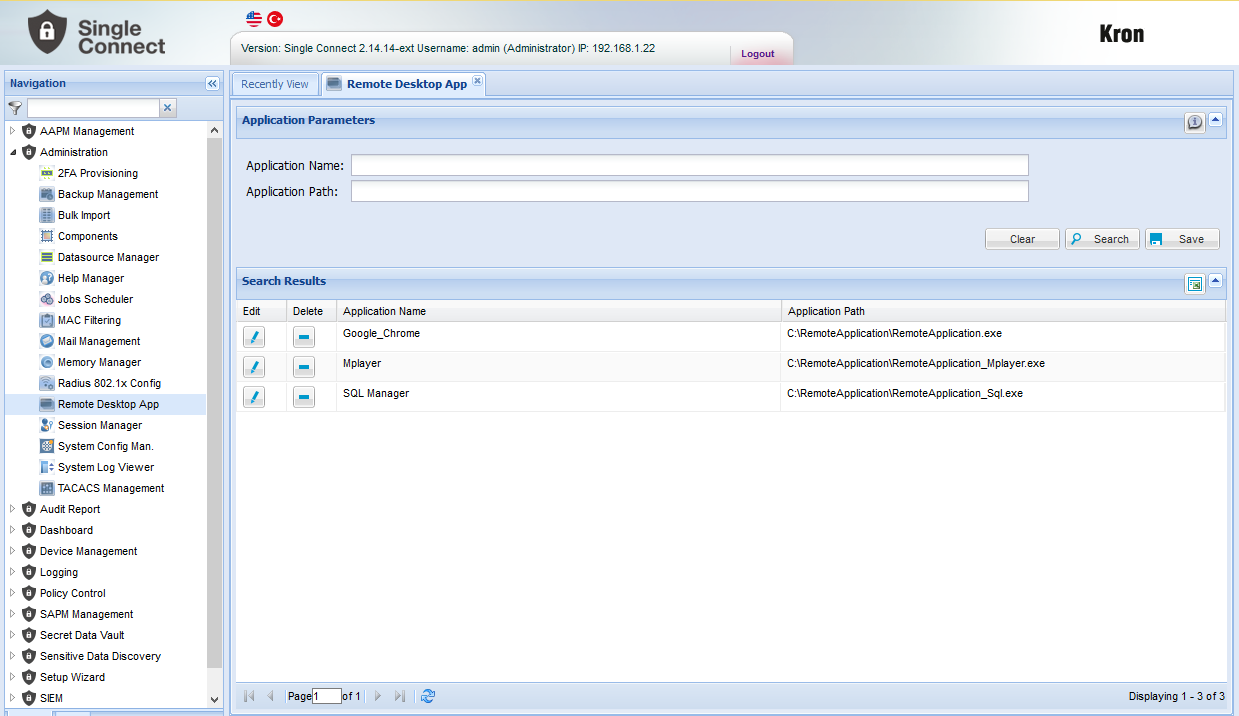
- On the Single Connect side, the Remote Application.exe file created within the Terminal server should be written in the Remote Desktop App field.
On Single Connect "Device Group Realms" menu realm setting should be done between device realm and the relevant user groups. The values of Global Username, Password or other access methods should be entered regarding to the access method.
- Device Group "Allow Remote App" should be authorized.
- Allow and Auto Login rings for Chrome should be marked. "Set auto login properties" button should be clicked.
The content that it will capture on the website(on the screen) should be defined in the "OCR Text" field. It should appear as in the following example;
OCR Text : After capturing the selected word while reading data on the website, it decides that the commands that we have defined in the Key Template field will run. Regex templates are available in the following article. The recommended format to use is the format in the example.
Sample Identification; (?is).*(<Type the word you want to see on the login page on the site>).*
(?is).*(Username| Password| Welcome).*
This definition means "run key template commands after you see Username, Password, or Welcome in ocr logs after the site opens". "|" pipe sign is used in the sense of separator and get effectiveness after seeing "xx" or "yy" sentences.
Key Template: Specifies the actions to be done after the desired word is captured on the website
[Tab] | It can be used to go to the username and password field that switches to the next field on the site |
|---|---|
[Enter] | Allows you to [Enter] within the site [Tab] and username and password allow you to log in after writing |
[Shift+Tab] | It can be used to go to the username and password field that switches to the previous field on the site |
[wait-1000] | Allows you to wait until the specified period after the procedure sample [Tab][wait-1000] refers to the tab waiting for 1 second after making it. Time is written in milliseconds 1000 = 1 sec means |
${username} | |
${password} | |
Allow Assigned Credentials : The terminal server allows you to use Secret Data Vault / SAPM records associated with the user account in Assigned Credentials for login operations.
Allow Session User : Provides access to the server with the user name and password that is linked to Single Connect for terminal server login operations
Timeout : specifies how many seconds to be recalled in the pop-up window for OCR Text. At the end of this period autologin process ends. Must be defined in milliseconds.
By default Single Connect have a read ability(OCR) on 400X240 image resolution. This function can be modified(smaller) to increase effectiveness on Websites with small visuals or app contents.
System Config Manager Definition;
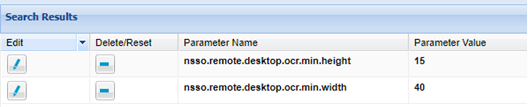
nsso.remote.desktop.ocr.min.width=40
nsso.remote.desktop.ocr.min.height=15
With the parameters mentioned above, images with pixel values of 40x15 and above can be read by making pixel definitions.
Single Connect System Config Manager Definition Example;