Temporarily Disabling RDP Keylogging
The RDP Session Keystroke Logger logs all keystrokes in clear text. This can include critical information including passwords. Admins can configure two properties from the System Configuration Manager page to set a keyboard shortcut that blocks keylogging. To obscure certain data, follow these steps:
- Navigate to Administration > System Config Man> Add New System Parameter.
- Set the nsso.remote.desktop.key.logger.hidden.key.limit parameter with the required key limit.
- Set the nsso.remote.desktop.key.logger.key.hiding parameter with the shortcut key to be used to obscure certain data.
When users press the key chosen for the second parameter twice within 500 milliseconds (half a second), keylogging will be paused for the number of strokes set in the first parameter above.
The default shortcut key is ESC. Potential keys that can be set up in System Config. Manager:
[Alt] | [F10] | [F8] | [Print] |
|---|---|---|---|
[Begin] | [F11] | [F9] | [Right] |
[Break] | [F12] | [Home] | [Scroll_Lock] |
[Ctrl] | [F2] | [Insert] | [Shift] |
[Delete] | [F3] | [Left] | [Shift_Lock] |
[Down] | [F4] | [Num_Lock] | [Tab] |
[End] | [F5] | [Page_Down] | [Up] |
[Escape] | [F6] | [Page_Up] | |
[F1] | [F7] | [Pause] | |
If nsso.remote.desktop.key.logger.hidden.key.limit is not defined manually in the System Config Man., the default hidden key limit is 15 keys.
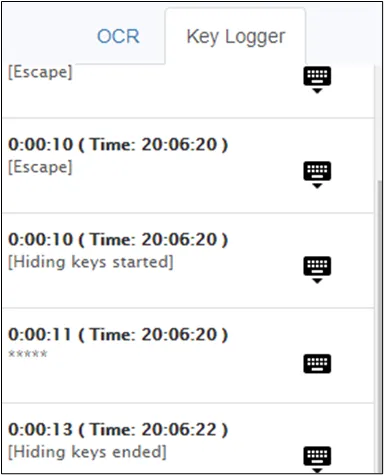
When key logging is disabled for a certain time in an RDP session, it shows in the logs as illustrated in this figure:
To disable keystroke log hiding feature for specific user groups:
- Navigate to Policy > Portal Functions.
- Open the Function Group Definition tab and click Add.
- Fill in the Function Group Name and select the Function as single.connect.rdp.disallow.hiding.keys
- Click Save.
- Open the Realm Definition tab.
- Configure the realm for the user group, as well as the disallow hiding keys function.