Secret Management Reports
Kron PAM Reporting module includes the following reports for Secret Management:
Vault Dashboard
The Vault Dashboard shows statistics on Vault accounts, password checkouts, and password rotations.
To view the dashboard, follow these steps:
1. Navigate to Reports.
2. Select Vault Dashboard.
Viewing Vault Account Statistics
The top of the dashboard includes the following components. These components are common to all tabs.
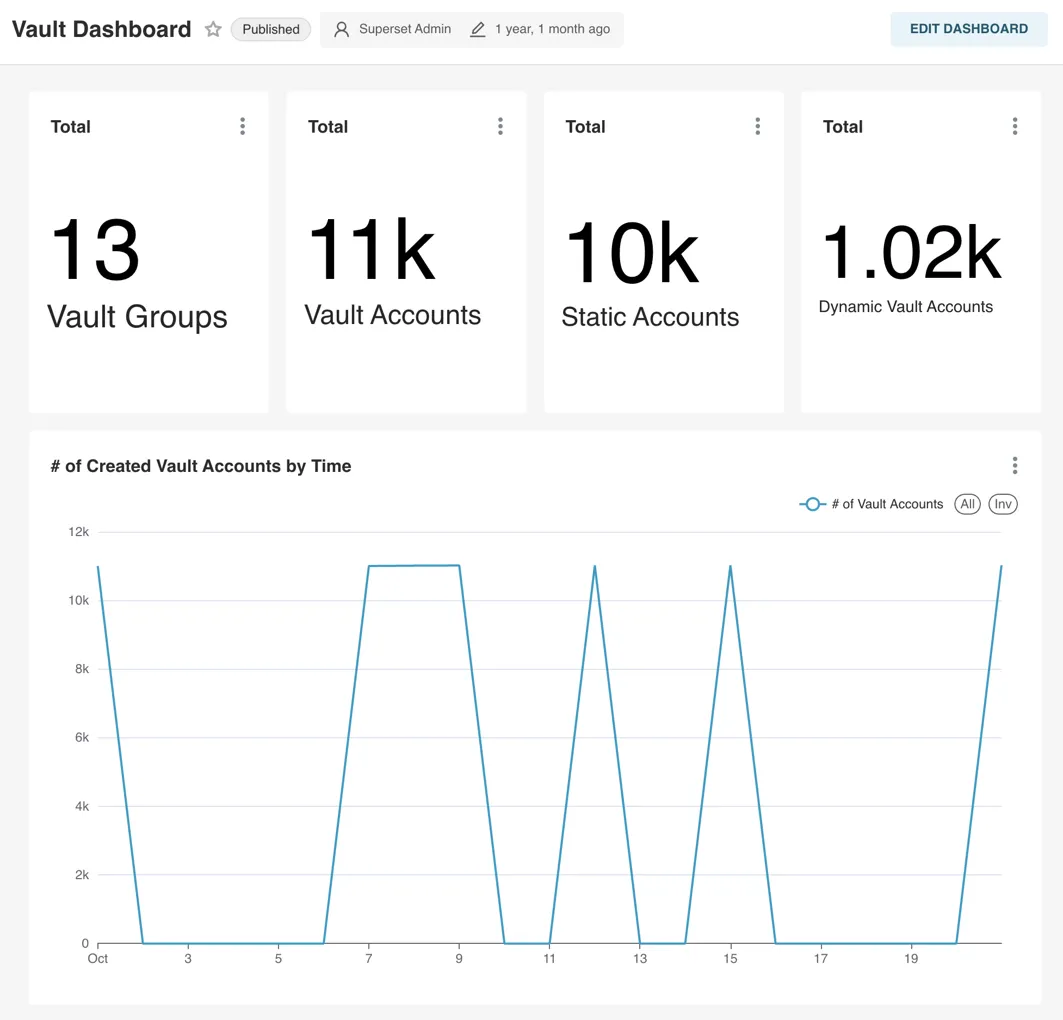
· The four Total charts show the total number of Vault groups, Vault accounts, static accounts, and dynamic Vault accounts.
· The # of Created Vault Accounts by Time chart shows the number of Vault accounts created over time.
Below these components, the dashboard has four tabs: All Data, This Month, This Week, and Last 24H. Each tab shows the data for its time period and includes the sections in the following topics.
Viewing Successful Password Checkouts
The Successful Password Checkout section includes the following components:
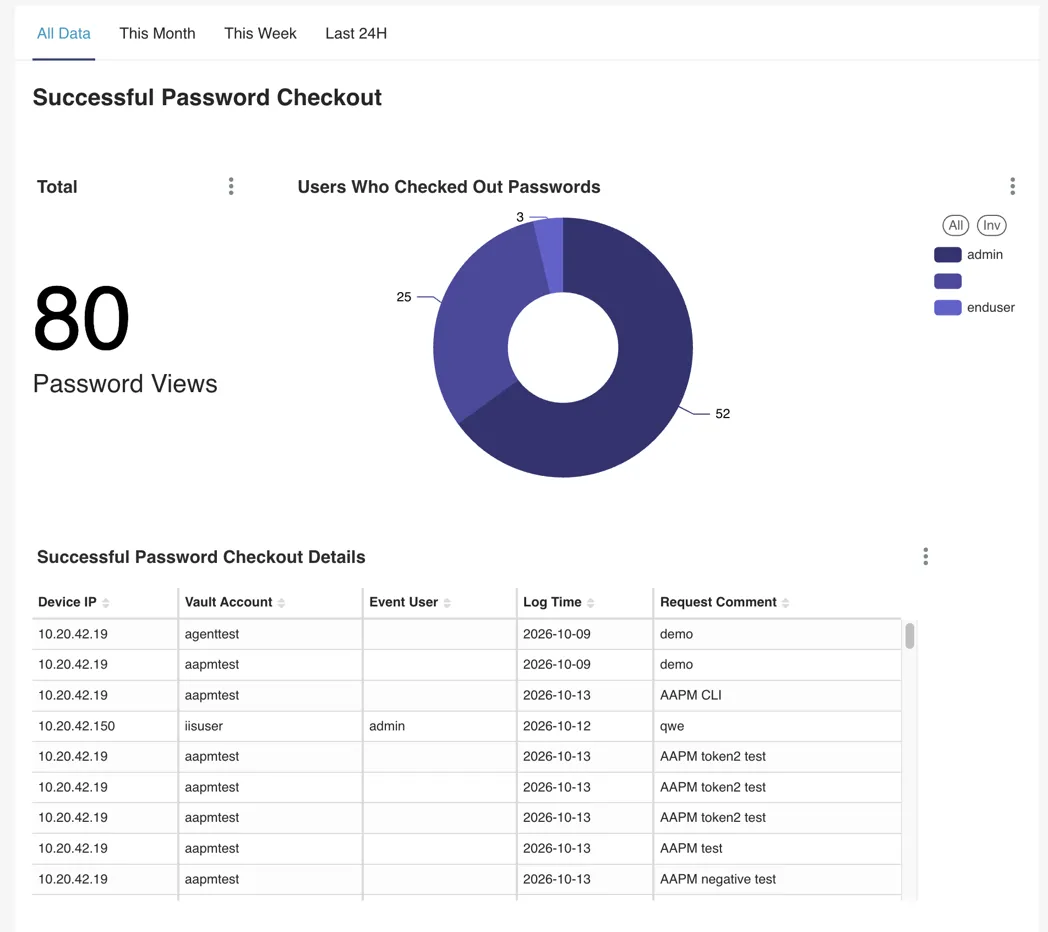
· The Total chart shows the total number of password views.
· The Users Who Checked Out Passwords chart shows the number of password checkouts for each user.
· The Successful Password Checkout Details table lists the Device IP, Vault Account, Event User, Log Time, and Request Comment values for each password checkout.
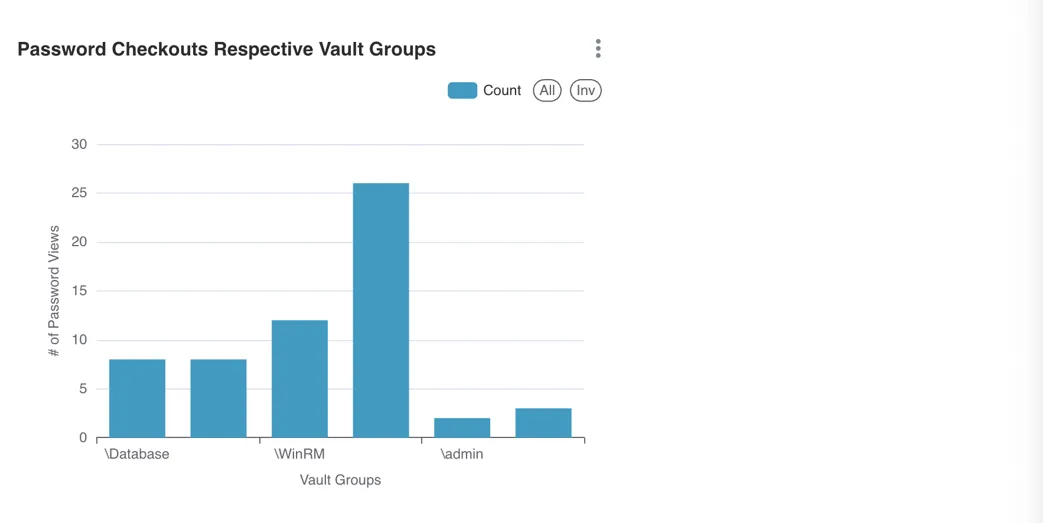
· The Password Checkouts Respective Vault Groups chart shows the number of password views for each Vault group.Vault Dashboard – Successful Password Checkouts section
Viewing Password Rotations
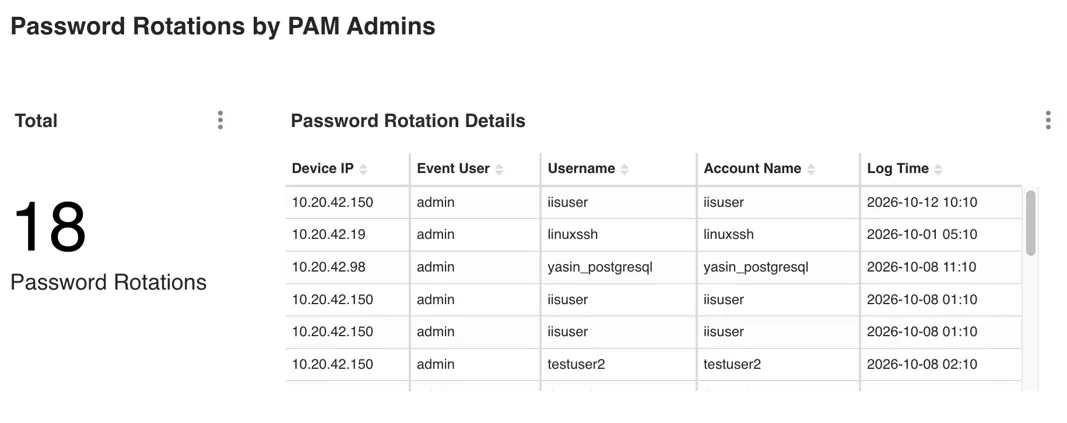
The Password Rotations by PAM Admins section includes the following components:
· The Total chart shows the total number of password rotations.
· The Password Rotation Details table lists the Device IP, Event User, Username, Account Name, and Log Time values for each password rotation.
Viewing Failed Password Rotations
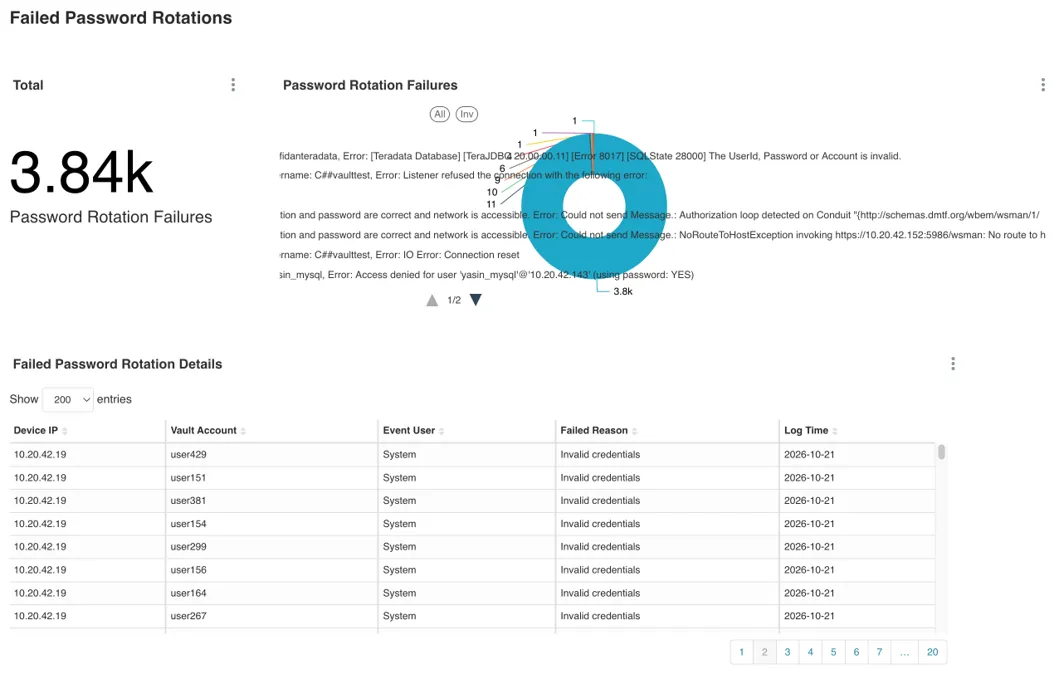
The Failed Password Rotations section includes the following components:
· The Total chart shows the total number of failed password rotations.
· The Password Rotation Failures chart shows the number of failed password rotations for each failure reason.
· The Failed Password Rotation Details table lists the Device IP, Vault Account, Event User, Failed Reason, and Log Time values for each failed password rotation.
Filtering Dashboard Data
The Filters panel on the left applies to all sections and tabs. Use the panel to narrow the data by Device, Event User, and Time Range.
Vault Error Report (24 Hours)
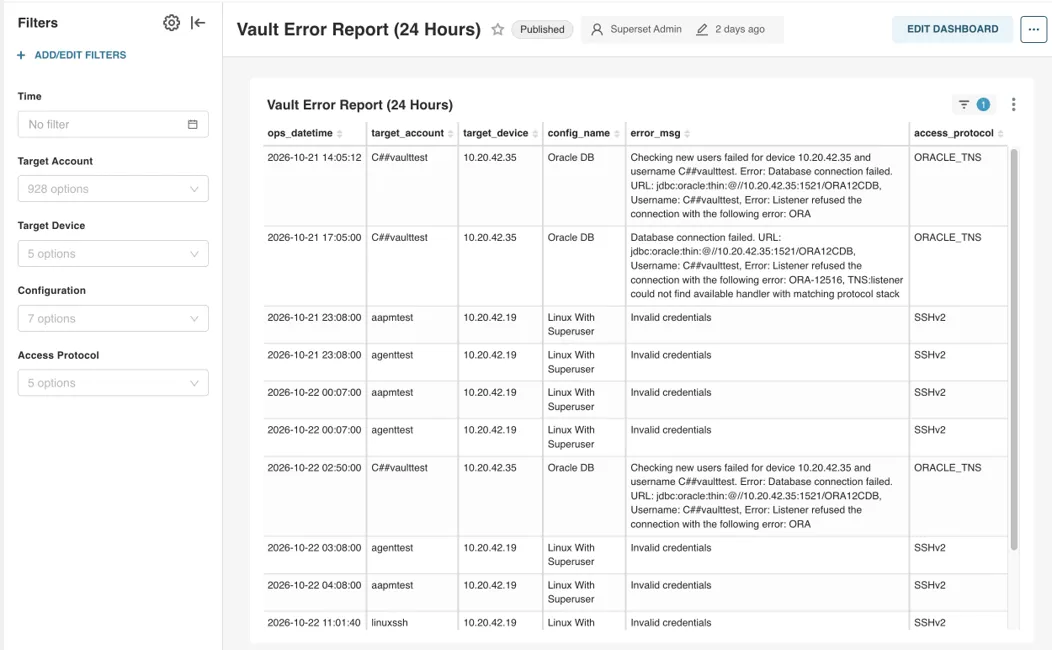
The Vault Error Report (24 Hours) dashboard lists the Vault errors that occurred in the last 24 hours.
To view the dashboard, follow these steps:
1. Navigate to Reports.
2. Select Vault Error Report (24 Hours).
The Vault Error Report (24 Hours) table lists the Operation Date Time, Target Account, Target Device, Config Name, Error Message, and Access Protocol values for each error.
Use the Filters panel on the left to narrow the data by Time, Target Account, Target Device, Configuration, and Access Protocol.
Vault Account List
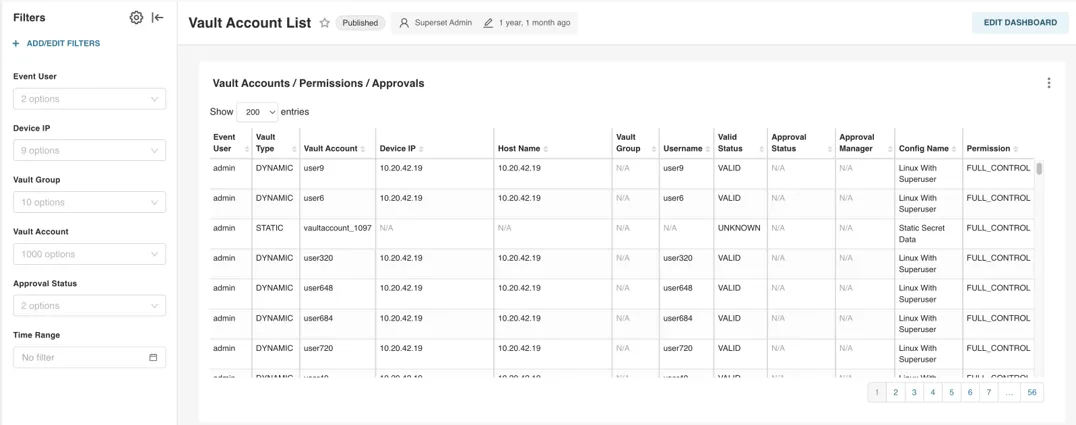
The Vault Account List dashboard lists Vault accounts along with their permissions and approvals.
To view the dashboard, follow these steps:
1. Navigate to Reports.
2. Select Vault Account List.
The Vault Accounts / Permissions / Approvals table lists the Event User, Vault Type, Vault Account, Device IP, Host Name, Vault Group, Username, Valid Status, Approval Status, Approval Manager, Config Name, and Permission values for each Vault account.
Use the Filters panel on the left to narrow the data by Event User, Device IP, Vault Group, Vault Account, Approval Status, and Time Range.
Password View History Dashboard
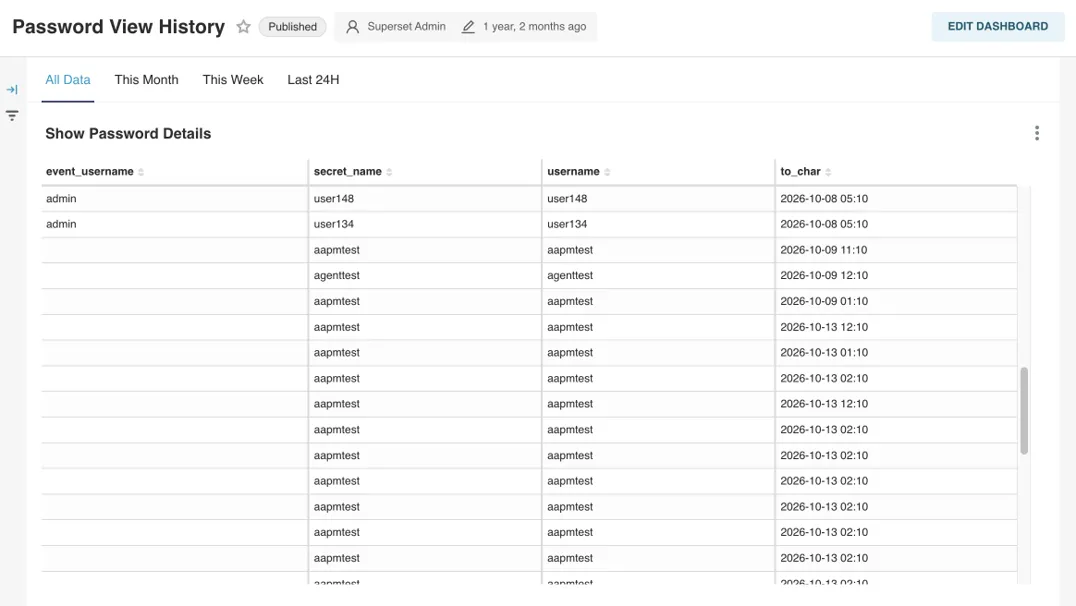
The Password View History dashboard shows the history of password views and password rotations.
To view the dashboard, follow these steps:
1. Navigate to Reports.
2. Select Password View History.
The dashboard has four tabs: All Data, This Month, This Week, and Last 24H. Each tab shows the data for its time period.
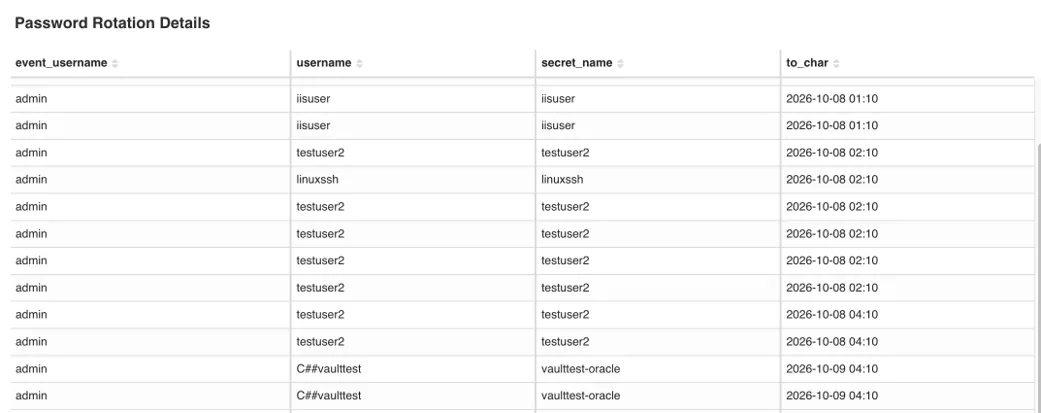
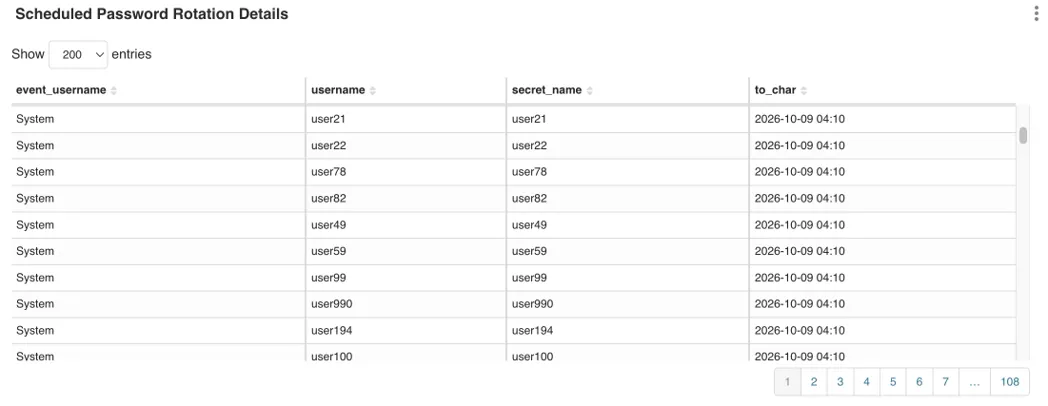
The All Data tab includes the following tables:
· The Show Password Details table lists the Event Username, Secret Name, Username, and Date-Time values for each password view.
· The Password Rotation Details table lists the Event Username, Username, Secret Name, and Date-Time values for each password rotation.
· The Scheduled Password Rotation Details table lists the Event Username, Username, Secret Name, and Date-Time values for each scheduled password rotation.
The This Month, This Week, and Last 24H tabs include only the Show Password Details table.
Compliance Index Report
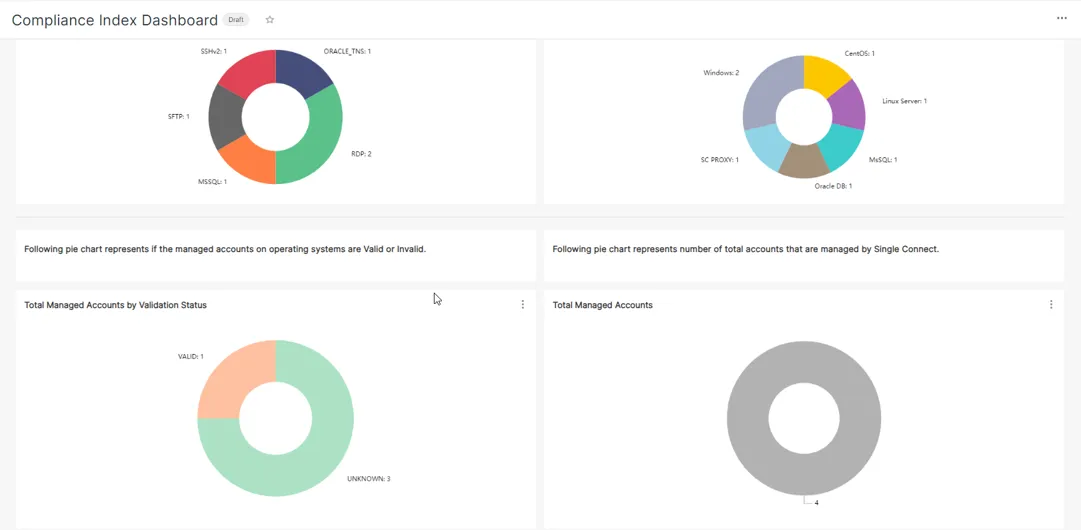
This report provides information on all the devices, grouped by their access protocol and element type. There are also charts and tables regarding all the accounts managed by Kron PAM. These are grouped in 3 criteria:
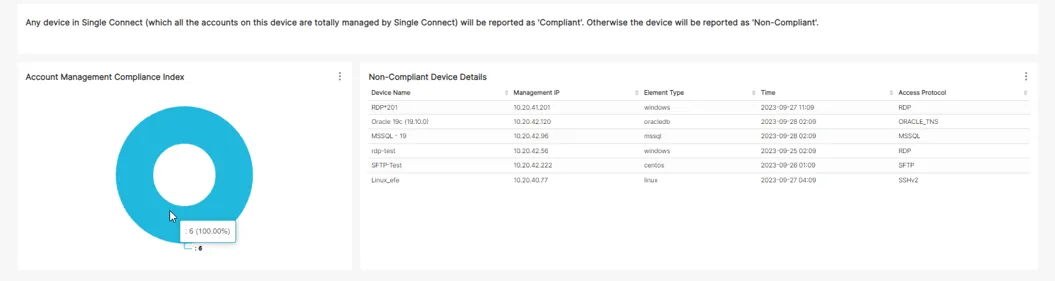
1. Account Management Compliance Index
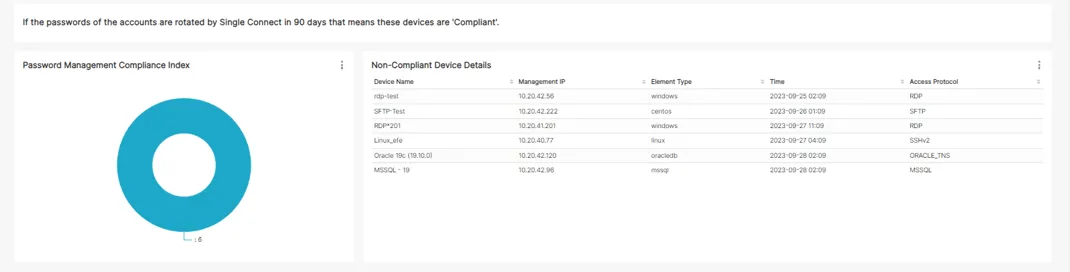
2. Password Management Compliance Index
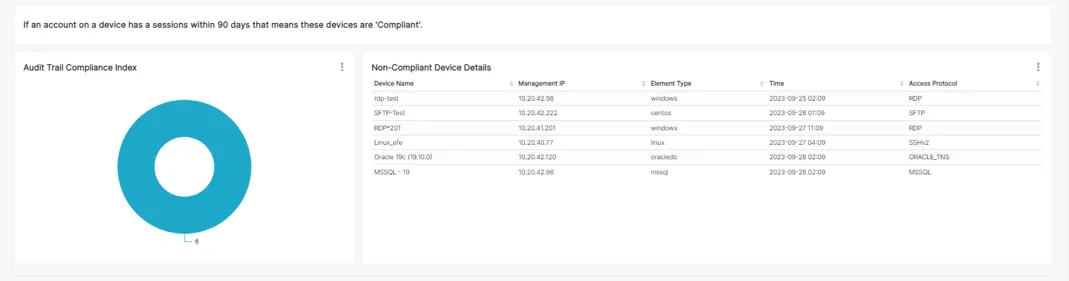
3. Audit Trail Compliance Index
If all the accounts on any device are managed by Kron PAM, they are reported as “Compliant” on the Account Management Compliance Index graph. “Non-Compliant” devices are listed with their details.
The Password Management Compliance Index graph indicates if the account passwords are rotated by Kron PAM or not. “Non-Compliant” devices are listed with their details.
The Audit Trail Compliance Index graph indicates if any account on a device had a session within the last 90 days or not. “Non-Compliant” devices are listed with their details.
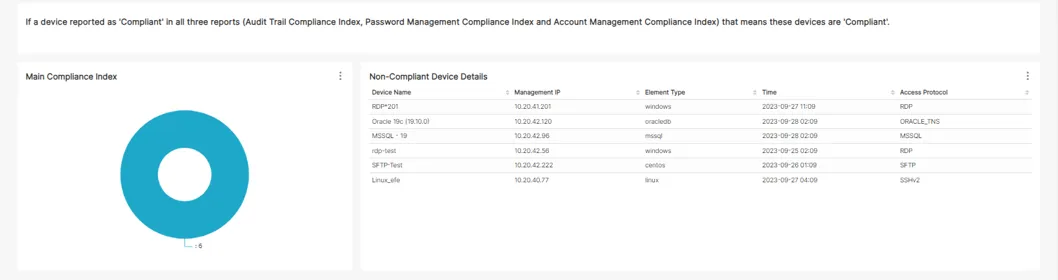
If a device is reported as “Compliant” in all three criteria, it is included as “Compliant” on the Main Compliance Index graph.