SAASPASS Configuration
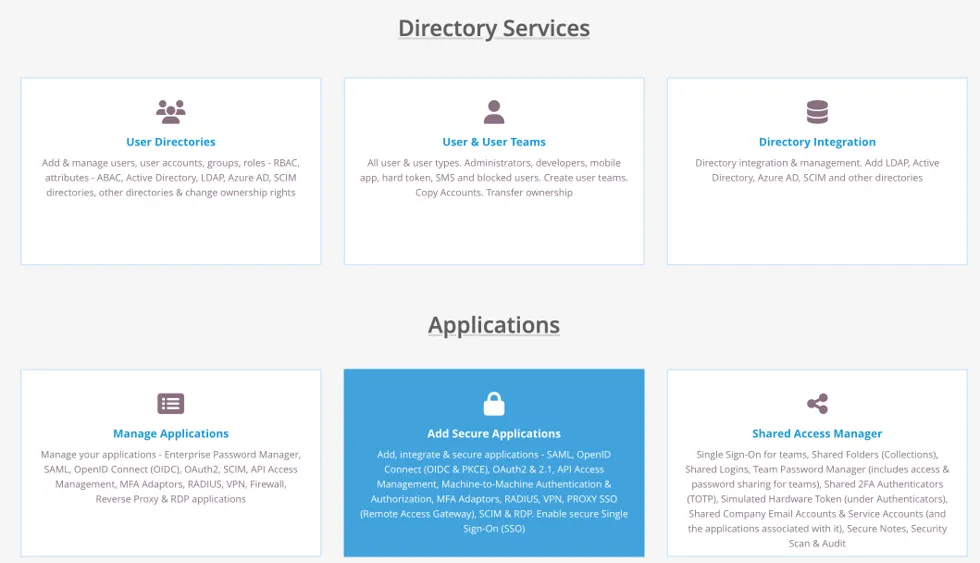
Login to your SAASPASS account, and go to the “Add Secure Applications”.
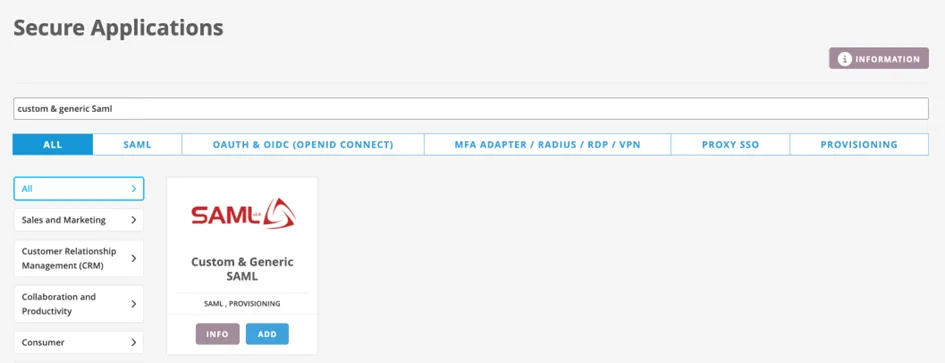
Then search for “Custom & Generic SAML” then click ADD:
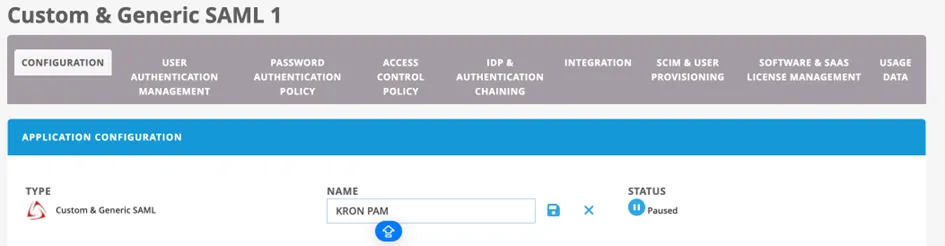
Give a name for your application at the first step on the Configuration step:
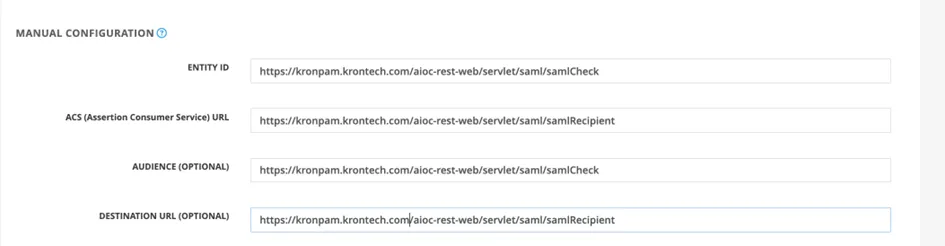
Then go to the Manual Configuration section of Application Configuration under the Configuration step and fill the information like below:
ENTITY ID | https://kronpam.krontech.com/aioc-rest-web/servlet/saml/samlCheck |
|---|---|
ACS (Assertion Consumer Service) URL | https://kronpam.krontech.com/aioc-rest-web/servlet/saml/samlRecipient |
AUDIENCE (OPTIONAL) | https://kronpam.krontech.com/aioc-rest-web/servlet/saml/samlCheck |
DESTINATION URL (OPTIONAL) | https://kronpam.krontech.com/aioc-rest-web/servlet/saml/samlRecipient |
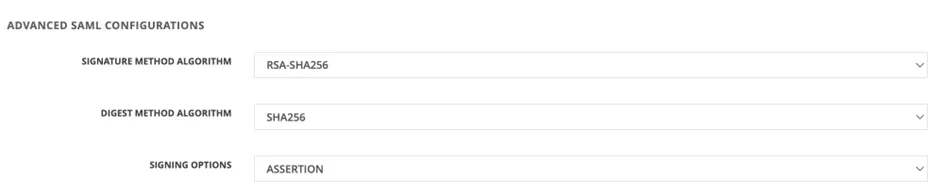
Then go to the “Advance SAML Configurations” section” under the Configuration step and set the following:
Field | Value |
|---|---|
SIGNATURE METHOD ALGORITHM | RSA-SHA256 |
DIGEST METHOD ALGORITHM | SHA256 |
SIGNING OPTIONS | ASSERTION |
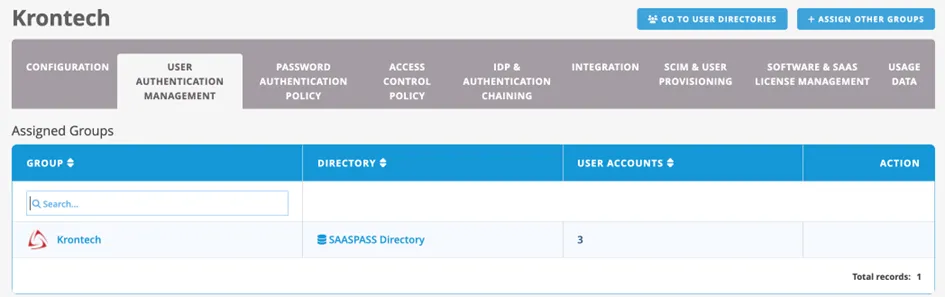
Now pass the second step “User Authentication Management” give the necessary users to access this application.
And jump to the “Integration” part of this page for the necessary configuration to apply on Kron PAM.
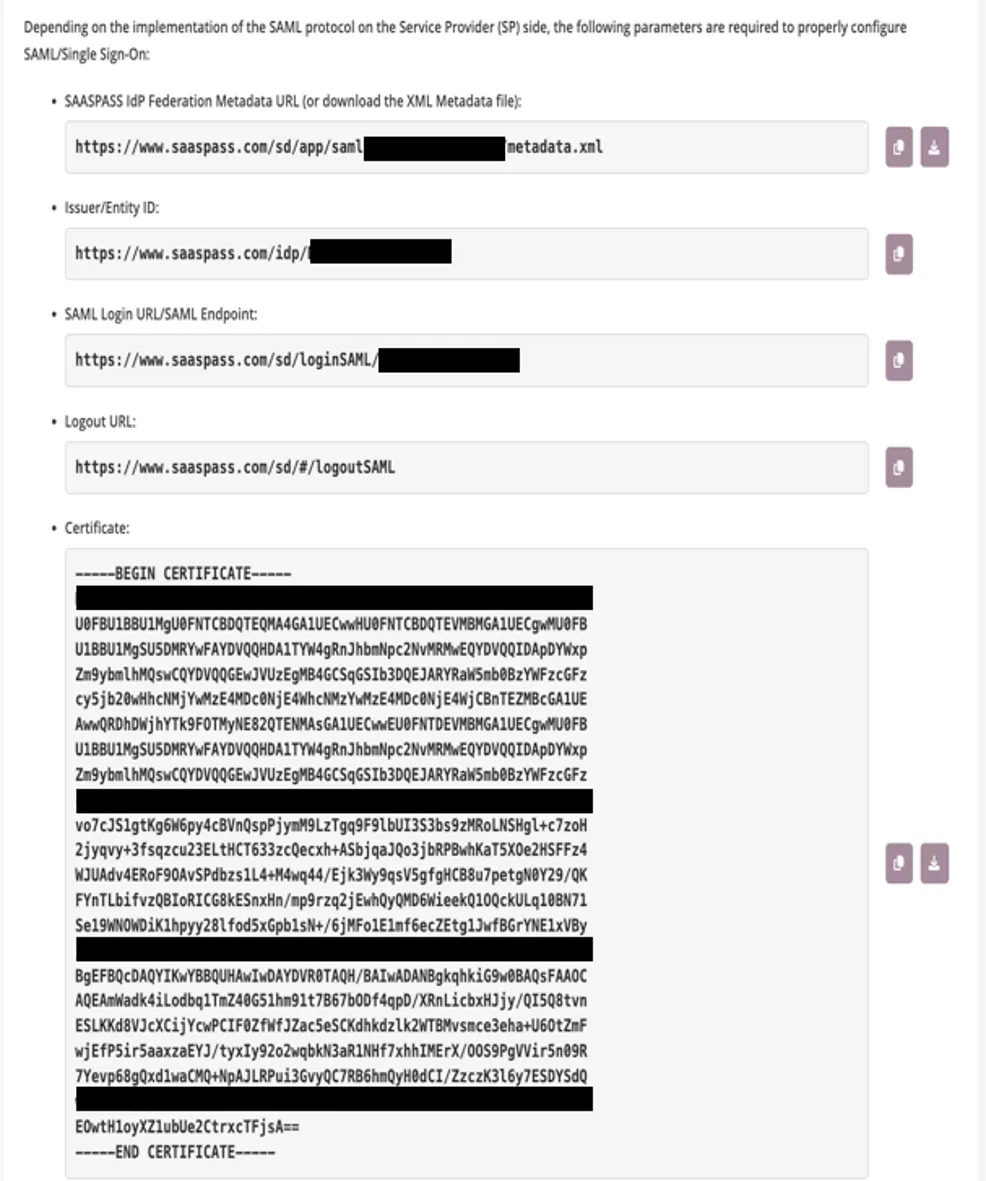
On Kron PAM Side:
1- Go to the System Configuration Manager
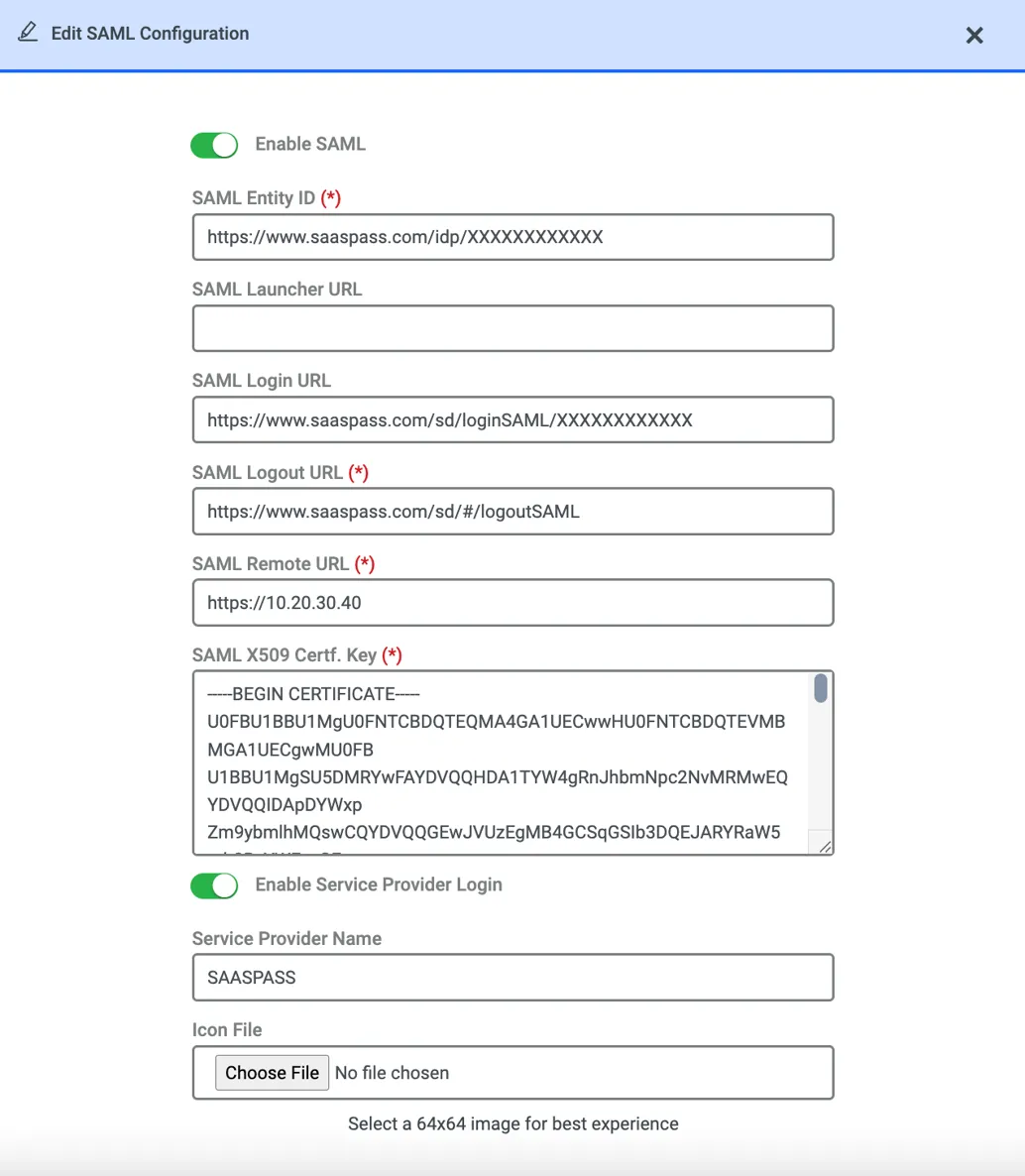
2- On Integrations tab click SAML Configuration Section then do the below configurations
3- Enable the SAML then enter the below information from SAASPASS to Kron PAM
SAASPASS | KRON PAM |
|---|---|
Issuer/Entity ID --> | SAML Entity ID |
SAML Login URL/SAML Endpoint--> | SAML Login URL |
Logout URL--> | SAML Logout URL |
Certificate --> | SAML X509 Certf. Key |
For SAML Remote URL : You can write KRON PAM’s DNS or IP address. No need to write something from SAASPASS.
SAML Launcher URL field is also optional.
Don’t forget to edit the Cors filter as explained on Azure AD Configuration.