Managing MCP Servers
Kron PAM lists the registered MCP servers on the MCP Servers tab. To open the tab, navigate to Devices > Inventory and click the MCP Servers tab. The Server Groups panel on the left lists the MCP Server Groups. Select a group to filter the Servers list.
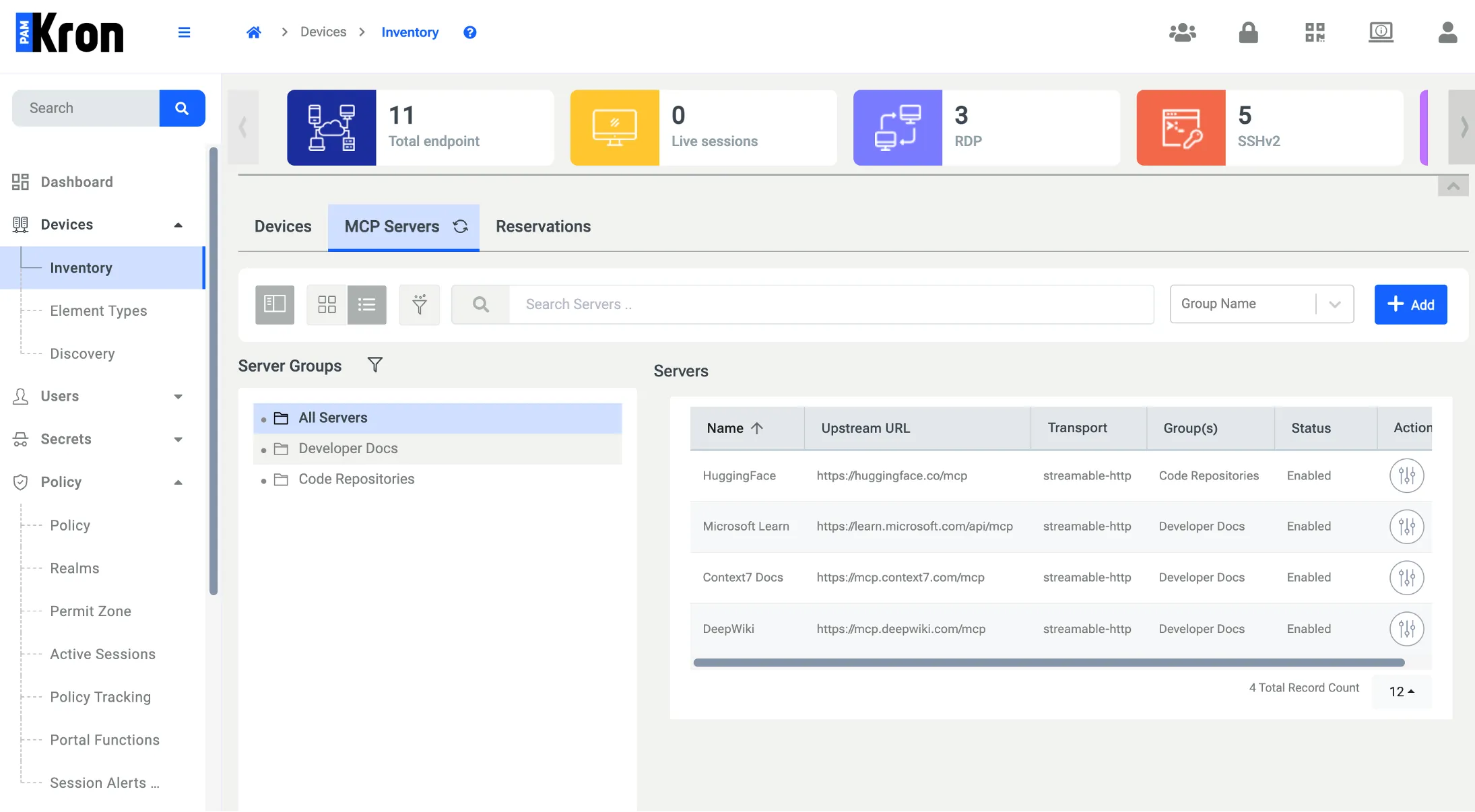
Adding an MCP Server
Register each MCP server that users reach through the gateway. Kron PAM stores the outbound credential of the server and never shows it to the users of AI clients.
To add an MCP server:
- Navigate to Devices > Inventory.
- Click the MCP Servers tab.
- Click the Add button.
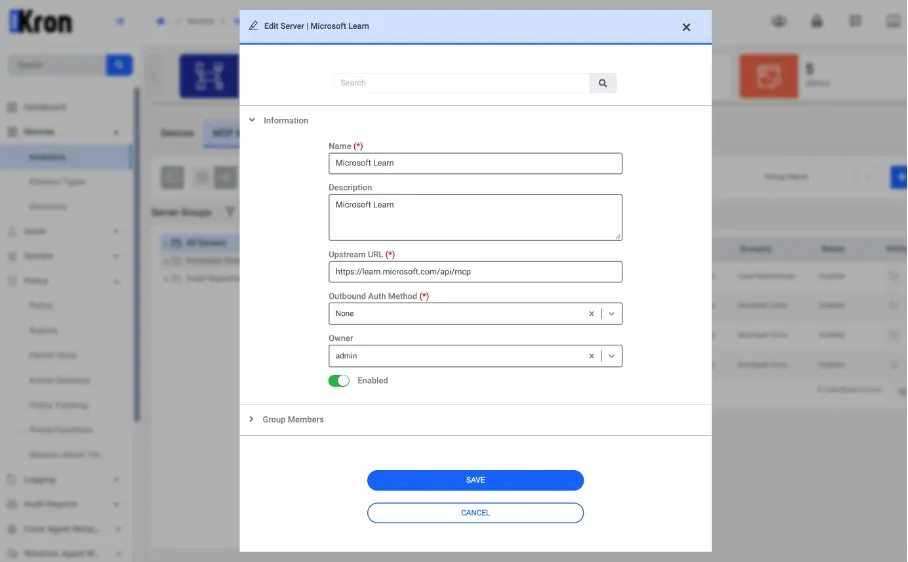
- In the Information section, fill in the fields described in Table 4.
- Expand the Group Members section and select one or more MCP Server Groups in the Group(s) field.
- Click the Save button.
Editing MCP Servers
Field | Description |
|---|---|
Name (required) | The name of the MCP server. |
Description | An optional description of the server. |
Upstream URL (required) | The MCP endpoint of the upstream server, for example https://learn.microsoft.com/api/mcp. |
Outbound Auth Method (required) | The method that the gateway uses to authenticate to the MCP server. Table 5 lists the methods. |
Outbound Credential | The token or password that the gateway sends to the MCP server. The field appears when the selected method requires a credential. |
Client Certificate | The client certificate for the mTLS method. Click the upload icon in the field to select the certificate file. |
Owner | The user who owns the MCP server record. Kron PAM uses the value for auditing only. |
Enabled | The status of the server. Kron PAM rejects every gateway request for a disabled server, even when a Realm authorizes the user. |
Outbound Authentication Methods
Method | Description |
|---|---|
None | The gateway connects without credentials. Use this method for public MCP servers. |
Basic | The gateway authenticates with a username and a password. |
Bearer | The gateway sends the value of the Outbound Credential field as a bearer token. |
mTLS | The gateway authenticates with the client certificate that you upload. |
MCP Server Actions
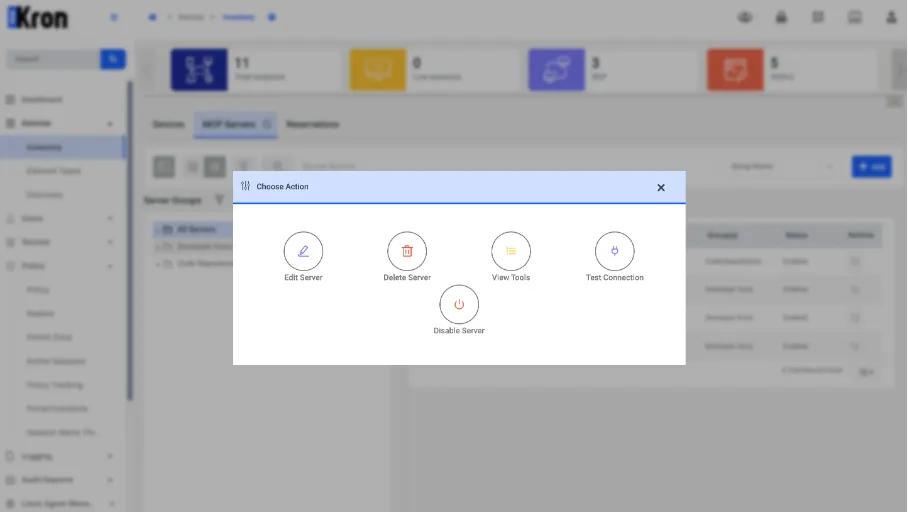
Click the icon in the Actions column of a server to open the Choose Action modal.
Action | Description |
|---|---|
Edit Server | Opens the server definition for editing. |
Delete Server | Deletes the server definition after confirmation. |
View Tools | Opens the cached tool catalog of the server. |
Test Connection | Connects to the upstream URL with the saved outbound authentication method and shows the result as a success or failure notification. The test does not evaluate Realms. |
Disable Server / Enable Server | Changes the status of the server. Kron PAM denies every gateway request for a disabled server. |
Viewing and Refreshing the Tool Catalog
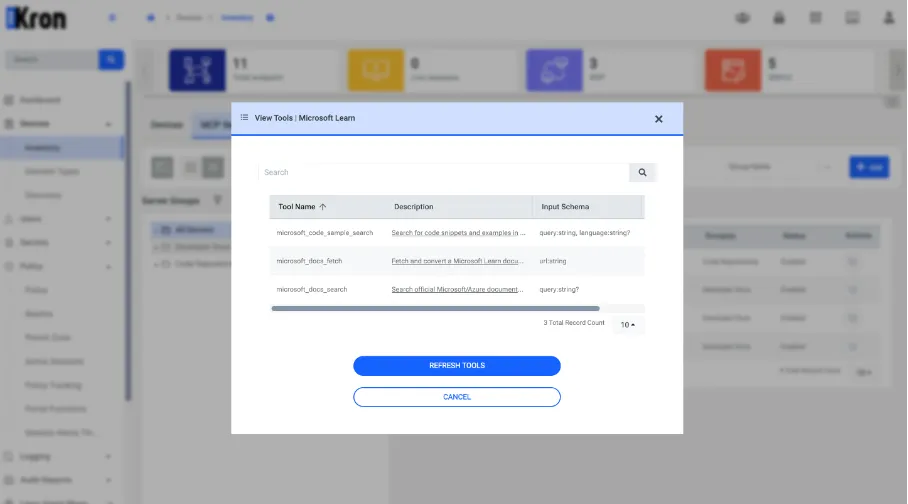
Kron PAM keeps a cached catalog of the tools that each MCP server exposes. The gateway answers the list_tools requests of AI clients from this cache, and administrators review the cache in the View Tools modal.
To view and refresh the tools of an MCP server:
- Navigate to Devices > Inventory and click the MCP Servers tab.
- Click the icon in the Actions column of the server.
- Click View Tools. The modal lists the Tool Name, Description, Input Schema, and Tags of each cached tool.
- Click a truncated value to open the full text in the Information modal.
- Click the Refresh Tools button to discover the tools of the server again. When the discovery succeeds, Kron PAM updates the cache and shows the "Tools refreshed" notification.
Scheduling Tool Discovery
The MCP Tool Discovery Job refreshes the tool catalogs of all enabled MCP servers on a schedule. The job uses the same discovery mechanism as the Refresh Tools button.
To schedule tool discovery:
- Navigate to Administration > Job Scheduler.
- Click the Trigger List tab, then click the Add Trigger button.
- Select McpToolDiscoveryJob from the Job list.
- Enter a Trigger Name, for example MCP Tool Catalog Hourly Sync.
- Enter a Cron Expression for the frequency of the job.
- Set the trigger to active and save it.
To run the job immediately, select Options > Trigger Now on the trigger. Review the results on the Logs tab of the Job Scheduler.
Authorizing Access with Realms
Realms connect Kron PAM user groups to MCP Server Groups. A user can use an MCP server through the gateway only when an enabled Realm contains a user group of the user and an MCP Server Group that includes the server.
To create an MCP Realm:
- Navigate to Policy > Realms.
- Click the Add button.
- Enter the Realm Name and an optional description.
- Select the user groups that need access.
- Select the MCP Server Groups that the user groups can access.
- Save the Realm.
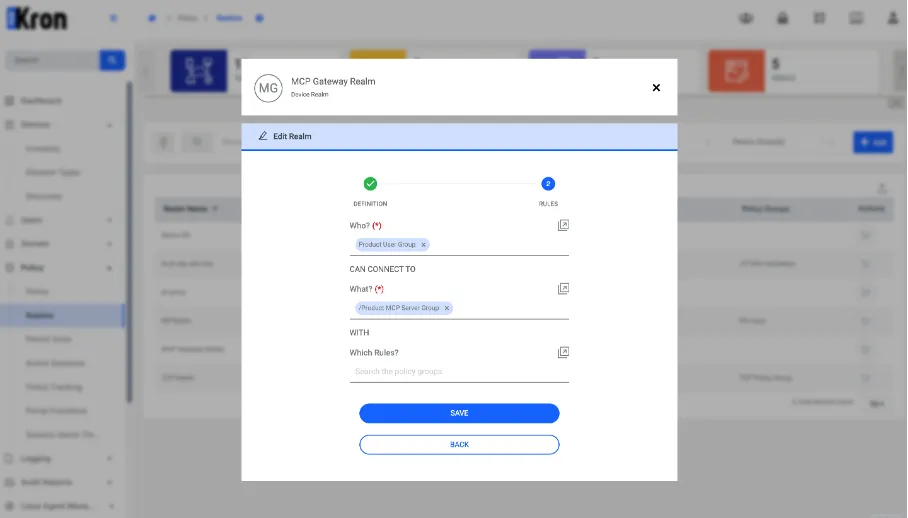
On the Realms page, the MCP Server Groups of a Realm appear in the Device Group(s) column.
Authorization Order
The gateway checks every request in the following order:
- First priority: the MCP_GATEWAY license. Without the license, the gateway rejects the request before authentication.
- Second priority: a valid gateway session. Without a session, the gateway returns a sign-in link.
- Third priority: the status of the MCP server. The gateway rejects every request for a disabled server, even when a Realm authorizes the user.
- Last priority: the Realms. The gateway forwards the request when at least one enabled Realm matches the user and the server.